

Publishing
To share a video with your audience, you need to publish it.
Video publishing
Publishing creates a shareable link for your project, and enables the option to embed it or export it as a SCORM package to upload to your LMS.
Embeds, the project's share page link, and SCORM packages all load the Synthesia-hosted player, so they automatically show your latest edits once you reshare the video—creating a new draft version alone doesn't push it live. A downloaded .mp4, on the other hand, is static: after editing your video, you'll need to re-download it and manually replace the file wherever you uploaded it.
Note:The share page link isn't discoverable via search engines, and isn't listed anywhere in Synthesia—someone can only access the video if you share the link with them directly, embed it somewhere, or upload it to your LMS as a SCORM package.
If you want to share your video as an embed or SCORM package without exposing the share page link, see
Disable public project pagein administrator controls for publishing.
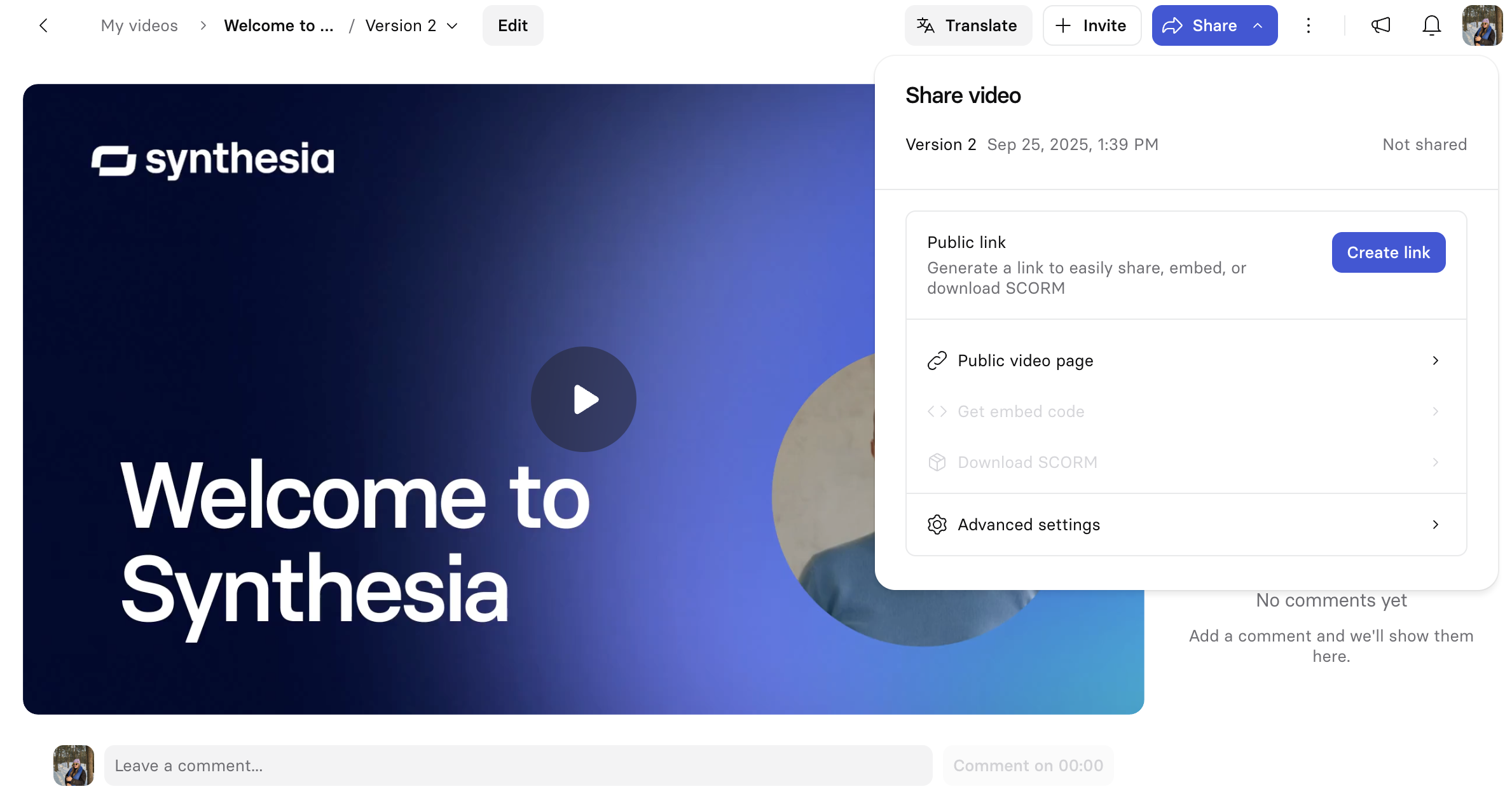
To publish your video:
- Select
Sharein the upper-right corner of the video overview page. This button relabels toSharedonce you've created a link. - In the Share video panel, select
Create linkunder Public link.
Once the link is live, Public link shows a Live status, and you can:
-
Select
Copy linkto copy it. -
Access the Get embed code and Download SCORM package options.
-
Select
Delete linkto take the video down.Deleting the link takes the video down everywhere it's shared, not just the standalone link—any embeds using the embed code provided, and any videos already uploaded to your LMS via a SCORM package, stop working too, until you create the link again.
If you want to share your video as an embed or SCORM package without exposing the share page link, see
Disable public project pagein administrator controls for publishing.
Version control
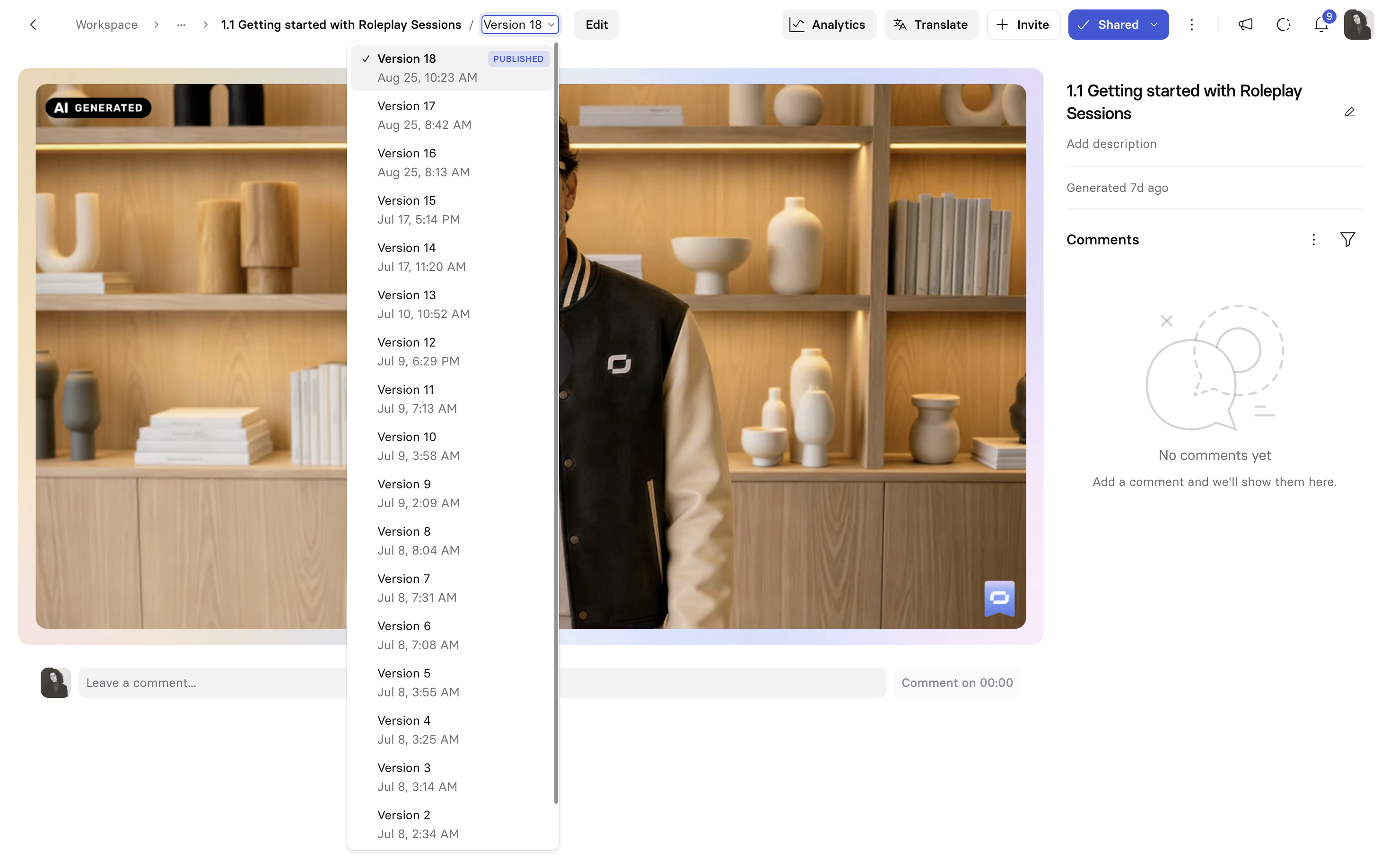
From the top bar, you can select any generated version of your video and decide which one should go live by sharing it. This way, you can revert to a previous generated version if needed, or generate a new version in advance of an upcoming change, and publish the new version when the change goes live:
For more granular version control, you can view auto-saves from Version history when you edit the video in the editor.
Sharing
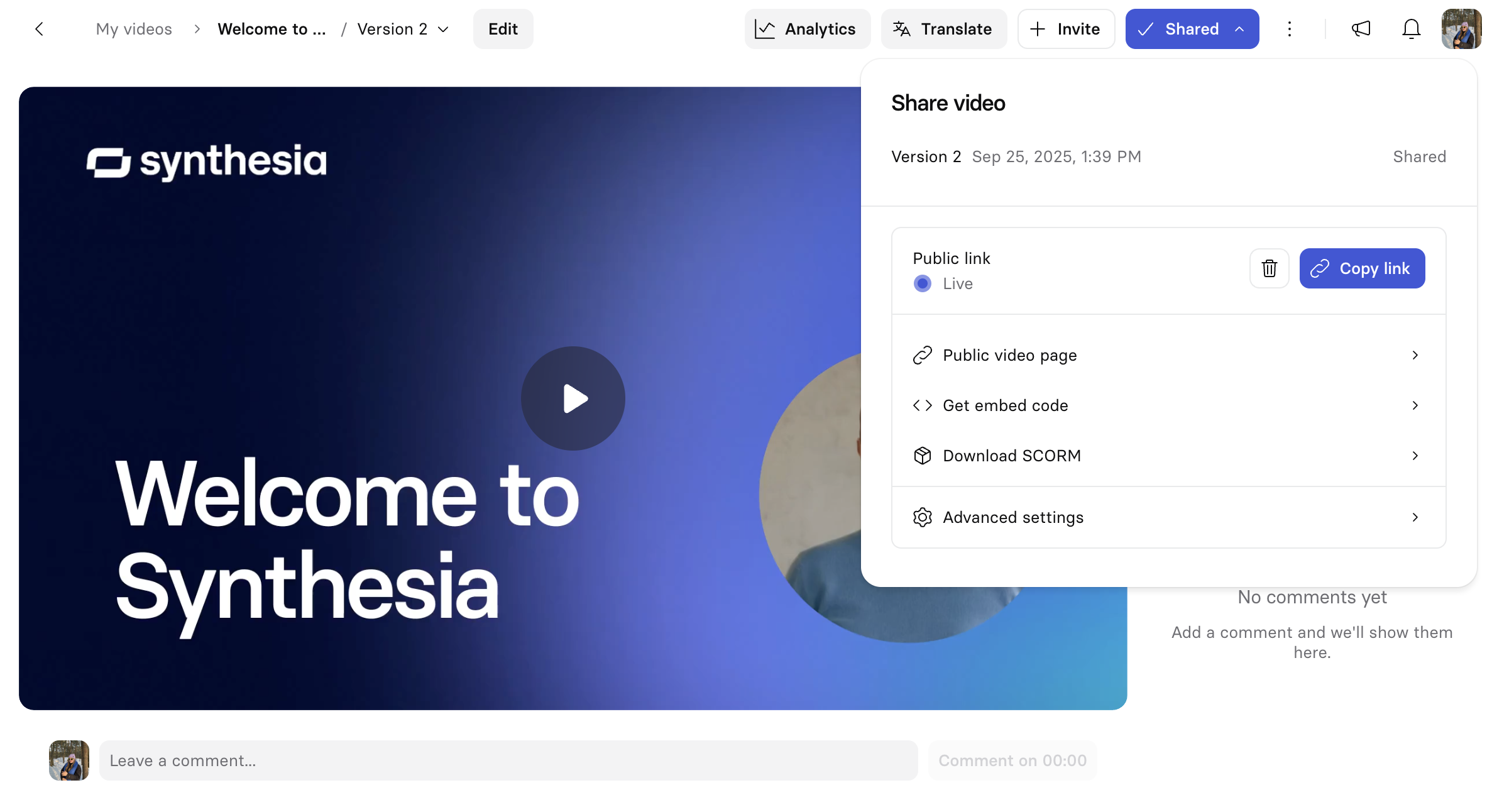
Once your link is live, the Share video panel gives you three more destinations:
| Option | Description |
|---|---|
| Public video page | Configure the options on the video's share page (whether viewers can duplicate the video, and whether or not to display a call-to-action button below the video). |
| Get embed code | Copy/save a GIF thumbnail for the video and copy an embed code to embed your video in another website with an iframe. |
| Download SCORM | Export your video as a SCORM package to embed the Synthesia video player in your Learning Management System and track your learners' video completion rates and quiz scores. |
The panel also has an Advanced settings option, for controlling who can access the video at all—see Advanced settings below.
Note:Neither SCORM nor a regular embed supports resuming a video from where a learner left off—if they leave and come back, the video restarts from the beginning.
Embed
Add a Synthesia video to your website or blog by embedding it:
- Select
Get embed codefrom the Share video panel. - Select
Copy embed codeto copy the HTML code. - Paste the code into the HTML of your website.
SCORM export
Export your video as a SCORM package to embed the Synthesia video player in your Learning Management System (LMS) and track your learners' completion.
SCORM export is an Enterprise plan feature.A fully self-contained, offline SCORM package that doesn't rely on the Synthesia-hosted player is not available as a standard feature.
When you add a Synthesia video to your LMS by uploading a SCORM package, the Synthesia video player is embedded in your LMS. Since the video is added to your lesson as an embed, your learners have access to all of the features included with Synthesia's video player, such as chapters, captions, and any translations you've published.
Interactive videos, including quizzes, can also be exported as SCORM packages. Completion and quiz scores will be reported in your LMS. See Interactivity for more on how quiz responses are and aren't reported via SCORM, and for other considerations specific to interactive elements.
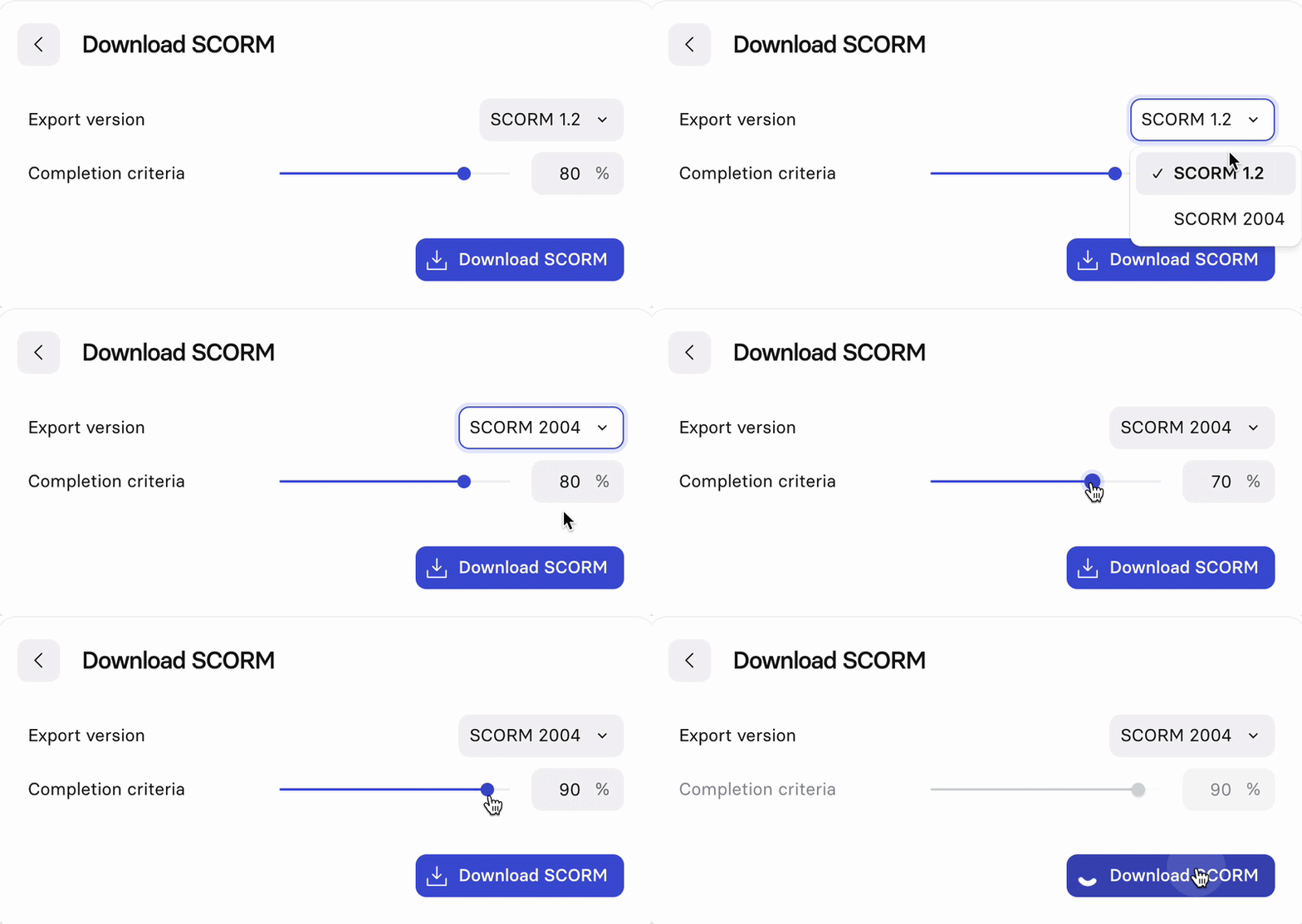
Select Download SCORM from the Share video panel:
- Export version:
SCORM 1.2orSCORM 2004. - Completion criteria: The percentage of the video your learners need to watch for it to be marked complete in your LMS. Drag the slider or edit the text field.
- Record learner identity: Off by default. See Video analytics for what this changes and why you might want it on.
Select Download SCORM to download the .zip file. The file size will be under 100KB, since the SCORM package adds an embed of your video hosted by Synthesia instead of including an .mp4 file. This also means that your video will update in your LMS dynamically whenever you reshare a new version.
Note:For interactive videos, Completion criteria isn't available to set directly—it's fixed at 100%. An interactive video is marked complete only when the learner reaches the scene designated as the end of the video, or, for a video with a graded quiz, the scene with the results component. See Interactivity for how to set an end scene and for quiz specifics.
Completion and score are reported separately. Without a scored quiz and results component, your LMS shows a completed video as complete but reports a score of 0, since no score data is being sent. To get an auditable pass score reported, add a scored quiz with pass criteria.
Video thumbnail
Select Get embed code from the Share video panel to access the video's animated GIF thumbnail:
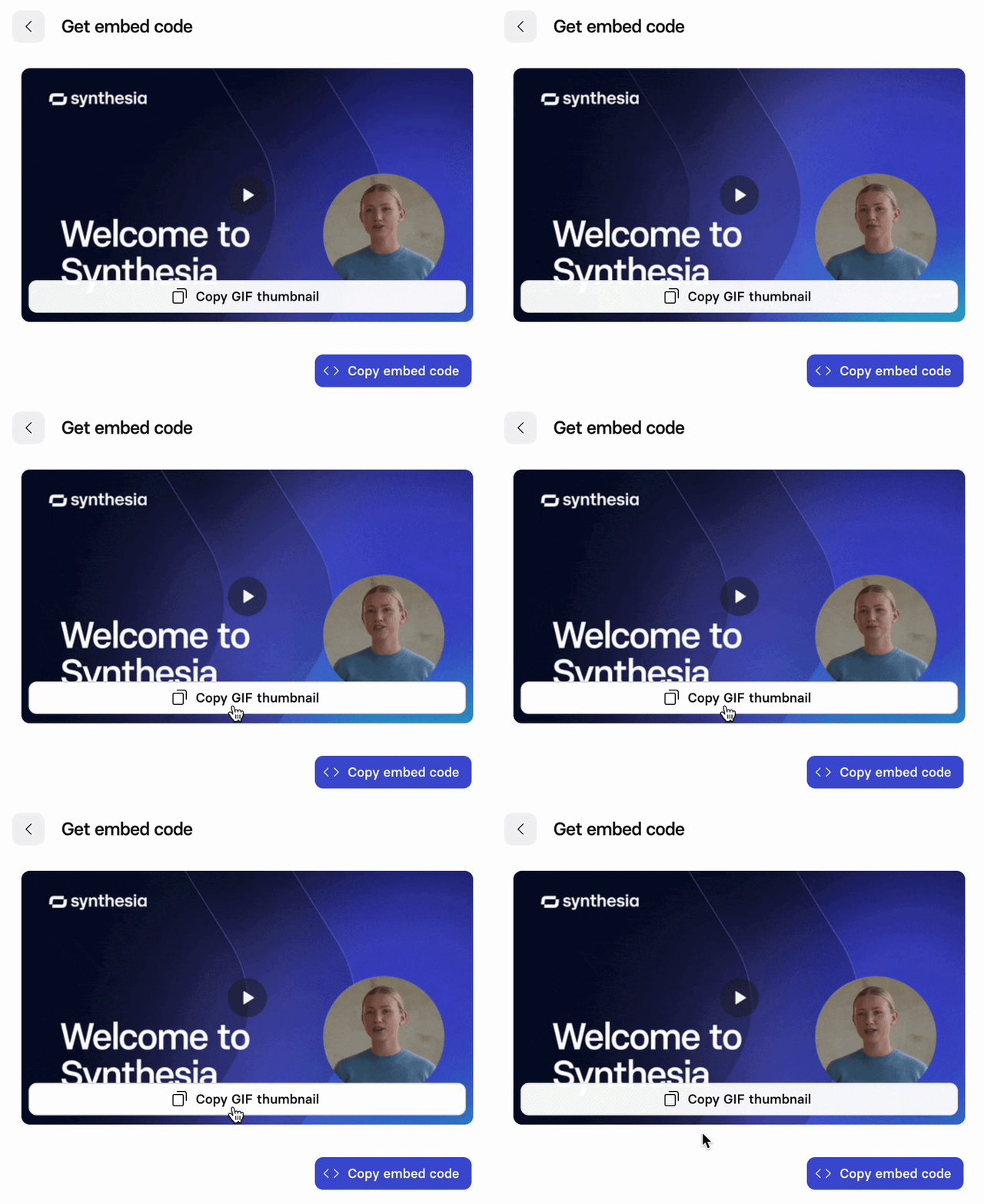
Select Copy GIF thumbnail to copy it to your clipboard. When pasted in your emails, blog posts, articles, and elsewhere, the copied GIF acts as a clickable link to the video's share page.
Tip:Static and animated GIF thumbnails for your video can also be downloaded via Synthesia's API.
You can also right-click the thumbnail preview and select
Save image as...to save it directly, using your browser's standard save option.
Note:You can't select a specific frame to use as the thumbnail, or upload a custom one—it's generated automatically.
Share page settings
Select Public video page from the Share video panel to configure the video's share page:
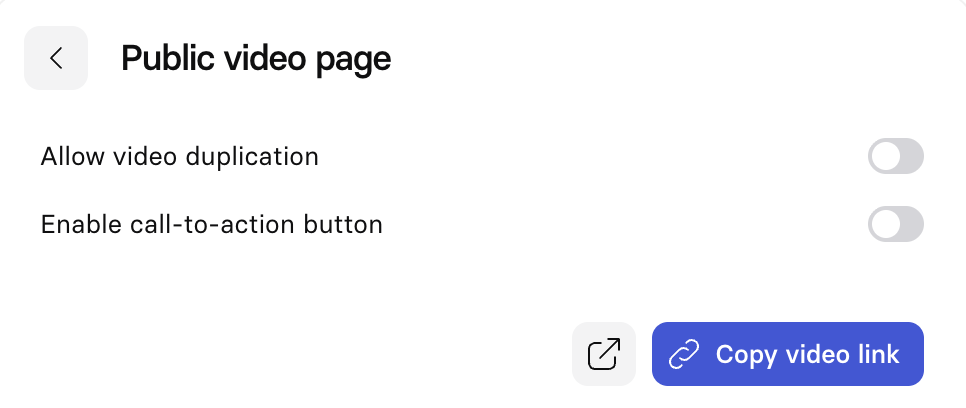
There are two toggles for the video's share page, both off by default:
| Option | Description |
|---|---|
| Allow video duplication | Allow your viewers to create a copy of the video in their own Synthesia account. |
| Enable call-to-action button | Displays a call to action at the bottom-right of the video on the share page. |
Turning on Enable call-to-action button reveals two fields to configure it:
- Label: The text shown on the button (for example, "Click here!").
- Link: The URL the button opens.
These settings control the button's content and whether it appears—not its look. To change the share page's visual style, including the call-to-action button's colors, go to the Publishing section of Workspace settings.
Note:Workspace and organization admins can override or restrict these settings—see Administrator controls for publishing below.
Here's what the video's share page looks like with both video duplication and the call-to-action button enabled:
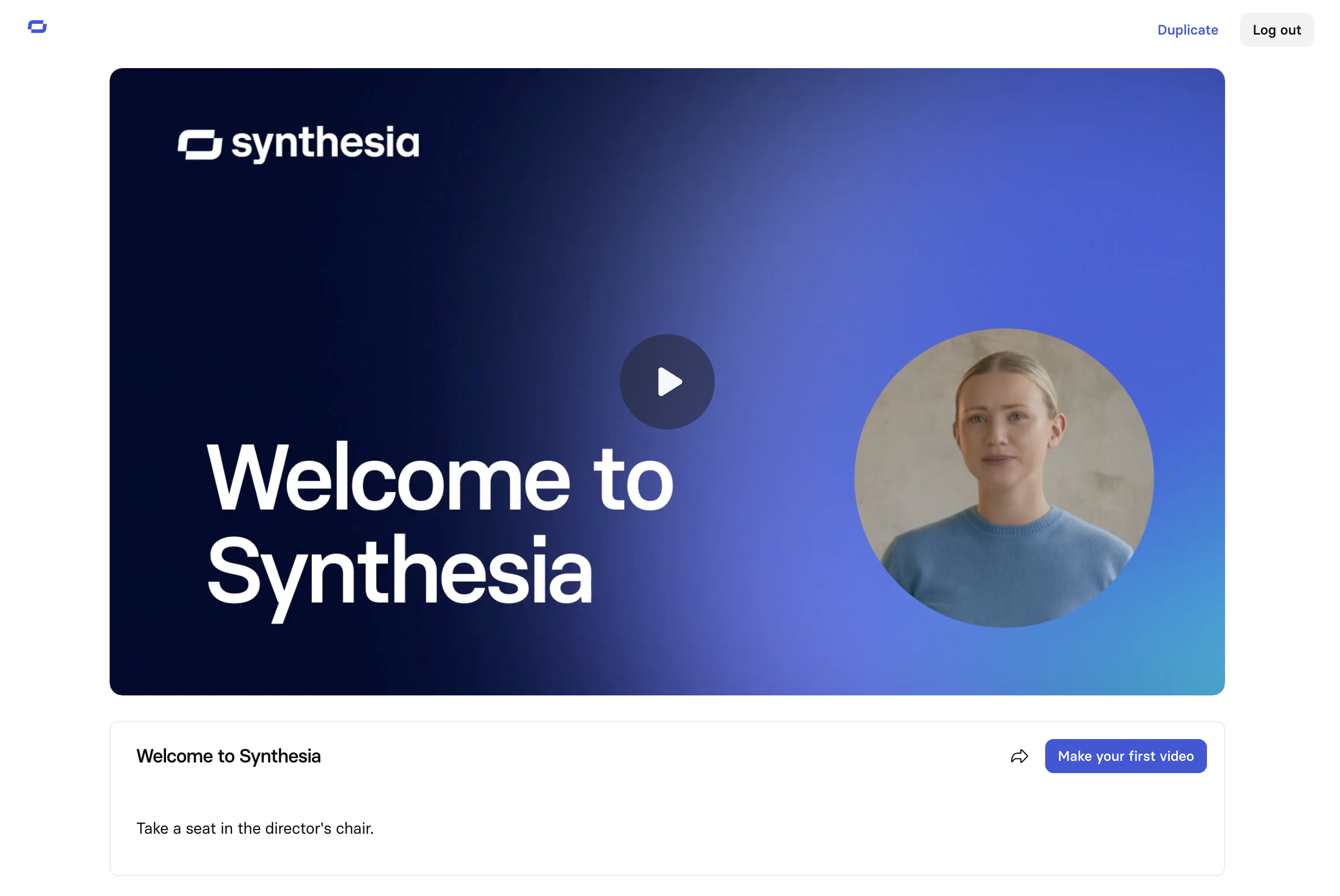
At the bottom of this screen, you can also open the share page directly, or select Copy video link to copy it without going back to the main Share video panel.
Advanced settings
Select Advanced settings from the Share video panel. These settings apply to the video's external links, embeds, and SCORM export:
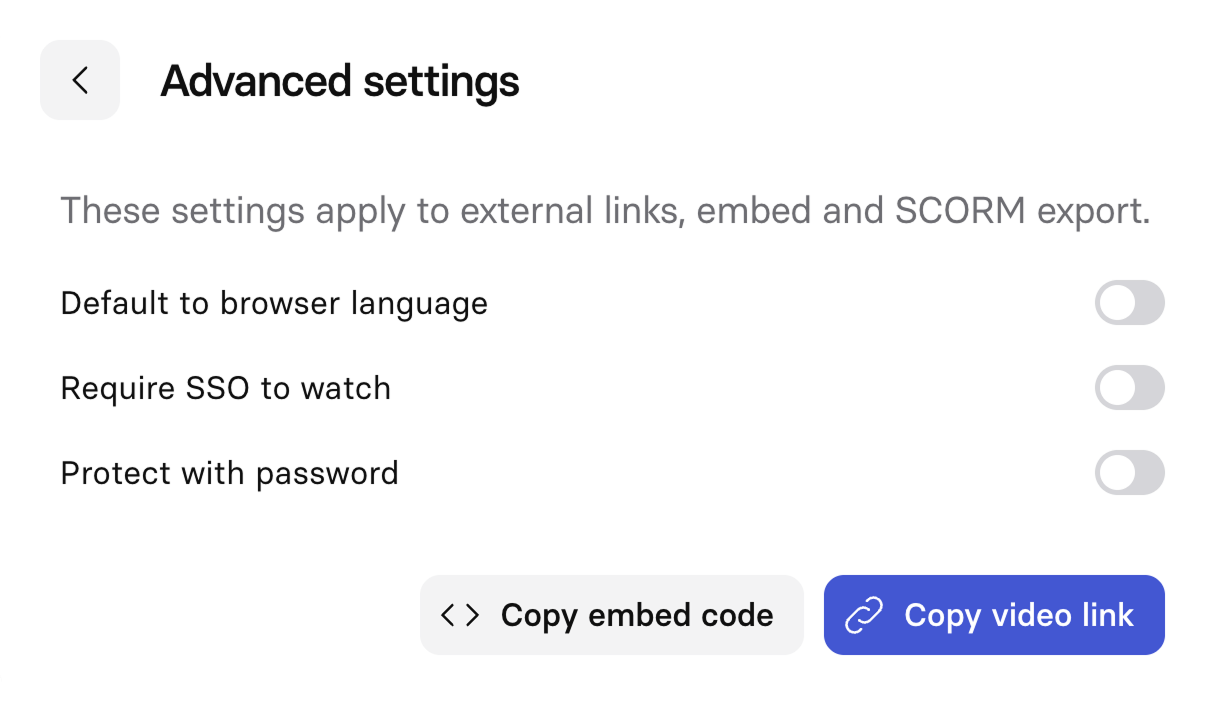
There are three options for advanced settings, all disabled by default:
| Option | Description |
|---|---|
| Require SSO to watch | Require SSO authentication before anyone can view the video on the share page, in embeds, or via SCORM. |
| Protect with password | Require a password before anyone can view the video on the share page, in embeds, or via SCORM. |
| Default to browser language | Available if your video is translated into multiple languages. The multilingual player detects the viewer's browser language and serves the matching version when available. This setting is only visible for translated and dubbed videos. |
Note:Workspace and organization admins can override these settings too—see Administrator controls for publishing below.
From this screen, you can also select Copy embed code or Copy video link, without going back to the main Share video panel.
Administrator controls for publishing
Workspace and organization admins can set overrides for the per-video sharing options on this page. Organization-level settings apply to every workspace in it; workspace-level settings apply to just that workspace. Set these from Workspace settings or Organization settings.
| Setting | What it does | Overrides |
|---|---|---|
Disable project publishing | Prevents publishing videos, and unpublishes all currently published videos. | The ability to publish at all. |
Require authentication for published projects | Requires SSO authentication to watch any published video. | The per-video Require SSO to watch setting. |
Disable public project page | Prevents creating a public share page for a published video—meant to limit sharing to just embeds and SCORM packages. | The standalone share-page link as a distribution route. |
Workspace admins can also:
- Restrict which domains a workspace's videos can be embedded on, using Where can your projects be embedded?. Combined with
Disable public project page, this can lock a workspace's videos down to a single destination—for example, restricting them to only be viewable via embed or SCORM package on their own LMS domain. - Control the share page's visual design, including the call-to-action button's colors, from the Publishing section of Workspace settings.
Updated 4 days ago