

Animations & Effects
Apply animations and effects to avatars and elements.
Bring elements to life by animating when they appear and disappear, and by adding effects like camera zooms, emphasis, and avatar angle changes. Every animation and effect is tied to your script through triggers, so it happens exactly when you want it to.
Animations and effects can be applied to Avatars, text elements, shape elements, dynamic captions, media elements, interactive elements, and groups of elements.
Triggers
Triggers are how you set up every animation and effect: they tie an entrance, exit, or effect to a specific word (or pause) in your script, so it happens exactly when that word is spoken, or when that pause occurs.
Every element already has a default entrance trigger at the start of the script and a default exit trigger at the end. To have an entrance or exit happen somewhere else instead:
- Select the element you want to animate on the canvas.
- Hover over the word (or pause) where you want it to happen instead. A blue
+icon appears, with aClick to edittooltip. - Select the
+icon, then chooseEntranceorExit. This reassigns that element's default entrance or exit trigger to fire at this new point in the script.
Use the same + icon and tooltip to add an effect at a word or pause—effects don't have a default trigger, so this always creates a new one rather than reassigning an existing one.
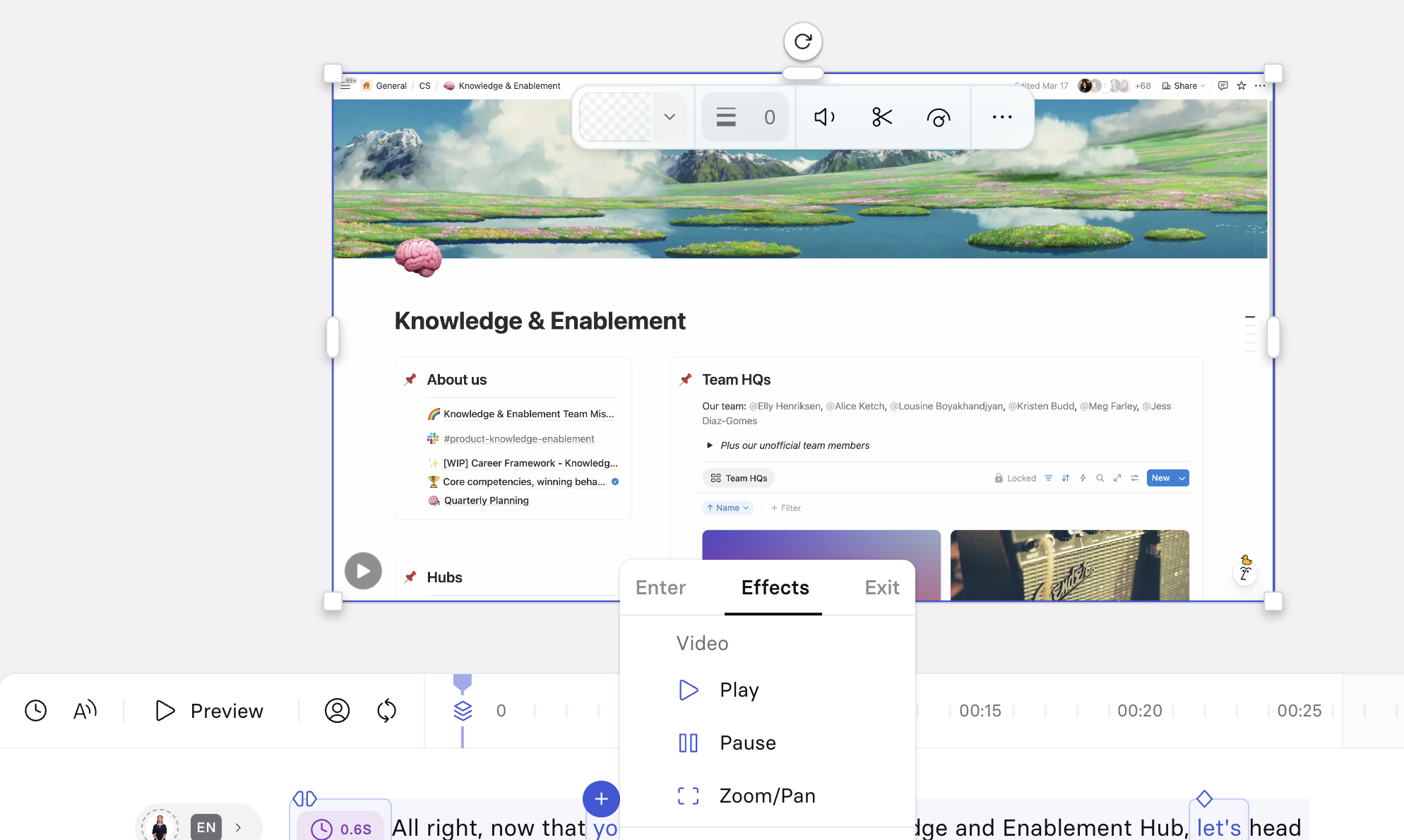
Alternatively, work from the Animation section of the inspector panel instead of hunting through the script box—see Animation panel below.
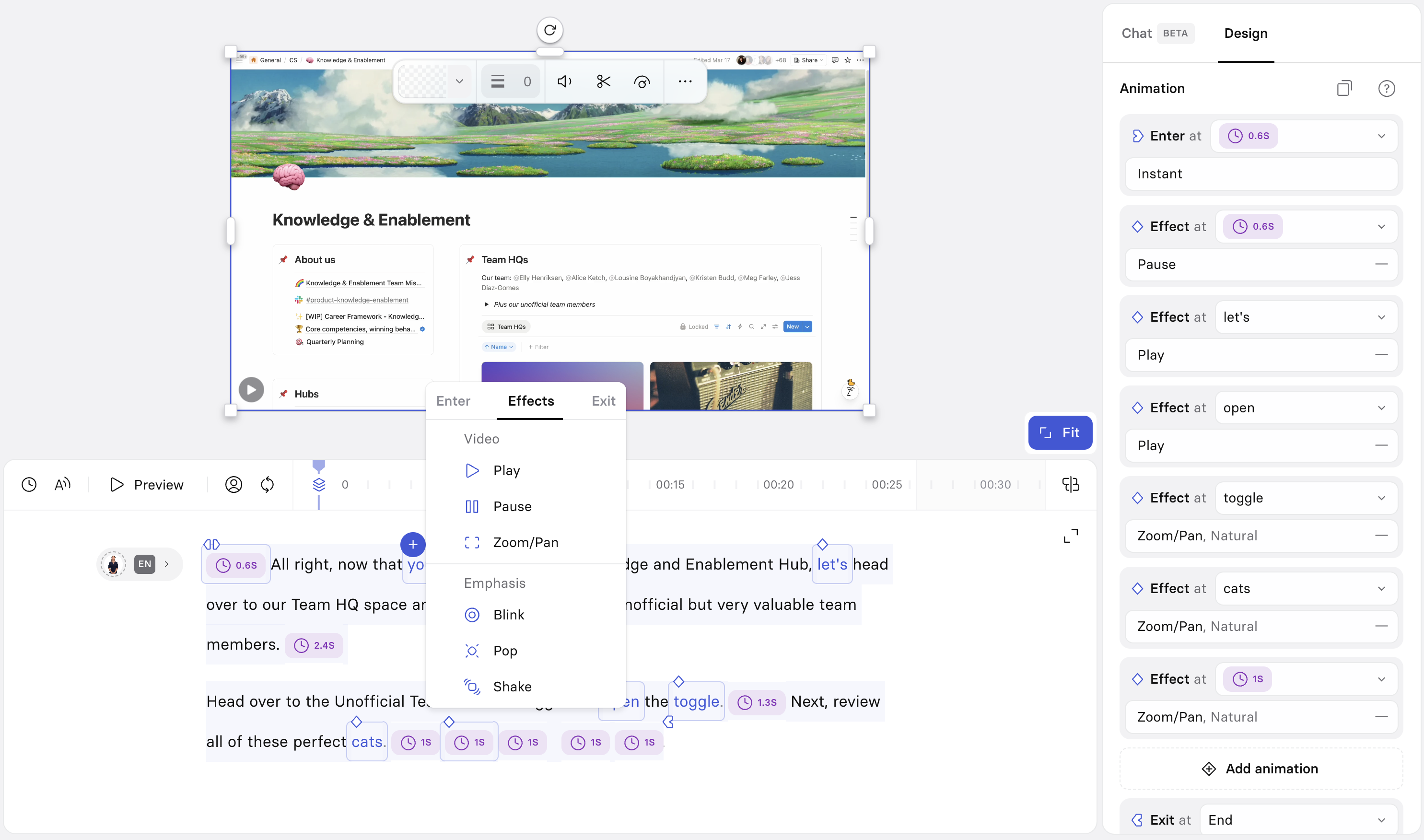
Once a trigger exists, whether it's a default entrance/exit trigger or one you've already set for an animation or effect, you can drag its icon in the script to a different word or pause at any time to reposition it. Trigger icons are shaped by type: entrance and exit animation triggers are chevron-shaped, and effect triggers are diamond-shaped.
Note:For the same element, an Enter trigger can't come after an Effect trigger, and an Exit trigger can't come before an Effect trigger. In other words, effects have to sit between an element's entrance and exit.
If multiple triggers land on the same word, a trigger cluster appears instead of a single icon. Select the cluster to open a menu listing each animation in it by name, so you can apply a change to one individually or to every element in the cluster at once.
See How do I use Animation Triggers? to see this feature in action.
Animation panel
Select an element to see all of its triggers listed in the Animation section of the inspector panel: an Enter at row, one Effect at row per effect, and an Exit at row. Each row has:
- A word selector, showing the word (or pause) the trigger is tied to. Select it to open a list of every word in the script—the first and last positions are labeled
StartandEnd—and choose a different one directly, instead of dragging the trigger in the script. Some words may be unavailable to select, if choosing them would break the ordering constraint between an element's Enter, Effect, and Exit triggers. - An animation or effect selector, showing the current animation or effect type (and, for some effects, a style—for example, Camera Zoom can be set to a style like Natural). Select the
−icon next to it to remove that trigger entirely. Selecting this button opens the same settings panel as selecting the trigger's icon in the script box.
Select Add animation to add another trigger directly from the panel, without going through the script.
The panel header also has an Animation Tips icon for contextual help, and a Copy animations icon.
To copy an element's animations and effects to another element:
- Select the element with the animations and effects you want to copy.
- Select
Copy animationsin the Animation panel header. - Right-click the element you want to copy them to, and select
Paste animationsfrom its context menu.
Animations
An element or group of elements can have one entrance animation and one exit animation at the same time, but not more than one of each—entrance and exit animations can't be stacked. Effects, on the other hand, can be stacked and chained on the same element.
All elements use an Instant animation by default. Change it from the Animation panel in the inspector on the right.
Animation settings
Depending on the animation selected, some of the following settings can be adjusted:
- Direction: The direction of the canvas that the element should enter or exit from (right, left, bottom, top).
- Velocity: The velocity to give to the element (bounce, smooth, linear).
- Duration: Time taken for the animation to complete in seconds (minimum value: 0.01).
- Delay: Time to wait between the trigger and the start of the animation in seconds (minimum value: 0.01).
Sound effects for animations
In the animation panel's header, next to the preset dropdown, select the music note icon to add a sound effect. Select the same icon again to remove it.
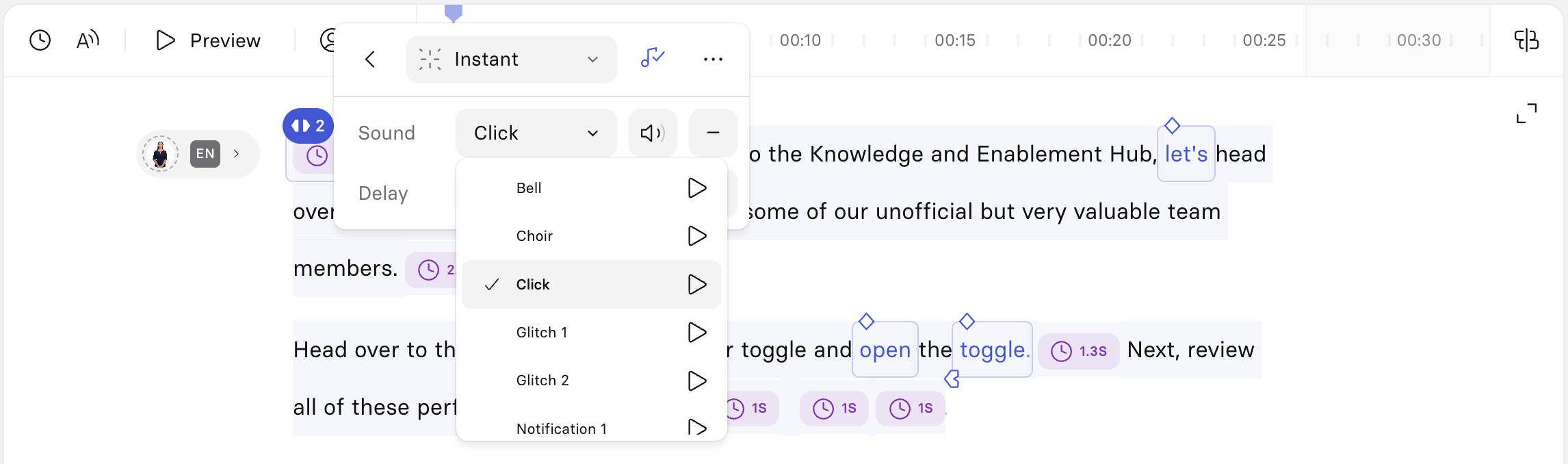
Once added, a Sound row appears with:
- Sound: The preset sound that plays when the animation triggers. Select the sound's name to open the preset list and choose a different one—each preset has a play button next to it to preview the sound before selecting it. Presets include sounds like clicks, notifications, bells, and whooshes.
- Volume: Controls the loudness of the sound effect relative to other audio in the scene. This is a cycle button rather than a slider—each selection steps to the next level (for example, from Medium to High).
You can also remove the sound using the − icon next to the Sound row itself, instead of the header toggle.
Note:Sound effects can only be applied to entrance and exit animations. They can't be applied to effects—that includes emphasis effects (Blink, Shake, Pop), avatar effects (Swap shot), and image or video effects.
Entrance animations
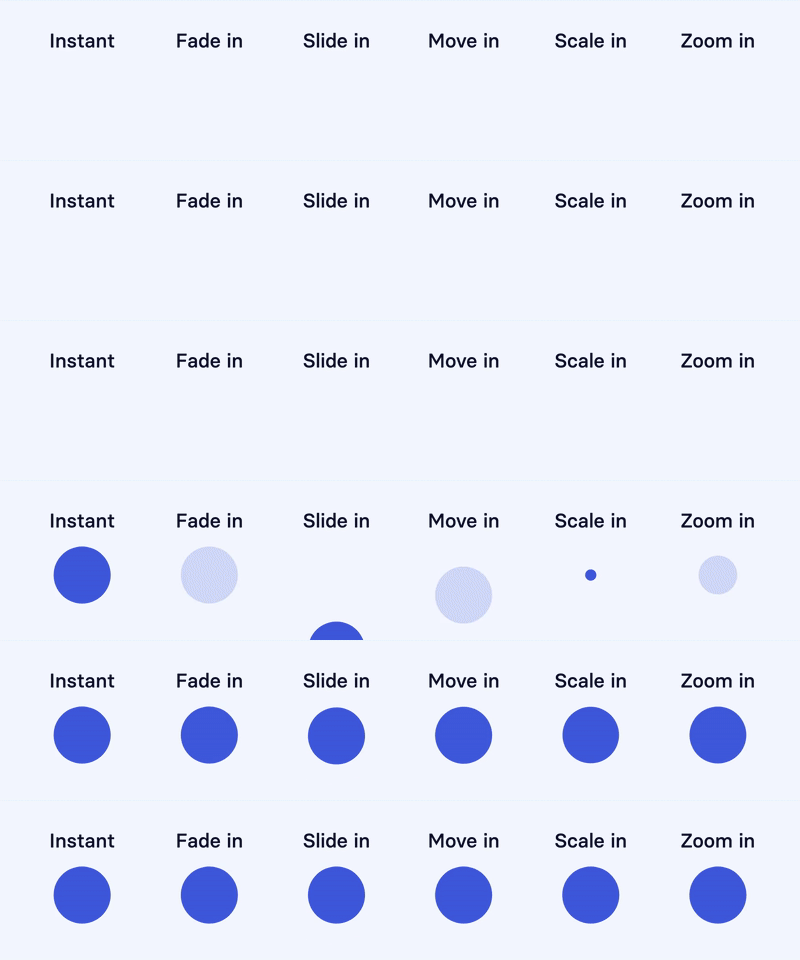
Entrance animations can be applied to any canvas element or group of elements.
| Name | Description | Settings |
|---|---|---|
| Instant | Instantly displays the element | Delay |
| Fade in | Gradually brings the element into view | Velocity, Duration, Delay |
| Slide in | Slides the element in from a specified direction | Direction, Velocity, Duration, Delay |
| Move in | Gradually moves the element in from a specified direction (slight fade in applied) | Direction, Velocity, Duration, Delay |
| Scale in | Element increases in size until it reaches its final size | Velocity, Duration, Delay |
| Zoom in | Element gradually increases in size until it reaches its final size (slight fade in applied) | Velocity, Duration, Delay |
Exit animations
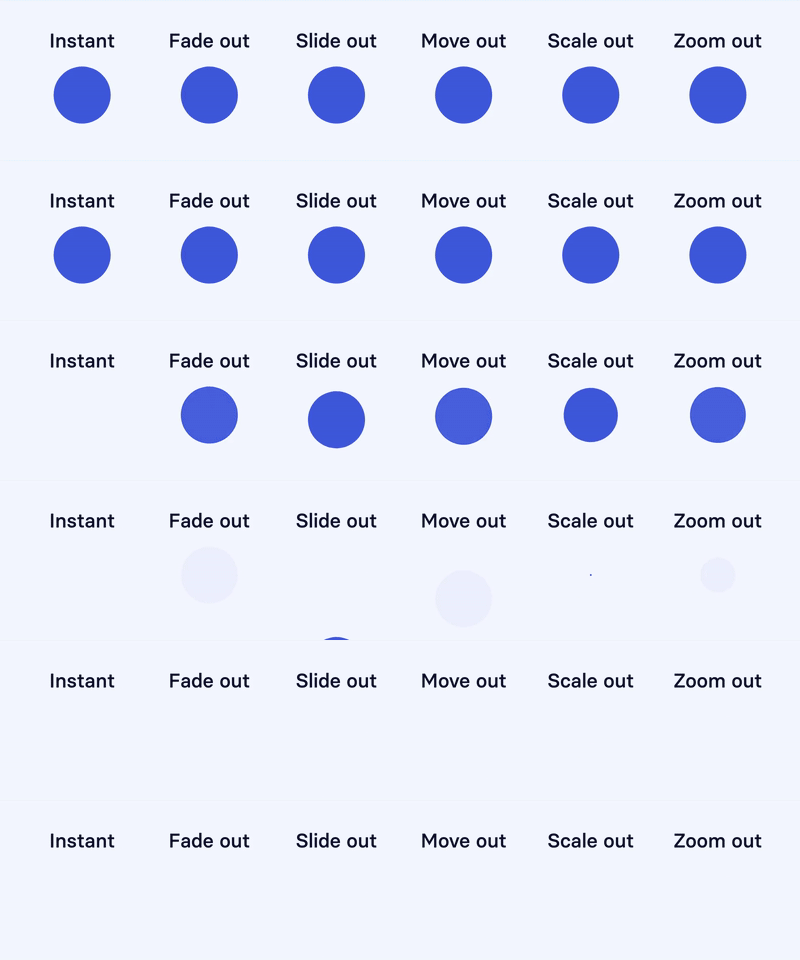
Exit animations can be applied to any canvas element or group of elements.
| Name | Description | Settings |
|---|---|---|
| Instant | Element instantly disappears | Delay |
| Fade out | Gradually fades the element out of view | Velocity, Duration, Delay |
| Slide out | Slides the element out to a specified direction | Direction, Velocity, Duration, Delay |
| Move out | Gradually moves the element out to a specified direction (slight fade out applied) | Direction, Velocity, Duration, Delay |
| Scale out | Element decreases in size until it disappears | Velocity, Duration, Delay |
| Zoom out | Element gradually decreases in size until it fades away | Velocity, Duration, Delay |
Effects
Unlike entrance and exit animations, effects can be stacked and chained—an element can have multiple effects applied, one after another.
Emphasis effects

Emphasis effects are available for all canvas elements. These effects help draw the viewer's attention to any visual element on the canvas when a particular word is said in the script.
- Blink: The element disappears and reappears a set number of times. Available settings: number of blinks and blinking speed.
- Shake: The element shakes from left to right several times. Available settings: intensity and speed of shaking.
- Pop: Enlarges the element to a set size, then scales the element back down to its original size. Available settings: speed and size to enlarge to (from 101 to 200%).
Avatar effects
Swap shot: Seamlessly switch an avatar's camera angle or zoom in the middle of a scene.
Note:The swap shot effect can only be applied to avatars with multiple camera angles available. Multi-cam avatars are indicated with a camera icon in the bottom-left of the avatar thumbnail:
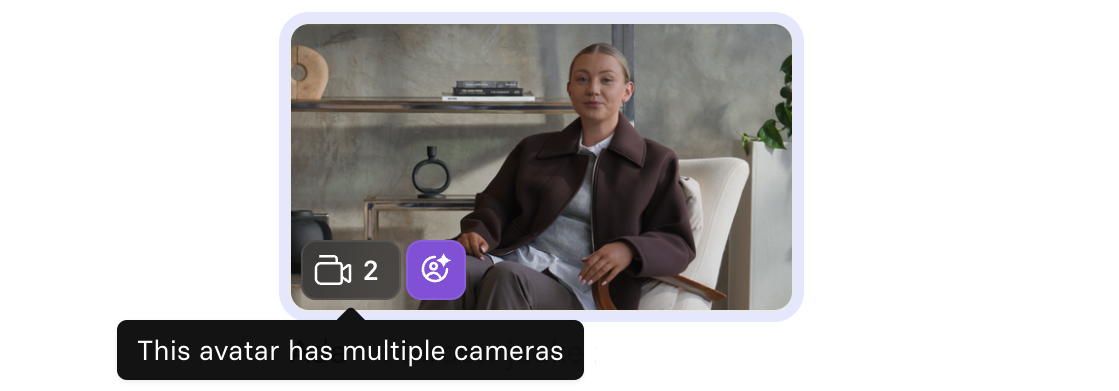
Image effects
Image effects can't be applied to an image that has been set as the background of a scene. Detach the image from the background to apply effects to it.
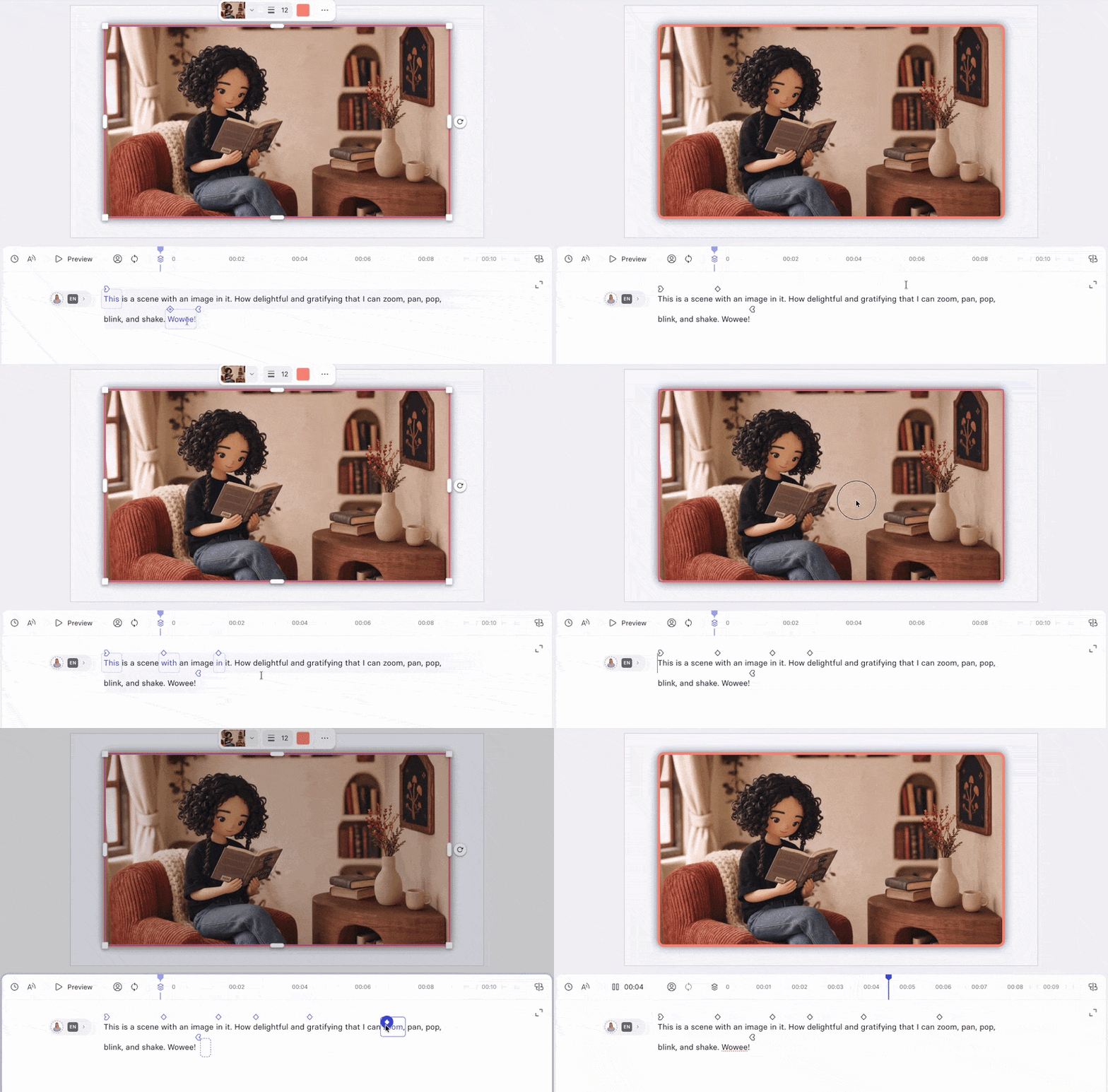
Camera Zoom (image elements only): Zoom into and out of specific areas of an image.
- Adjust zoom level, position, and speed of zoom.
- When using a zoom effect, you can specify a zoom out point to return to the original zoom level by selecting
Add Zoom Out. Multiple zoom in/out effects can be chained together.
Note:There's no separate "pan" effect for images. To pan across an image, chain multiple Camera Zoom effects and adjust each one's zoom window position—the effect moves from one position to the next, panning across the image. This is the same underlying flow as the Zoom/Pan effect for videos; it's just named differently for images.
The frame you position and resize on the canvas when setting up a zoom isn't a mask or a crop shape—it's a preview of the exact area that will fill the screen once the zoom completes. It's always rectangular and matches your video's aspect ratio, because that's literally what determines what's visible at that zoom level: whatever's inside that frame becomes the full picture. It can't be changed to a circle or any other shape, since it isn't a decorative element applied to your footage—it's showing you where the "camera" is pointed, not stamping a shape onto the image.
Video effects
Zoom/Pan (video elements only): Zoom into and out of specific areas of a video, or pan to a different area of a video.
- Configure zoom level, position, and speed of zoom.
- Use the scrubbing tool to choose a frame.
- When using a zoom effect, you can specify a zoom out point to return to the original zoom level by selecting
Add Zoom Out. Multiple zoom in/out effects can be chained together.
Play/Pause (video elements only): Define which video frame appears at specific words in your script, and whether the video should play or pause at that moment.
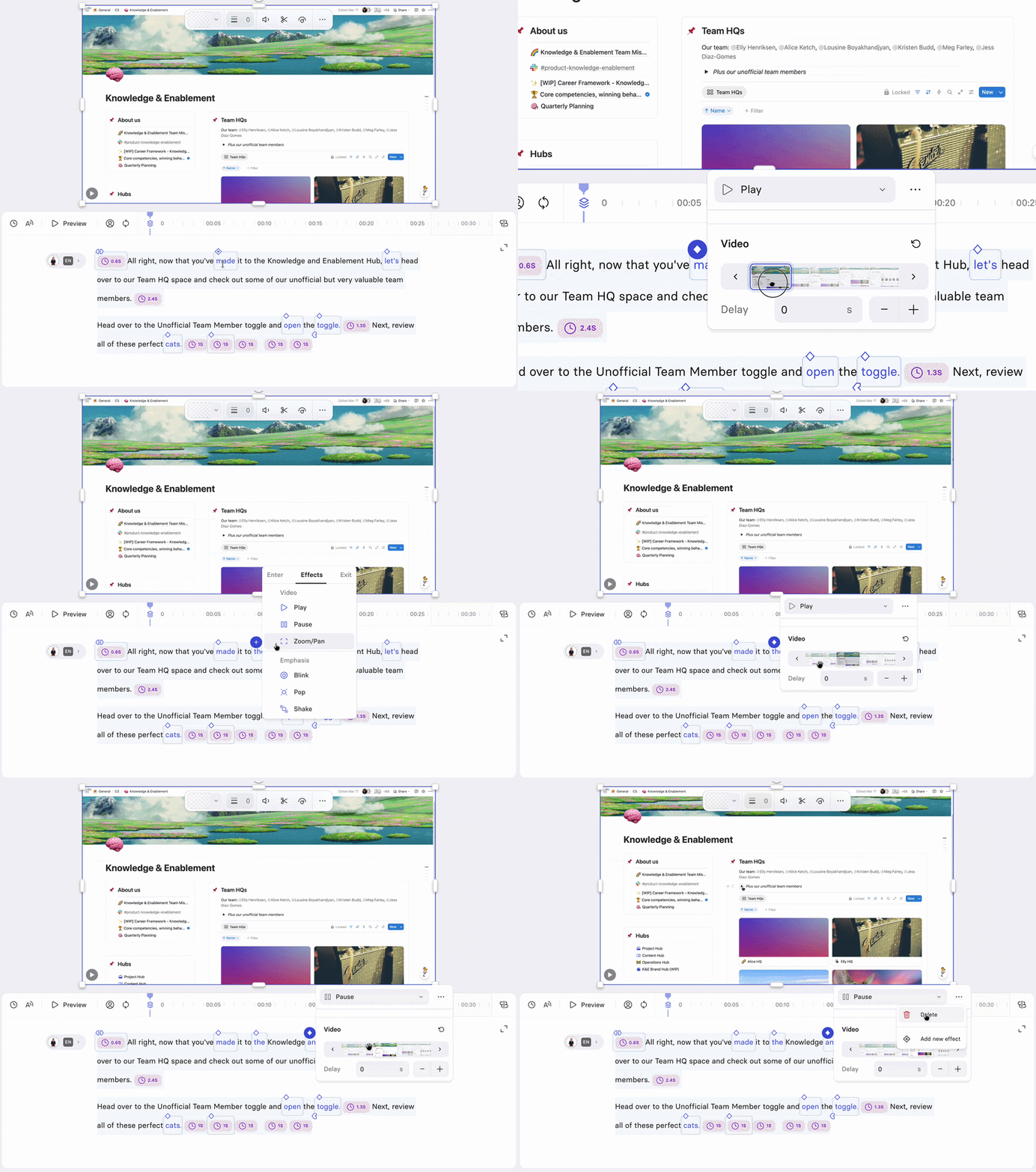
Select the trigger in the script box, or the Effect row for it in the Animation panel, to open its settings:
- A
Resetbutton next to the Video label, to reset the frame selection. - A filmstrip of frame thumbnails with
Previous frameandNext framebuttons, and a scrubbable preview, to choose the exact frame. - Delay: time to wait between the trigger and the frame change, in seconds. Unlike entrance, exit, and other effects, Play/Pause has no Duration or Velocity setting, since it's a discrete frame change rather than an animated transition.
Videos remain paused until reaching a trigger for the Play effect.
Chaining effectsChaining Play effects is especially useful for screen recordings, where you need a specific frame to line up with specific script text. Add a Play effect at a word and pick the frame that should be showing then. Add another Play effect at a later word and pick the frame for that point. Synthesia automatically adjusts the video's playback speed between the two triggers so both frames line up with their words. Keep adding Play effects at further words, each pinned to a frame, to keep the recording in sync across the whole script.
This requires the video's playback mode to be set to
Stretch—it's what allows the playback speed to adjust between chained Play effects.
Note:
- Video effects can't be applied to a video that has been set as the background of a scene. Detach the video from the background to apply effects to it.
- Video effects can't be applied to a video if its playback mode is set to
Play once. To add a video effect to a video, the playback mode must be set to eitherStretchorLoop/Cut.
Managing animations and effects
Animations and effects can be added and edited from the Script box, inspector panel, and from the Timeline. When customizing an entrance or exit animation, optionally select the music note icon in the animation panel to attach a sound effect.
You can manage all of an element's entrance, exit, and effect animations together from the inspector panel, by selecting the element.
To remove an animation or effect:
Select the trigger in the script, then select the trash icon (for effects, you can also use the − icon next to it in the inspector panel). The Enter/Exit trigger resets to its default position.
Note:If a trigger doesn't respond from the script view, try removing it from the Timeline view instead: select the animation there and delete it. If an element appears unresponsive, check whether it's locked in the Timeline.
Use the Timeline when you need more granular control over timing, visual sequences, or scene elements that don't have script-based triggers. The Timeline gives you full visibility into all scene layers and lets you fine-tune start times, durations, and effects independent of the script.
Point-in-time editing
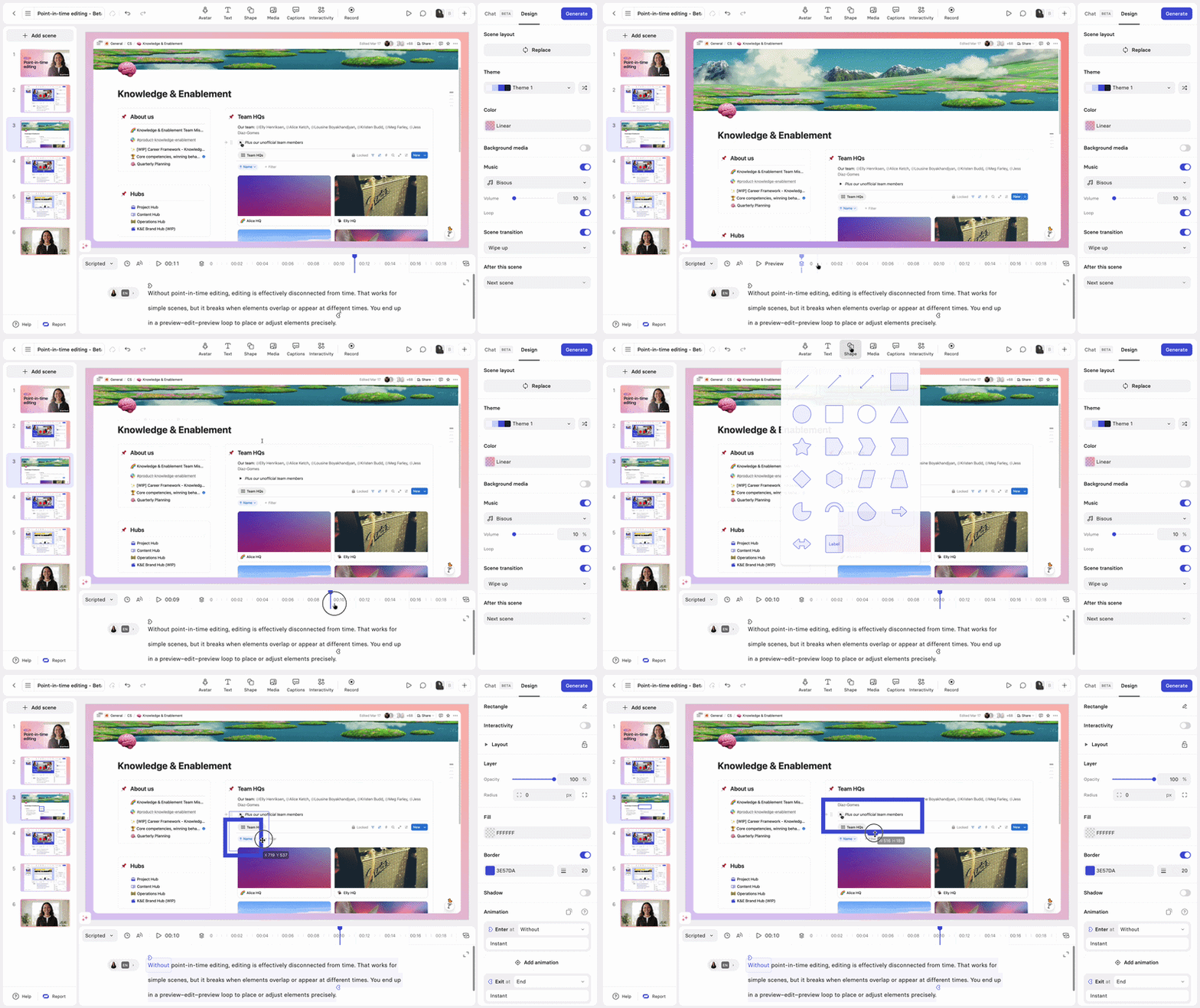
Move the playhead to a specific moment in your scene, then add or adjust elements right there, without leaving preview. The playhead stays fixed while you select or edit elements, or add triggers, so you can place time-sensitive elements exactly where they should appear and keep previewing from that point instead of jumping back to the start of the scene.
- Open a scene with triggers.
- Move the playhead to the moment you want to work on.
- Add or edit an element. The playhead stays where it is.
Select the Show all layers (stacked layers icon) at the beginning of the timeline to reset the canvas, show every layer, and jump back to the start of the scene.
Updated about 2 months ago