

Survey Sessions
Survey Sessions let you collect information from people through a natural spoken conversation with an AI agent, instead of a static form.
Survey Sessions
Survey Sessions let you collect information from people through a natural spoken conversation with an AI agent, instead of a static form.
Give the agent a study goal (what you want to learn) and a list of questions (up to 10), and it runs the conversation—asking each question, then probing for more detail as needed. It's well suited to things like onboarding feedback, event feedback, or discovery interviews: anywhere you'd otherwise send out a form or run a structured interview yourself.
Each qualified response consumes 350 credits.A response is counted once the participant gives a plausible answer to the first question, however the session ends. If a session is started without a response, credits will not be consumed.
Learn more about how credits work on self-serve plans and on enterprise plans.
Create a Survey Session
There are two ways to build a Survey Session: describe what you want to Assistant, or add an AI Survey scene and fill it in yourself.
Create with Assistant
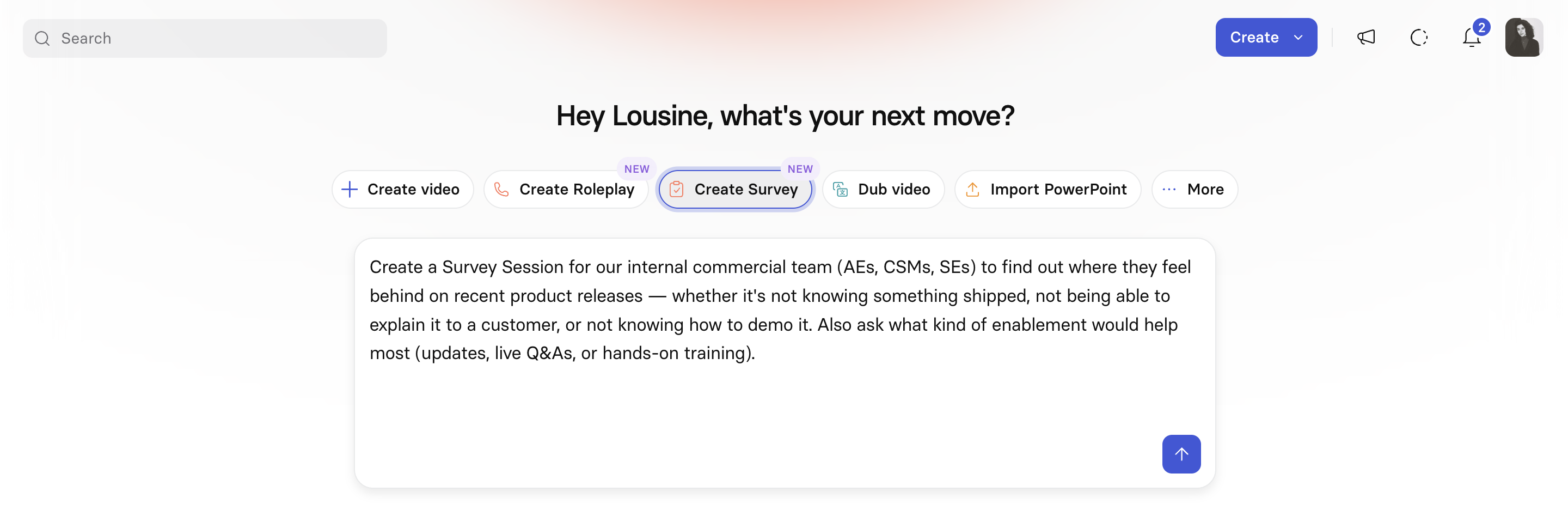
To create a Survey Session with Assistant:
- Start a new video by selecting
Create Surveyon the home page, or open an existing video and describe your survey in the editor'sChatpanel. - Describe what you want to learn (for example, "Feedback from the sales team on how the new CRM is working out") and submit.
- Review the generated outline: typically an intro scene, a
Surveyscene with aStudy goalandQuestionsalready drafted, and a closing scene. - If you started from the home page, select
Continue to editorto build out the video. If you started from theChatpanel, Assistant applies the changes to your video directly.
Once you're in the editor, keep refining the survey through the Chat panel—for example, asking it to change or add a question—or edit the Study goal, Questions, and Time limit fields directly.
Create from scratch
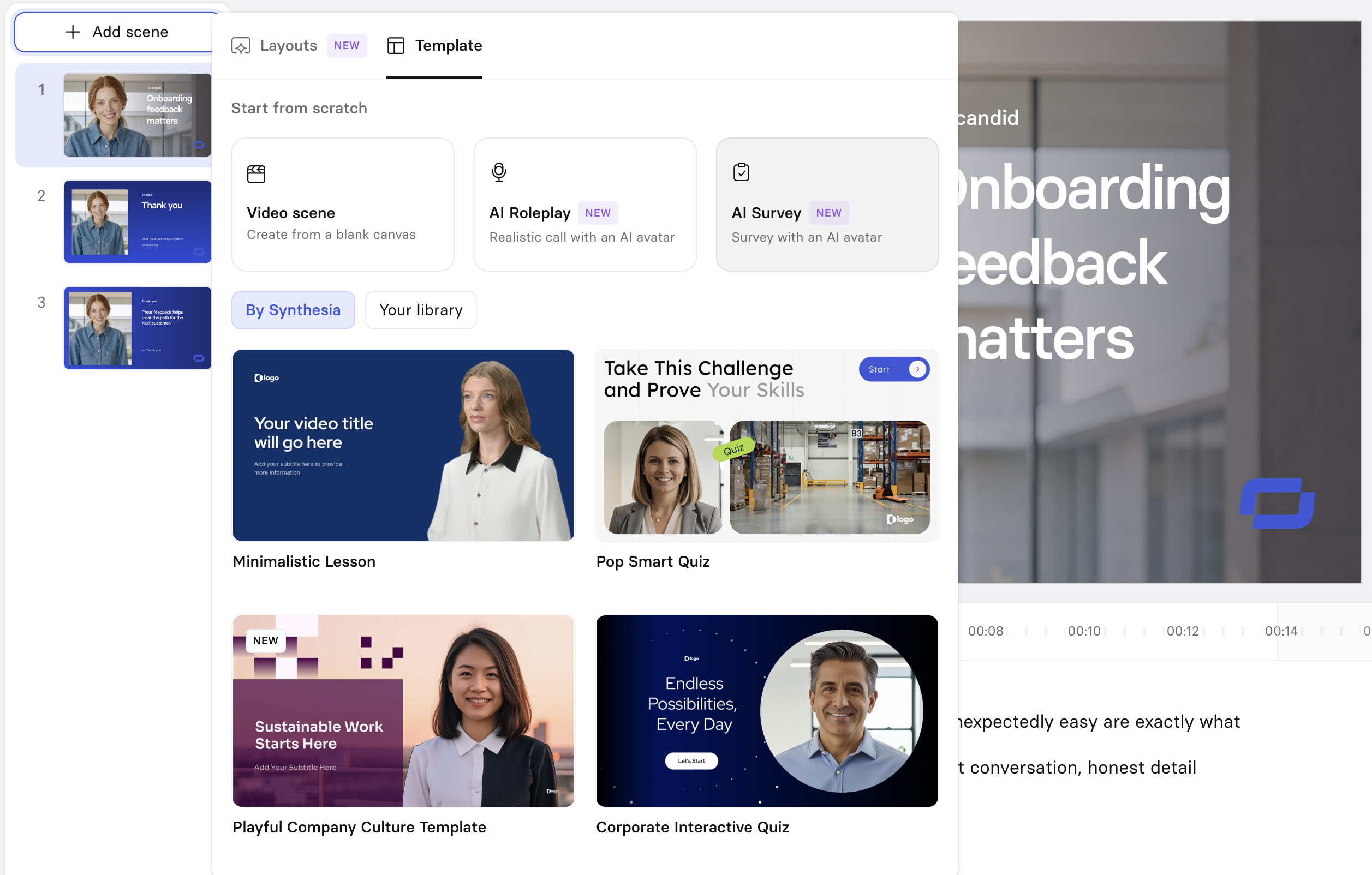
To create a Survey Session from scratch:
-
From the editor, at the top of the scene list on the left, select
+ Add scene. -
In the
Templatetab, underStart from scratch, chooseAI Survey. -
Complete the following sections:
- Study goal: What you want the AI agent to learn from talking to participants (for example, "Learn how satisfied recent joiners are with their onboarding experience").
- Questions (up to 10): What the AI should ask. Each question has its own
Follow-upssetting (None,Light,Moderate, orDeep) controlling how much the agent probes if a participant's answer feels thin. - Time limit: How long the conversation should be allowed to proceed (max 30 minutes).
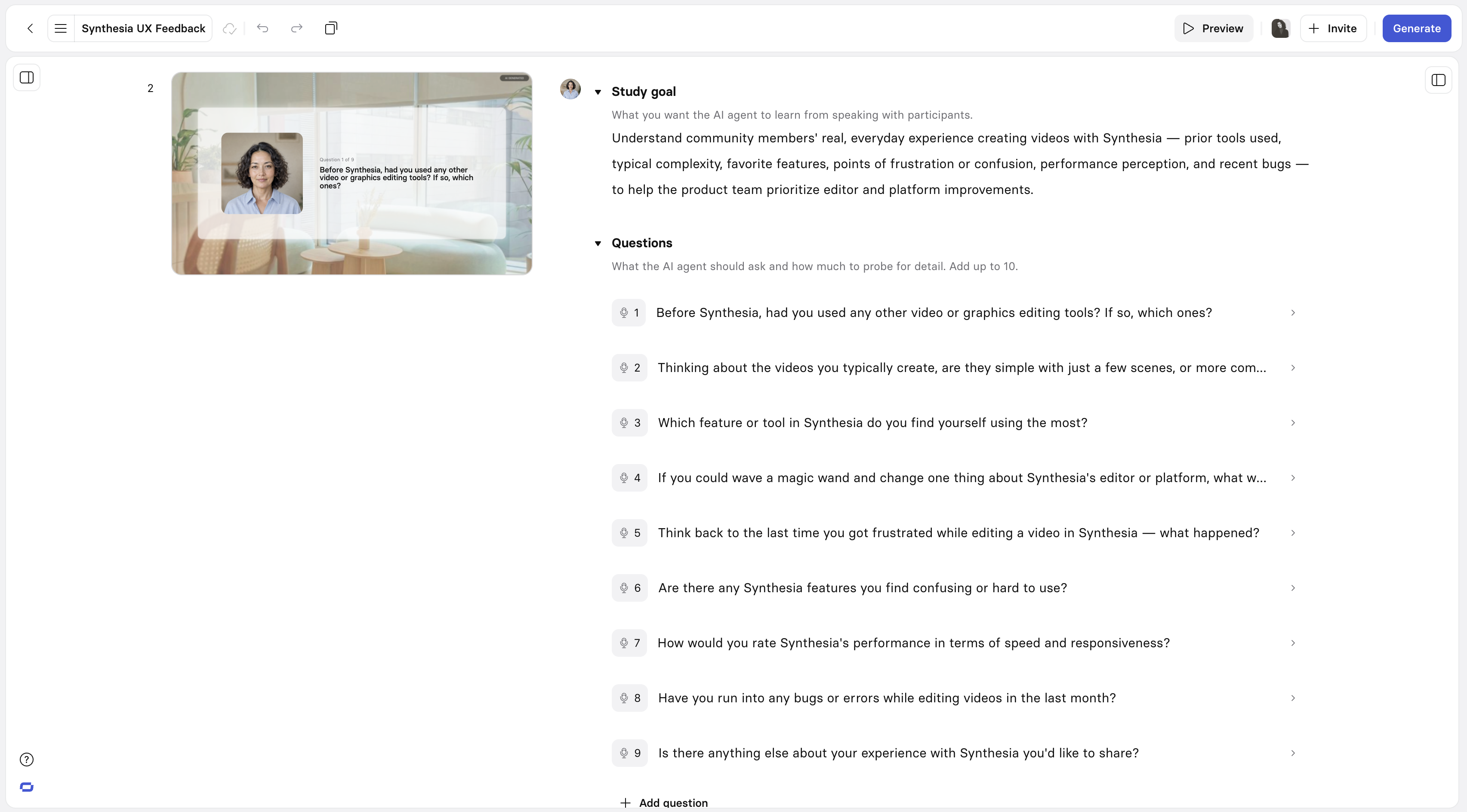
Storyboard mode gives you more room to edit your Survey scene
-
Add a Video scene after your Survey scene. Without one, the
End sessionbutton won't work.
Access Survey Session results
Survey Session results aren't accessed from the Learner Portal. Access them from the standard video analytics in the main Synthesia platform (app.synthesia.io) instead.
From the video's overview page, open the video's analytics. Four tabs are available—data in the Report and Responses views can be exported as CSV.
Report
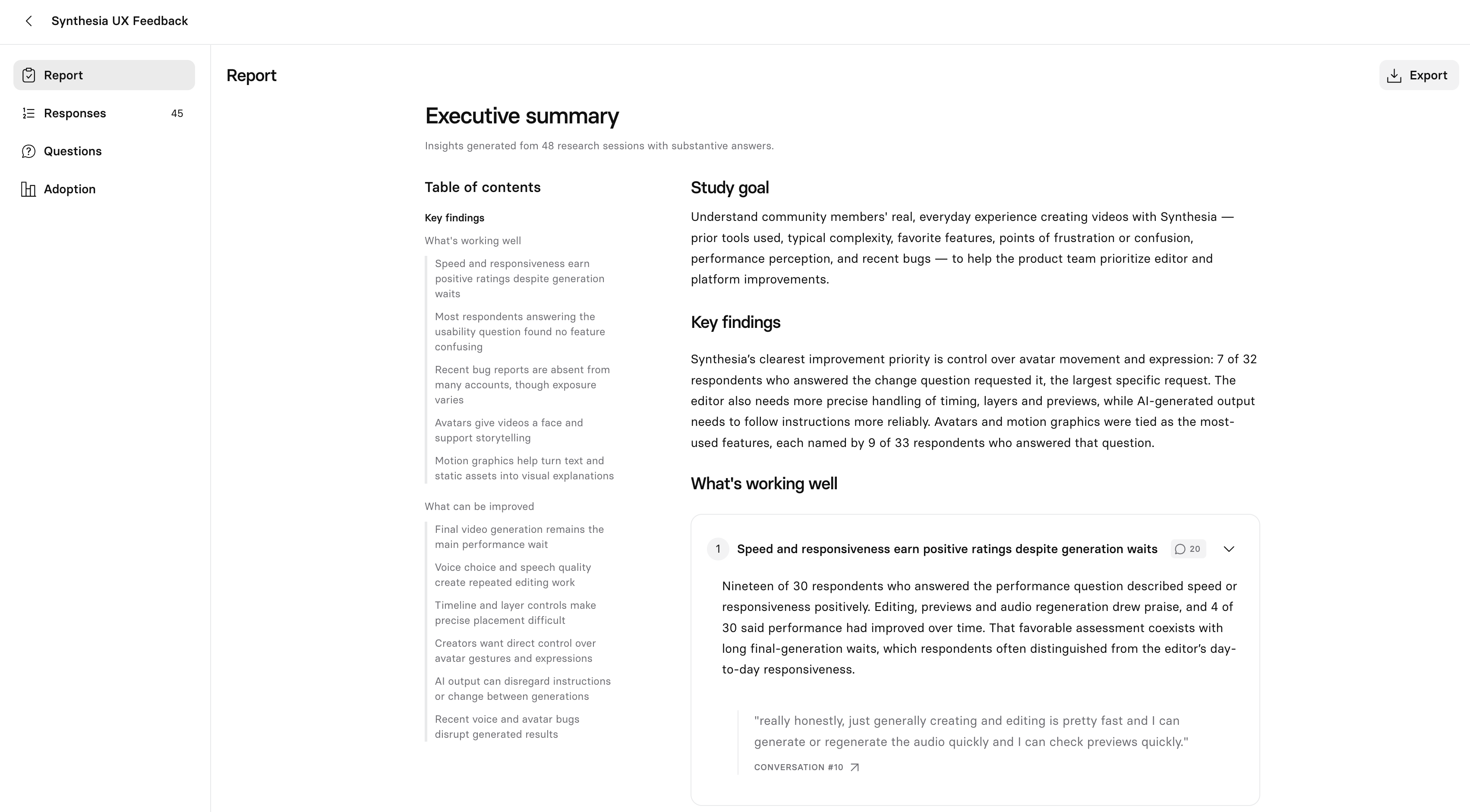
The Report tab opens with the survey's study goal and a key findings summary, then breaks the feedback into What's working well and What can be improved. Each is made up of individual findings, showing how many responses support it and, when expanded, a written analysis with an example quote. Selecting a quote opens the full response it came from.
Responses
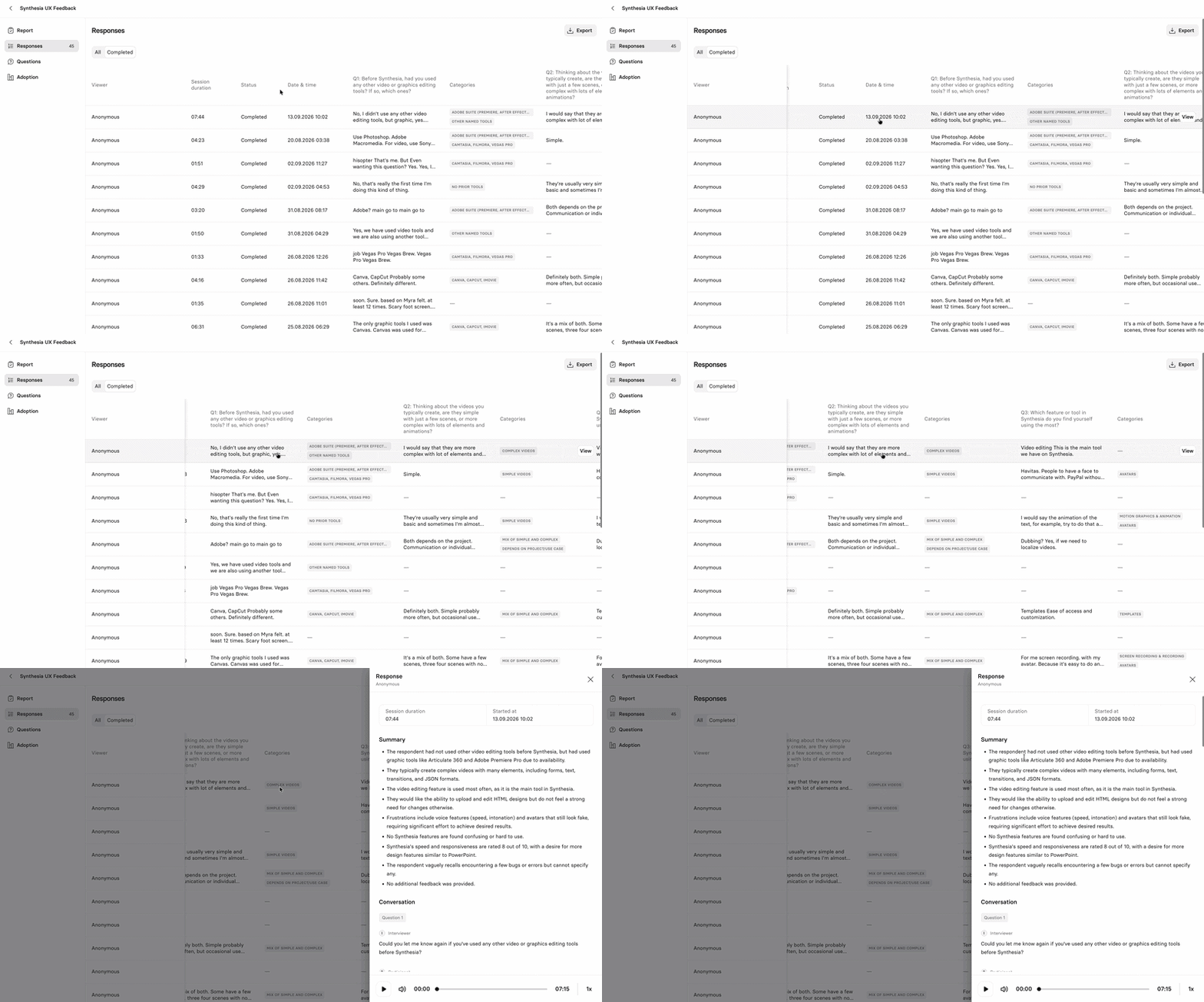
The Responses tab shows a table of all individual responses—filterable by All or Completed—showing session duration, status, date, and each participant's answer to every question, with an auto-generated category tag per answer. Select a row to open that response: a written summary plus the full question-by-question conversation with audio.
Questions
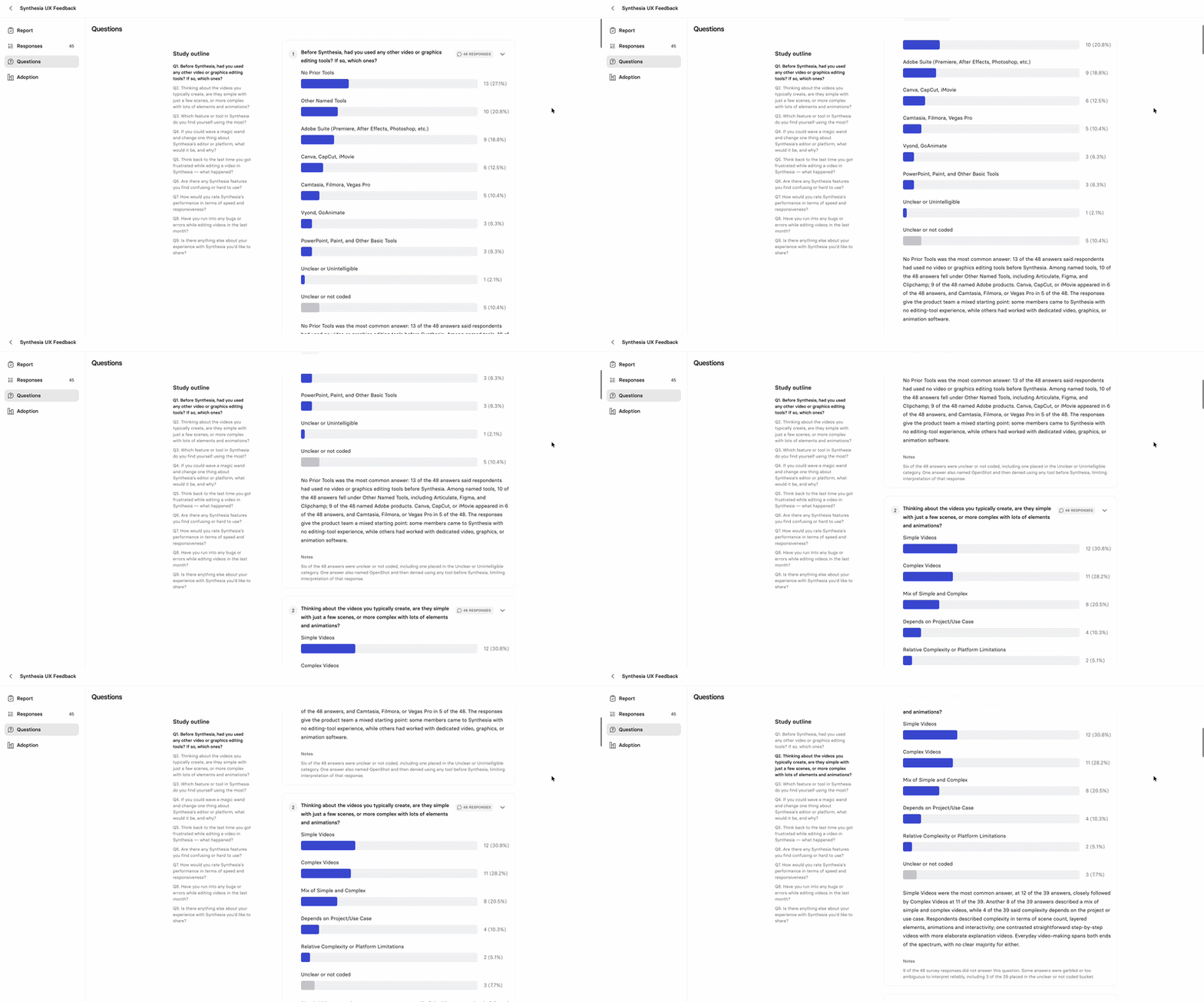
The Questions tab provides a breakdown of how participants answered each question, with a bar chart of response categories (counts and percentages), a written summary, and notes on any unclear or unanswered responses.
Adoption
The Adoption tab includes the same adoption metrics available for any other video—see video analytics for details.
Updated 20 days ago