

Import PowerPoint
Convert PowerPoint presentations into engaging AI-narrated videos using Synthesia.
Transform your slide decks into shareable, narrated video content without needing cameras or editors.
Note:PowerPoint files uploaded through Assistant use a separate import path from the standalone
Import PowerPointflow described on this page, and the capabilities described below don't apply to it.
Convert a PowerPoint presentation to video
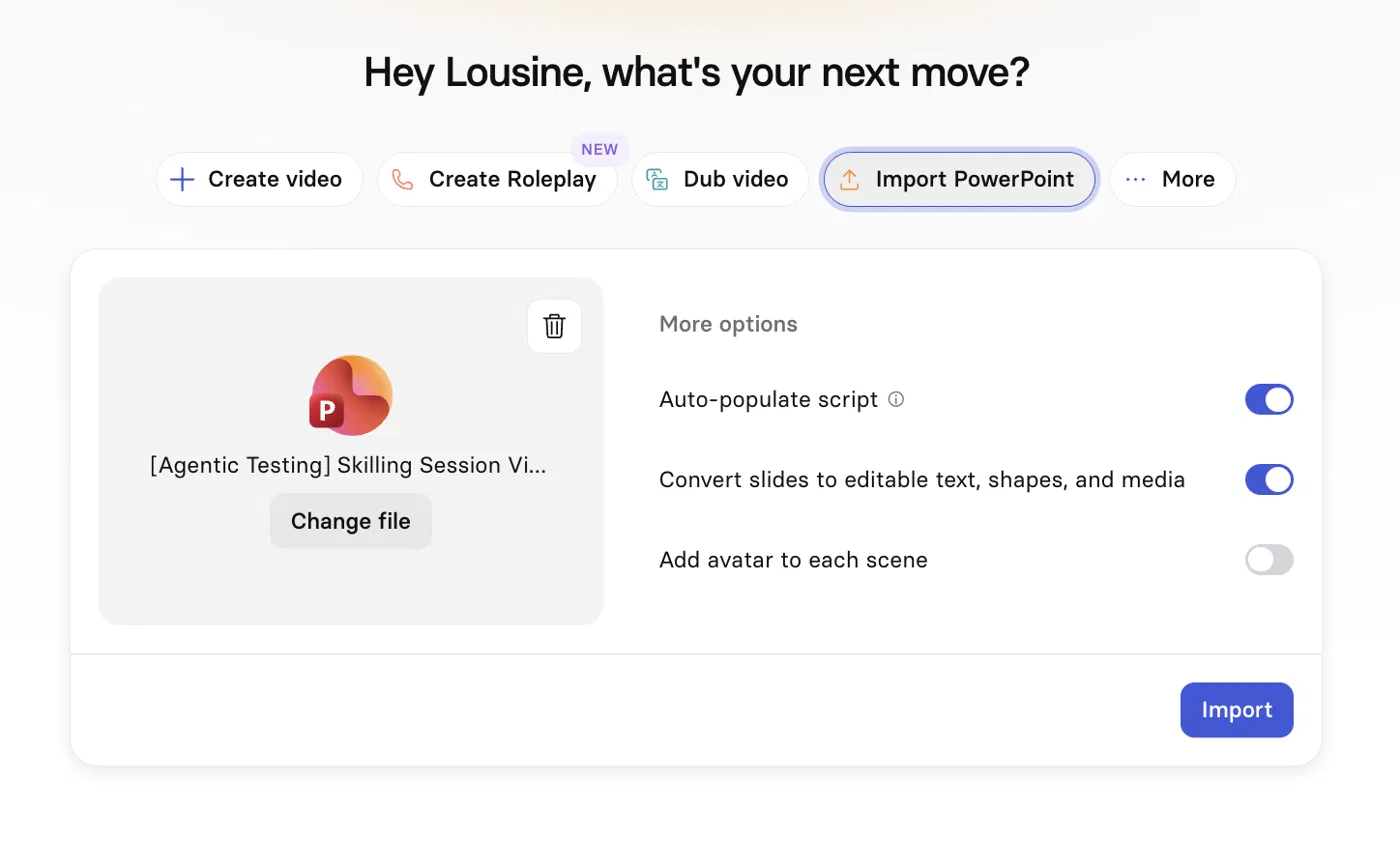
To import a PowerPoint presentation:
-
From the Synthesia homepage, select
Import PowerPointand upload your.pptxfile:-
Maximum file size: 1GB
-
Maximum number of slides supported: 150 slides
-
Supported file format:
.pptx -
Aspect ratio: 4:3 dimension PowerPoints are converted to 16:9
-
Important notes on text and fonts:
- Fonts must be embedded in your PowerPoint file to display correctly in Synthesia.
- If a font is missing, you can select a replacement or upload the original font file, except for tables (see Tables). Basic and Starter plans don't support custom font uploads.
- SmartArt text is non-editable, and is added as part of the static background.
- Lists are imported with a maximum of two levels of indentation, for both numbered and bulleted formats. Deeper levels are not supported
-
-
Under
More options, configure:- Auto-populate script: Generates each scene's script from the slide's speaker notes.
- If a slide has no speaker notes, the script is generated from the slide's text content instead.
- Note: Requires Convert slides to editable text, shapes, and media to be enabled.
- Convert slides to editable text, shapes, and media: Imports text boxes, shapes, images, videos, and tables as editable elements. You'll then be able to:
- Animate all imported elements in Synthesia (animations are not imported from PowerPoint files)
- Change the size, color, and positioning of shapes
- Adjust the font styles and positioning of imported text elements.
- Trim and adjust playback for imported videos to ensure they sync with your script
- Edit imported table content (see Tables below)
- Add avatar to each scene: Adds an avatar to every imported scene. If this is off, scenes import without an avatar, and you can add avatars yourself in the editor.
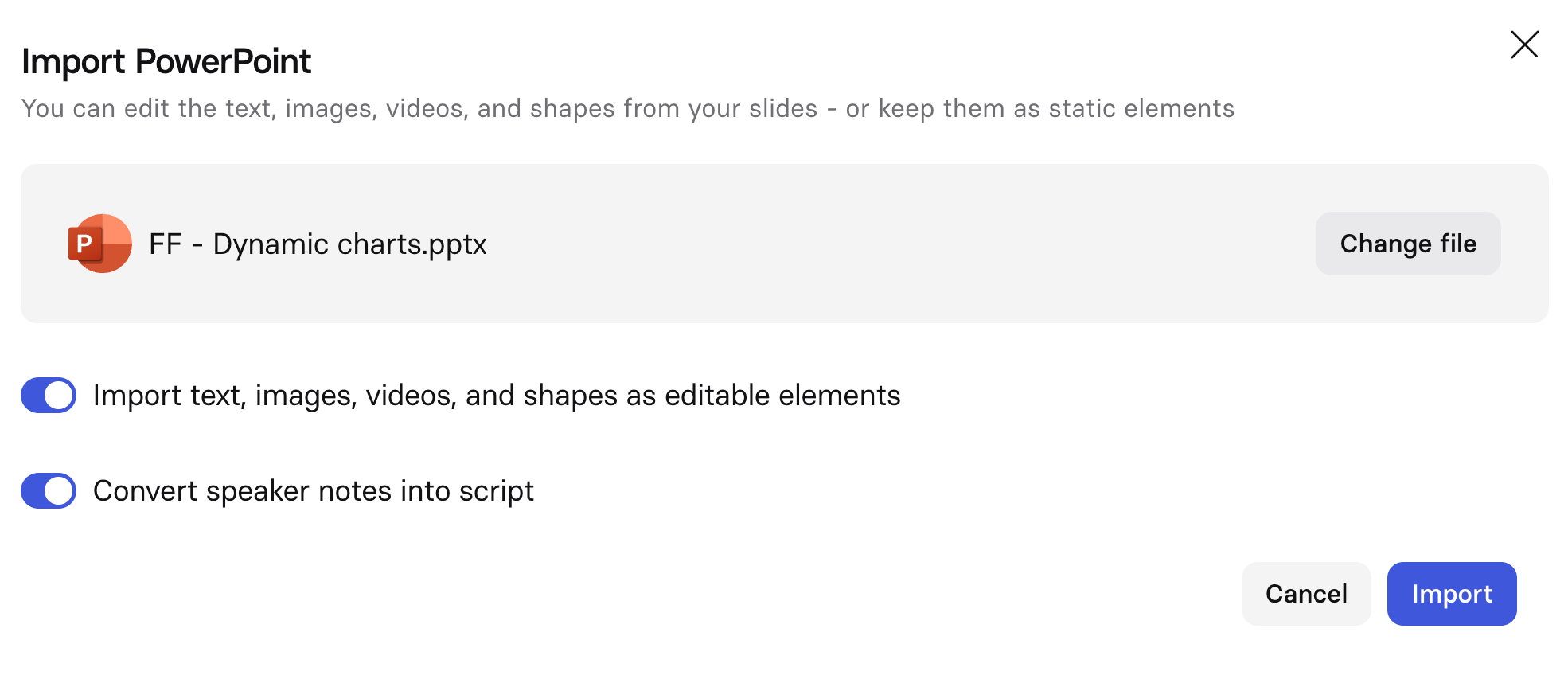
Import a PowerPoint presentation
- Auto-populate script: Generates each scene's script from the slide's speaker notes.
-
Select
Import. -
Edit the video using Synthesia's tools — edit text, add/remove images and videos, add animations and transitions, and more.
-
Click Generate Video to create your video presentation.
Layout and text fidelity
The editor preserves your source deck's text formatting and spacing:
- Line height is set per line, so differently sized text on the same slide keeps proportional spacing.
- Paragraph spacing (space before and space after) carries over from the source file.
- Bullet and numbered list characters match the size, color, and text alignment of their associated text.
Tables
Tables import as editable elements: cells and rows resize based on their content, and table text can be edited.
- Tables are imported as motion graphics, so edit their text using the motion graphic text-editing flow rather than as a standard text box.
- Tables share the same editing constraints as other motion graphics: you can edit table text, but you can't regenerate a table's style or layout with a prompt.
- Font replacement doesn't apply to tables.
Updated 2 months ago