

Glossary
Manage how key terms are pronounced and translated across your Synthesia workspace.
Note:Translation Glossary is not available to workspaces who have opted out of LLM driven translations. If you'd like to enable LLM driven translations for your workspace, contact your administrator.
The Glossary lets you define pronunciation and translation rules for specific terms at the workspace level. Each workspace has a single shared glossary. Download and re-upload a CSV to sync terms across multiple workspaces.
Glossary rules apply only to newly created translations. Rules are applied automatically whenever a new translated or dubbed version of a video is created, keeping company names, product terms, and industry language consistent across languages and accents.
Translated or dubbed videos that predate the any Glossary terms being added are not updated automatically. Edit/re-translate/re-dub the video for the affected language to apply the latest rules.
The system uses AI to understand context when applying terms. In some edge cases it may not perfectly disambiguate terms with multiple meanings, especially without additional context in the script.
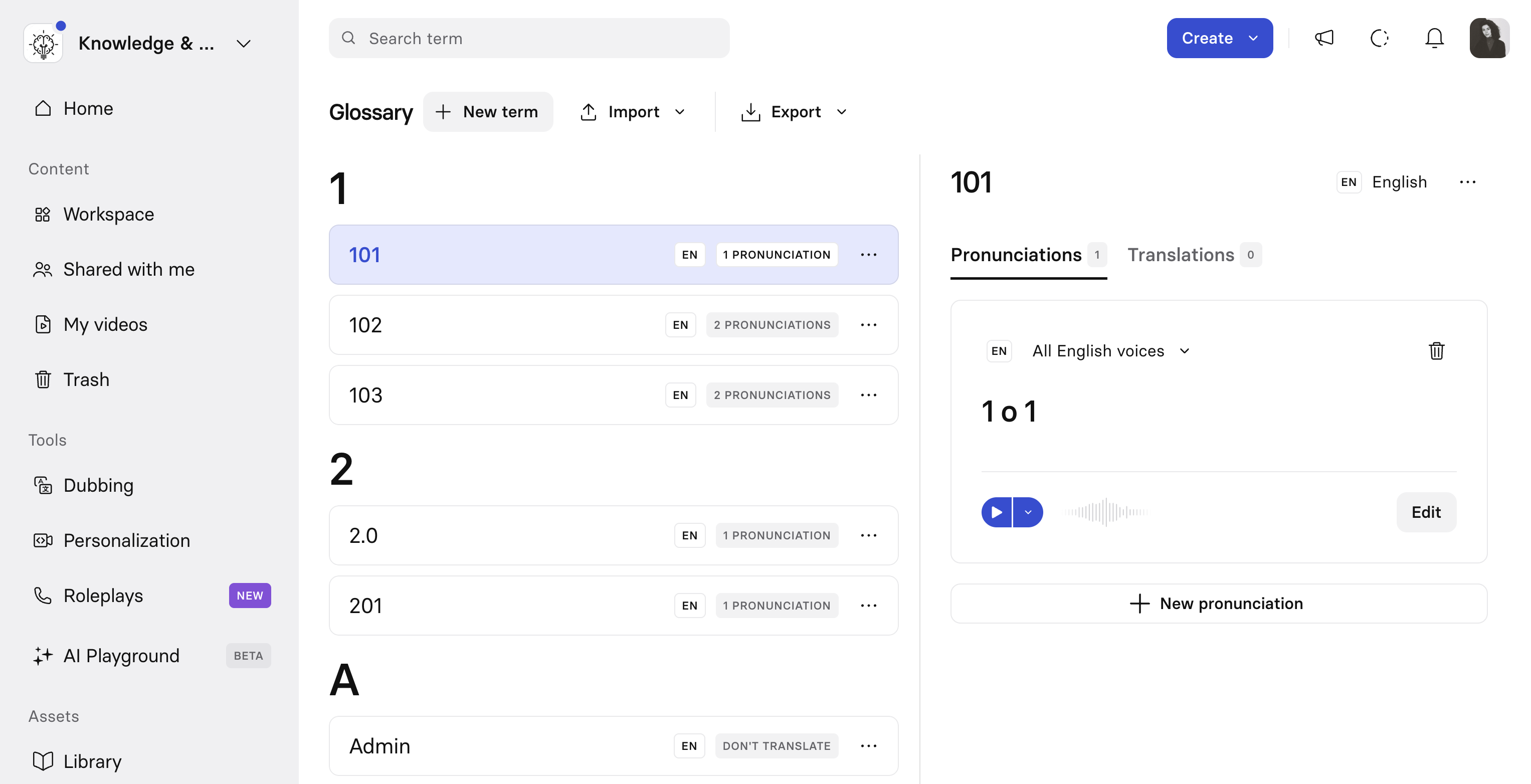
Access the Glossary
Select Glossary in the left-hand navigation menu. From here you can add, edit, import, and export terms.
Note:By default, any workspace user can manage glossary terms. Admins can restrict this to admins only—see Control who can edit the Glossary below.
Add or edit a term
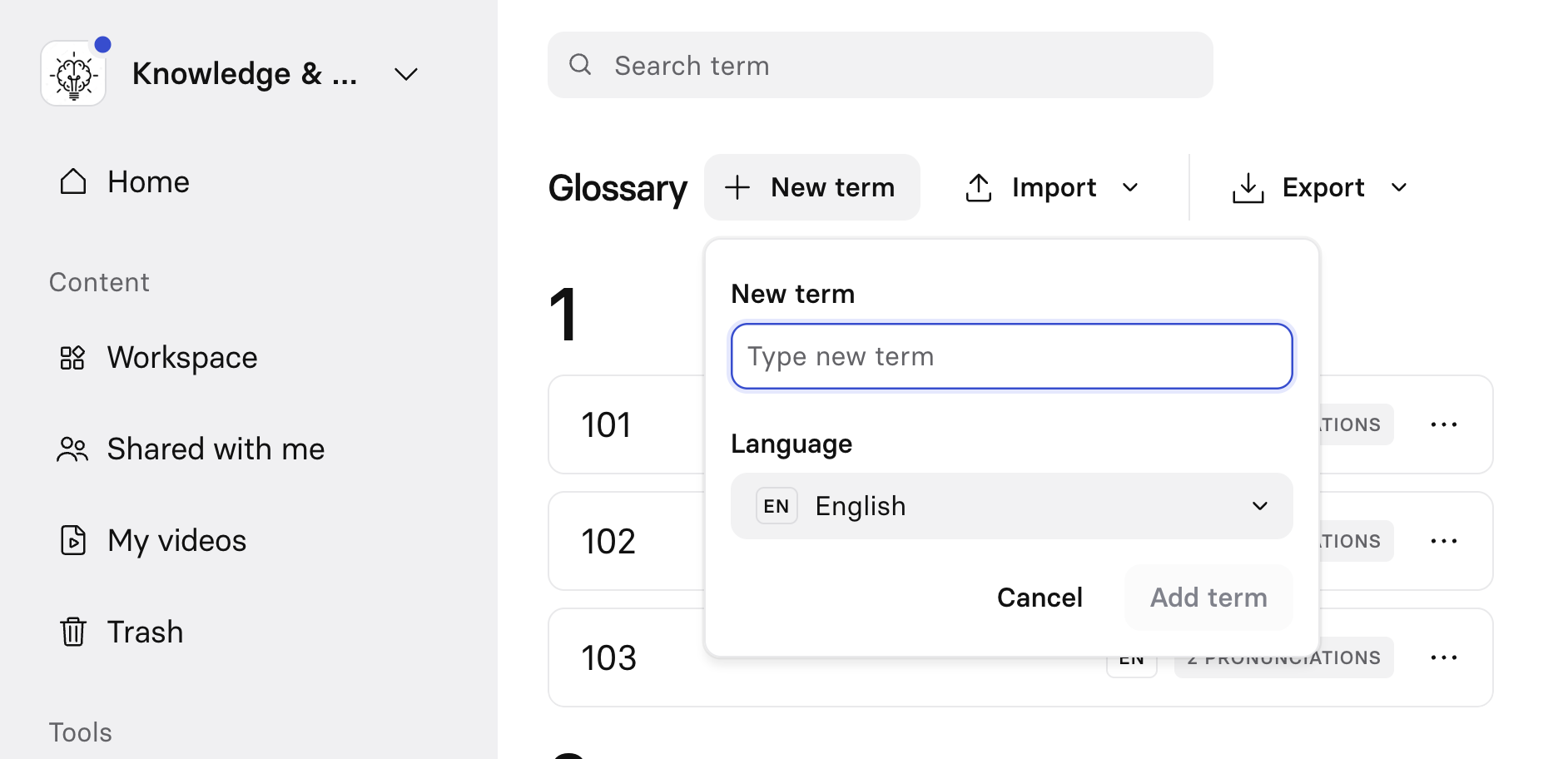
- Select
+ New term. - Enter the term and select its original language.
- Configure the Pronunciation and Translation settings on the right.
- Select
Save.
Pronunciation
A term can have more than one pronunciation, each scoped to a different set of voices—for example, a general pronunciation for all English voices, plus a specific override for a single voice. Select + New pronunciation to add another entry, or Edit on an existing one to change it.
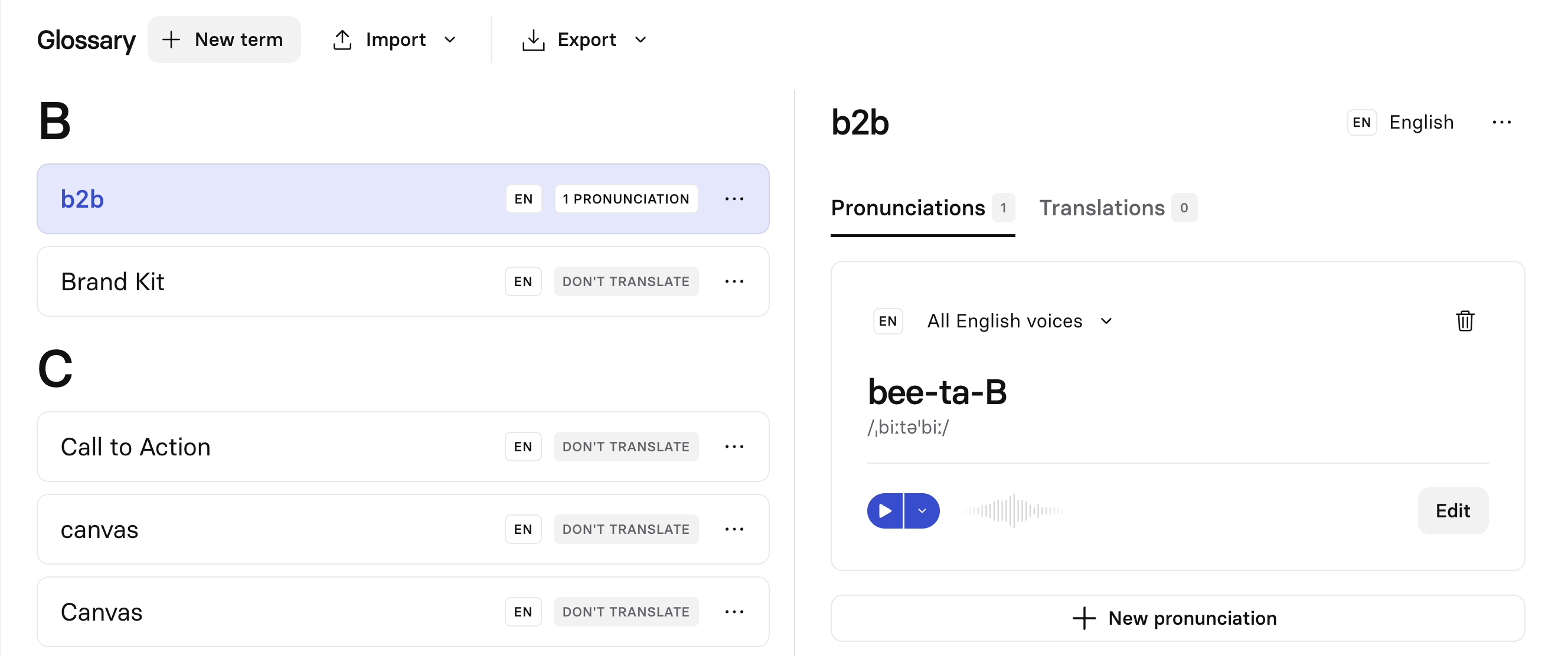
To set a pronunciation, type a phonetic spelling or select Record to speak it aloud. Select Tips for guidance on writing a pronunciation—see Pronunciation on the script box page for examples:
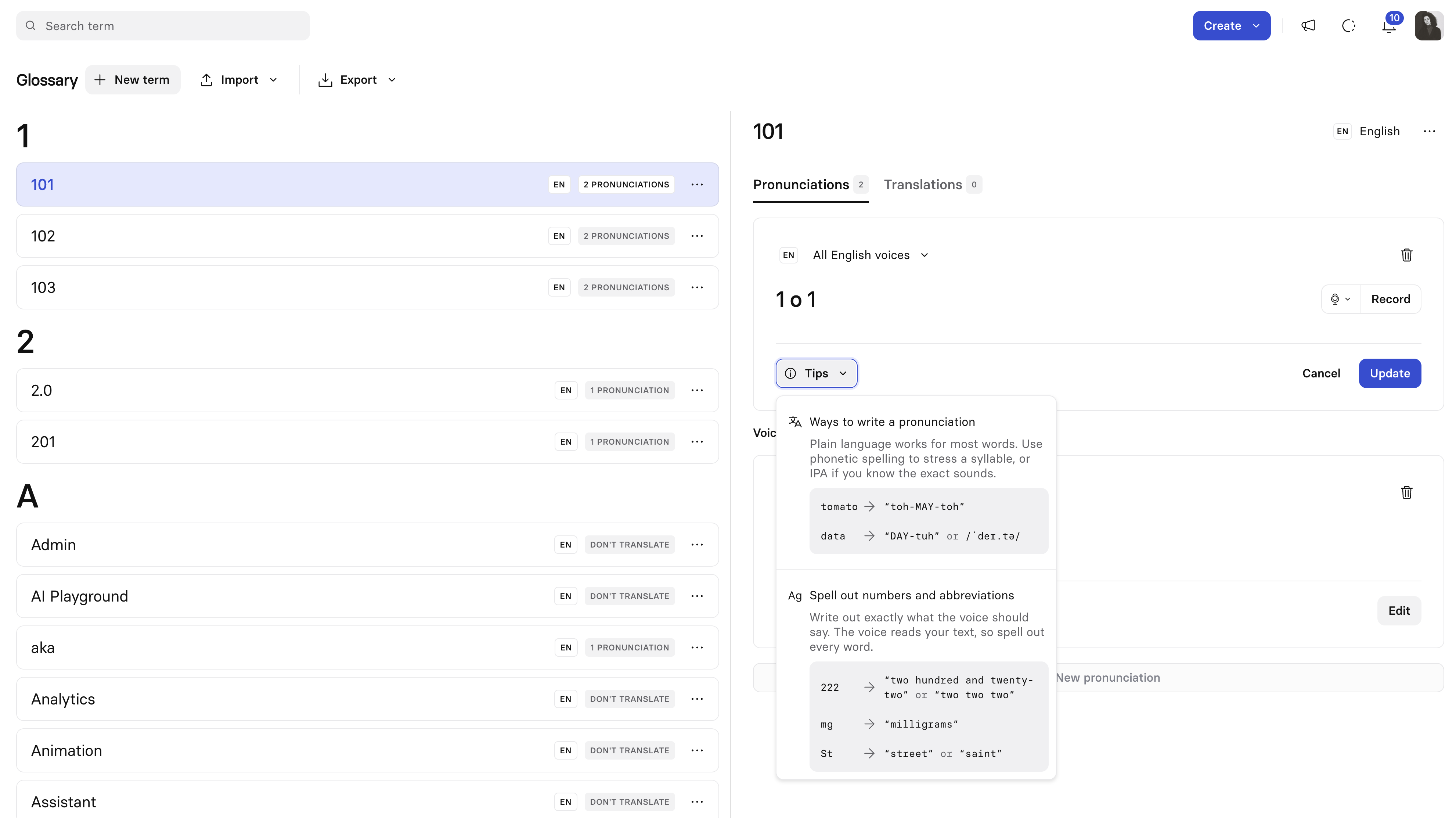
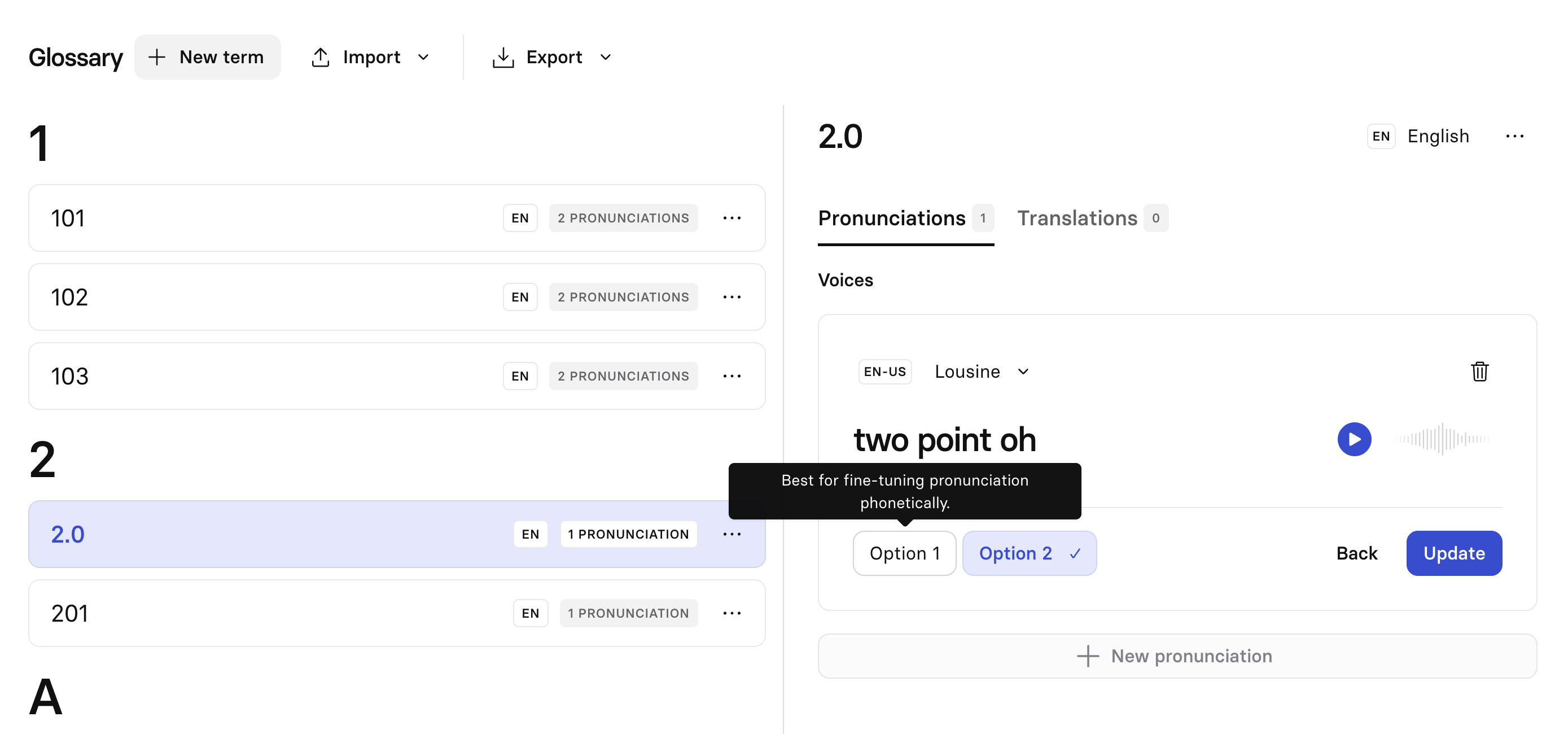
Synthesia then offers two versions of the pronunciation to preview and choose from:
- an IPA-based Option 1, best for fine-tuning how a word sounds phonetically
- a respelling-based Option 2, more consistent for numbers, dates, symbols, and abbreviations
Choosing an option is optional—if you don't pick one, Synthesia defaults to IPA when the current voice supports it, or respelling otherwise:
Use the scope setting to control which voices a pronunciation applies to:
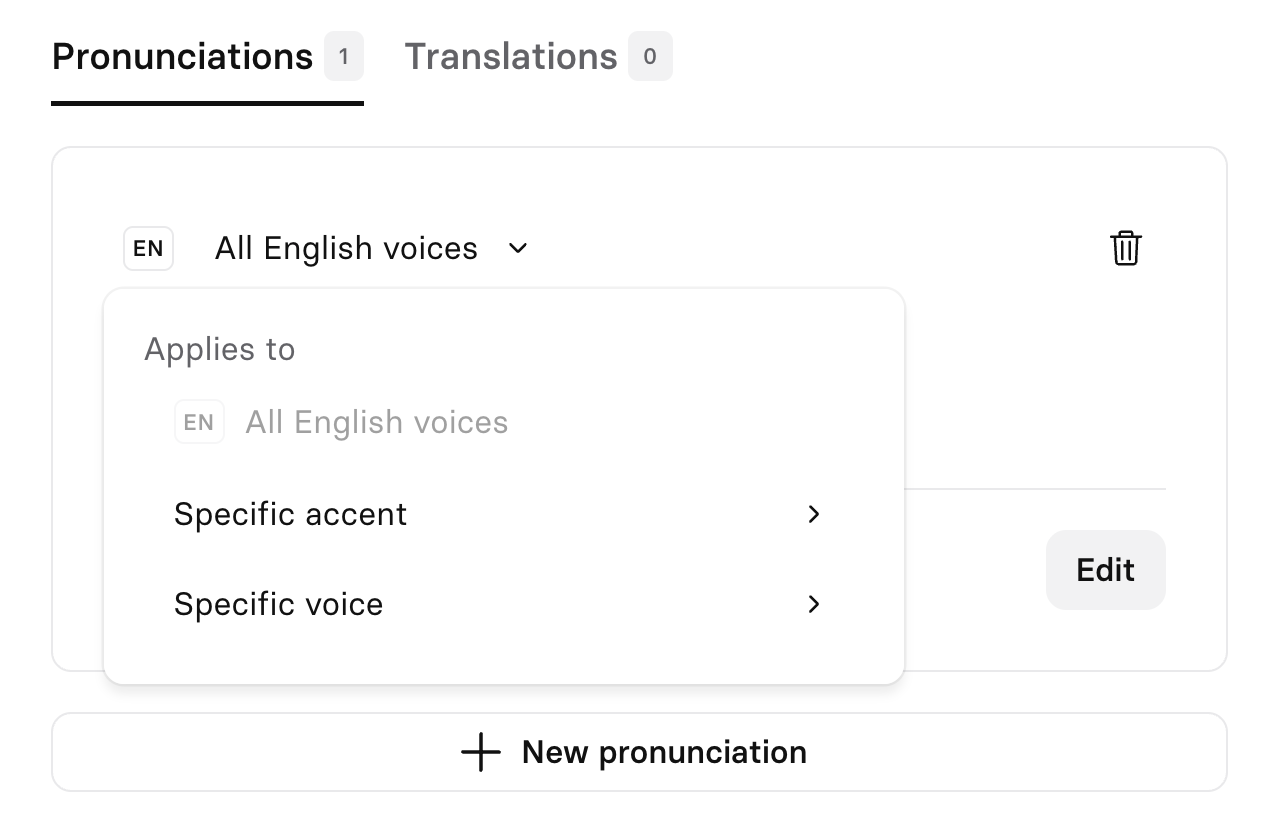
| Scope | Description |
|---|---|
| All voices in a language | Applies to every voice in that language. |
| Specific accents | Applies only to a regional variant, for example British English. |
| Specific voices | Applies only to the voices you select. |
Translation
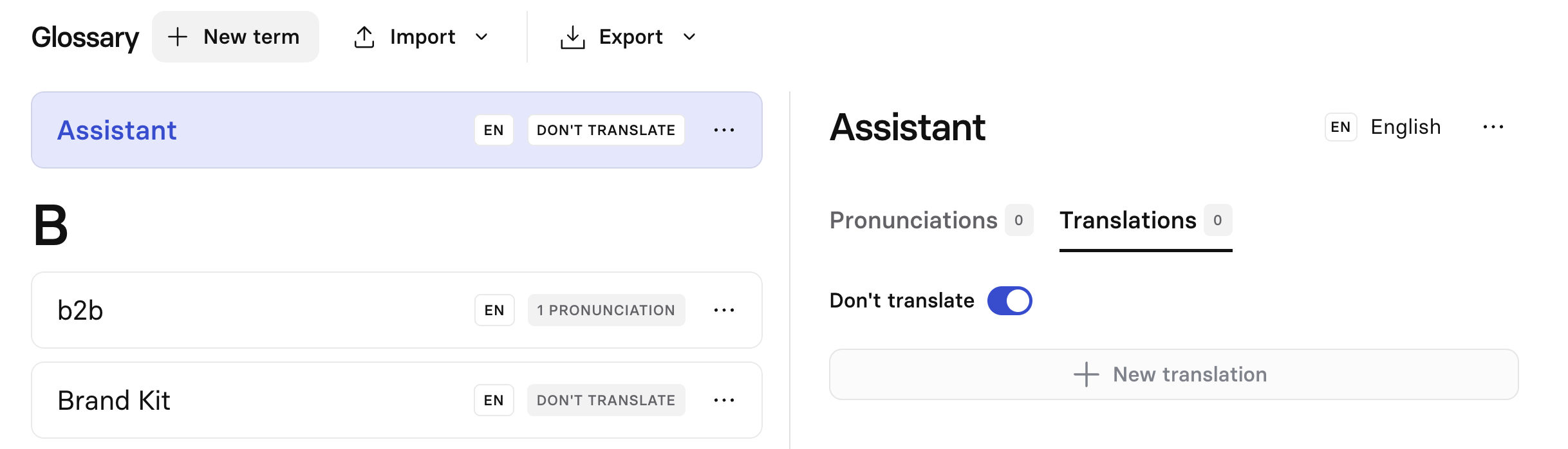
Toggle Don't translate to keep the term unchanged across all languages—useful for acronyms and brand names. Otherwise, define a translation for each target language or locale.
Manage terms from the editor
You can add and manage glossary terms without leaving the editor.
To add a translation: Highlight the term in the script and select Add translation. From the panel, you can toggle Don't translate, view existing translations, or select Manage translations to open the full Glossary page.
To add a pronunciation: Highlight the term in the script, select Pronunciation, set your pronunciation, then select Add to Glossary.
Import and export via CSV
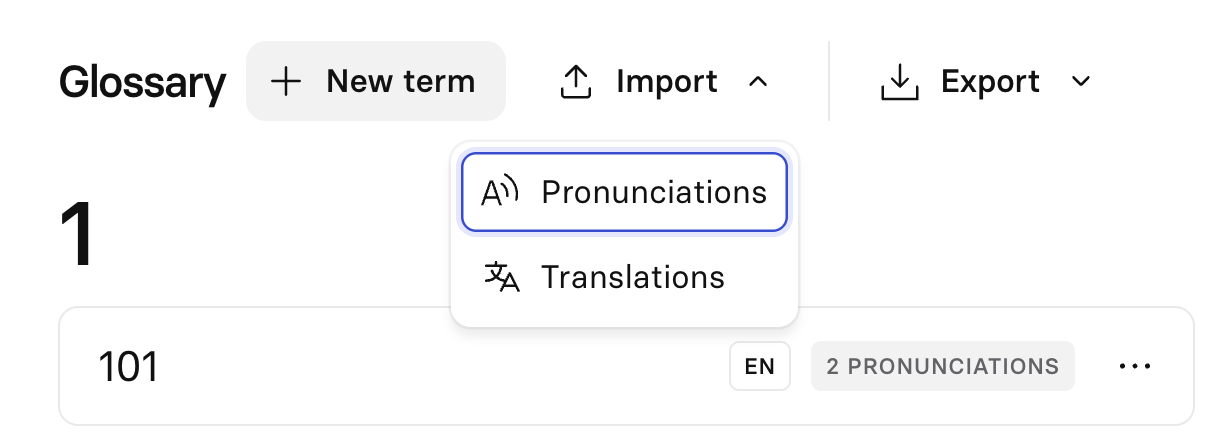
To import: Select Import, upload your file, decide whether you want to import pronunciations or translations, and follow the prompts. New terms are added to your existing glossary; conflicting entries for the same term and target language are replaced; unrelated entries are unaffected.
-
Prepare a CSV file with your term data.
A typical structure might include:
- Source language
- Source term
- Target language / locale
- Target term
- "Do not translate" flag (if applicable)
- A
preferred_representationcolumn (ipaorrespelling), if you want to override Synthesia's default choice for a term's pronunciation
-
Go to the Glossary page in Synthesia.
-
Select the
Importoption. -
Upload your CSV and follow the prompts to map your columns to glossary fields.
-
Review the summary and confirm the import.
Pro tip:Downloading and re-uploading a CSV is the recommended way to keep glossaries consistent across multiple workspaces.
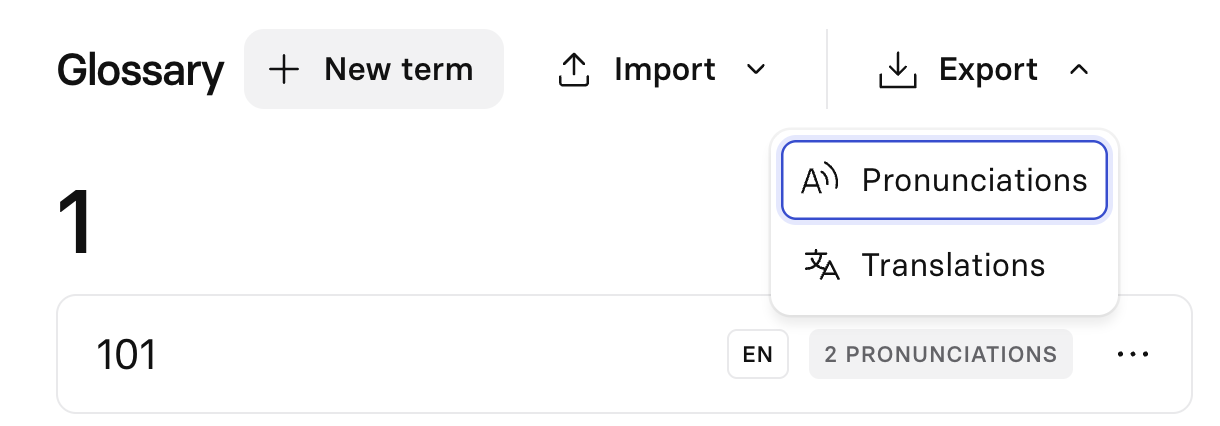
To export: Select Export, decide whether you want to export pronunciations or translations, and download your file.
Control who can edit the Glossary
The Restricted Glossary Management toggle is off by default for new workspaces, meaning all workspace members can manage glossary terms. Workspace admins can restrict this to admins only if needed, and Organization admins can define whether the glossary can be edited by All members / Admins only / Restrict for admins only in specific workspaces.
Example workflows
- Standardizing product names across regions: add product and feature names as glossary terms. Choose approved translations per language or mark them as
Don't translateto keep them in English. - Keeping acronyms consistent: create entries for acronyms like "SSO" or "FOCA" and set them to
Don't translateso they remain unchanged across all languages. - Supporting regional localization: add accent-specific entries (for example
es-ESvses-MX) for the same concept to align with local expectations.
Updated 27 days ago