

Motion
Generate animated motion graphics inside a scene using presets, custom prompts, or reference images.
Motion Graphics lets you create animated visual assets directly inside a scene in the Synthesia Editor. Choose from a library of pre-defined presets, or create completely bespoke motion graphics using a custom text prompt and optional reference images.
Overview
With Motion Graphics, you can:
- Choose from a library of presets — select the specific preset that best matches your content and style.
- Create custom motion graphics — use a text prompt and optional reference images to generate bespoke animated assets.
- Set the canvas size — create assets in Full or Half canvas size.
- Add automatic sound effects — so the output feels polished without extra steps.
- Choose a style to pick a preset look like
Painter 2D,Soft 3D,Glossy 3D,Collage, orComics, or select a Brand kit if you're on an Enterprise plan. The same styles are available when generating b-roll, so avatar, motion, and b-roll can share one look.
Motion Graphics works especially well for structured content formats such as cards, timelines, and checklists.
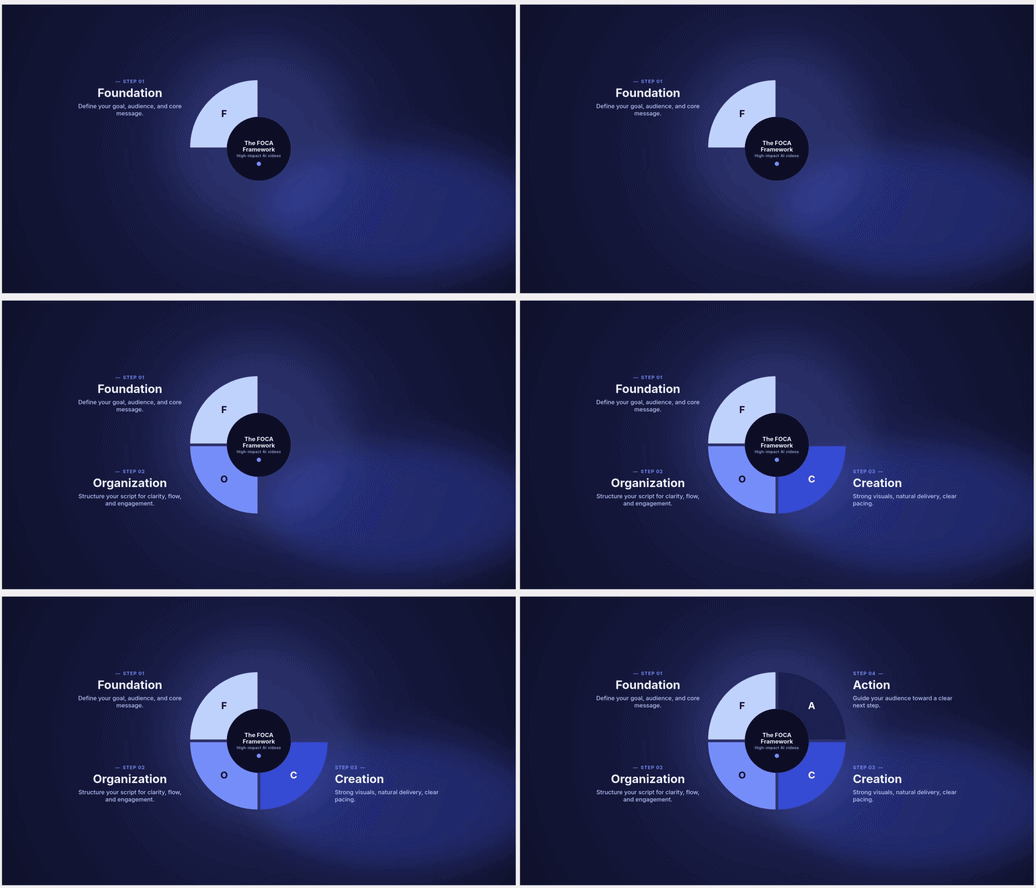
Example Motion Graphics
How it works
Generate from a preset
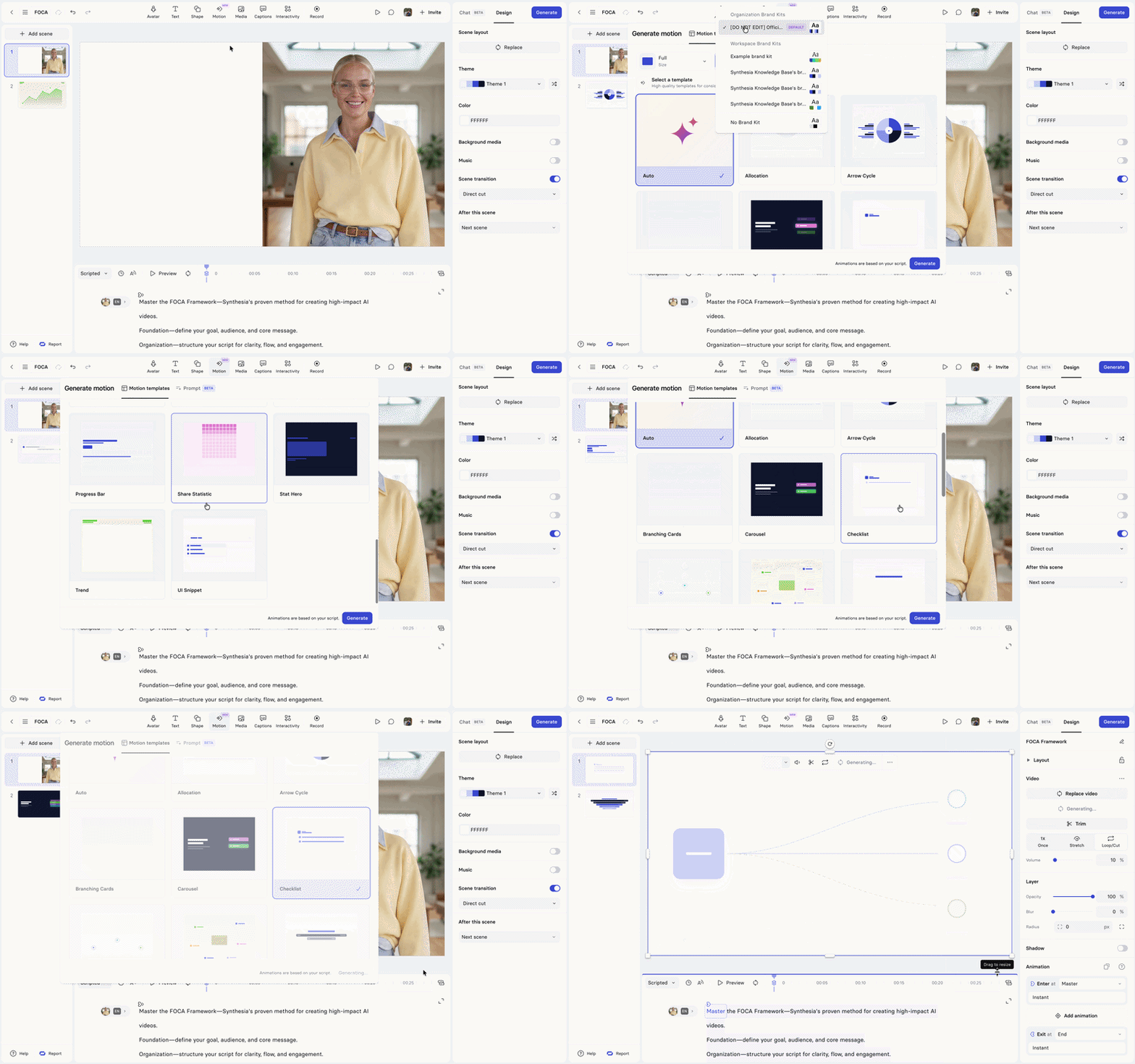
Motion graphics from template
- Open a video in the Editor.
- Select a scene.
- Open the motion graphics panel in the top toolbar.
- Select a template from the available options.
- Choose a canvas size: Full or Half.
- Choose a brand kit.
- Select Generate. The asset is placed in the scene as a media element.
Create a custom motion graphic
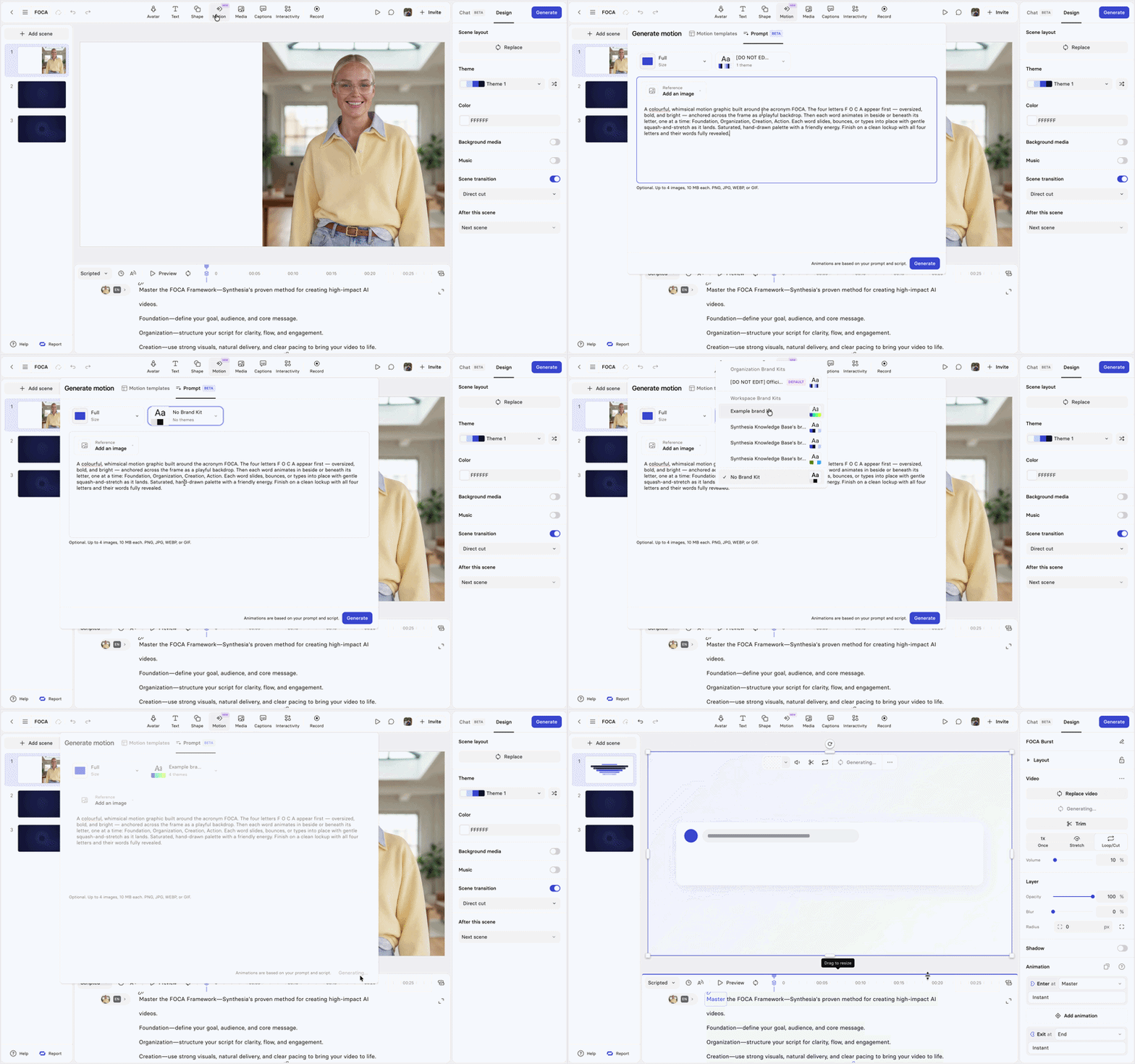
Motion graphics from prompt
- Open a video in the Editor.
- Select a scene.
- Open the motion graphics panel.
- Enter a custom text prompt describing the motion graphic you want to create.
- Optionally, upload a reference image.
- Choose a canvas size: Full or Half.
- Choose a style, or a brand kit if you're on an Enterprise plan.
- Select Generate.
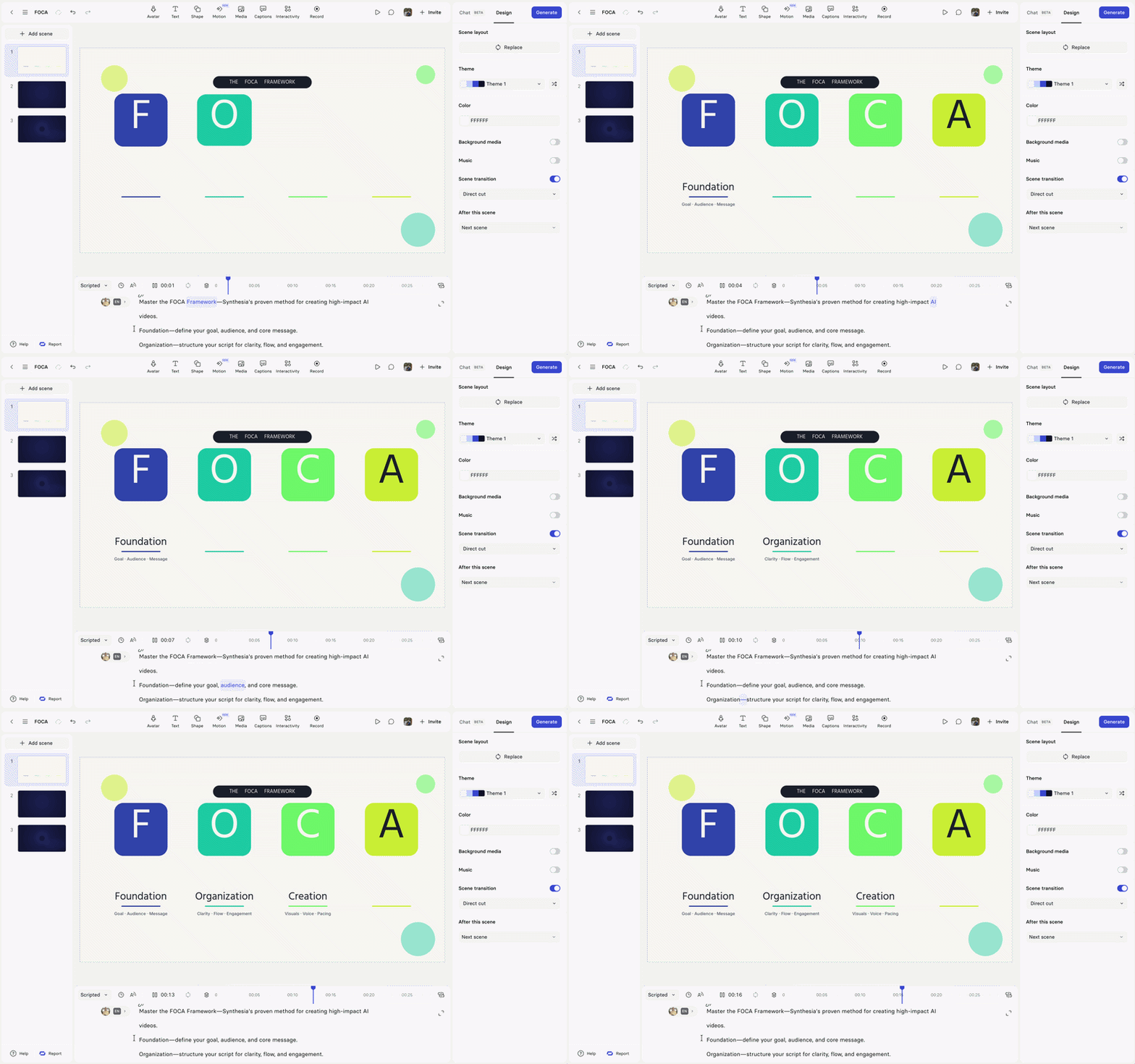
Motion Graphic prompt example
Editing & Iterations
After you generate a Motion Graphic, you can update it without generating it from scratch. You can edit its text, Refresh it to re-sync with your scene, or Revise it to change its content or style. Refresh and Revise both work on preset and custom Motion Graphics.
Edit text
Edit the text in a generated Motion Graphic to fix wording or match your script, without re-generating the asset.
NoteOnly Motion Graphics generated after 26 June 2026 can be edited. To edit an older asset, generate a new one — re-generating an existing asset doesn't make it editable.
- Select the Motion Graphic on the canvas.
- Select Edit, or open the design panel and turn on Edit motion graphic.
- Select a text element and type the new wording. The text replaces the original as you type, and a change indicator marks each edited element.
- To undo a single change, select the revert icon for that text element.
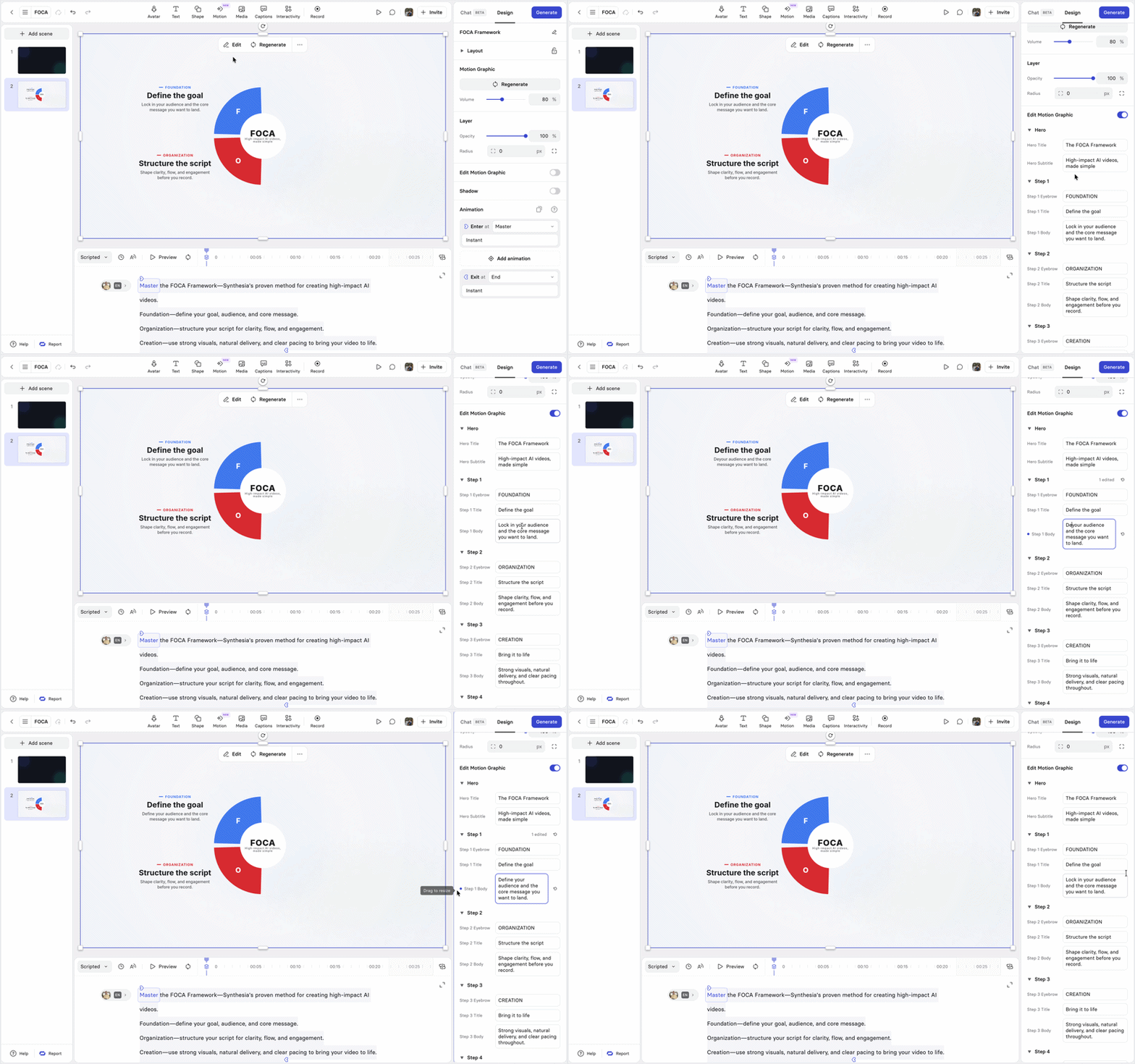
Edit Motion Graphics
Toggling off
Edit Motion Graphicresets the asset to its original version and discards all your edits.
TipLayouts are tuned to the original copy length. Keep edits close to the original length so text doesn't overlap nearby elements.
Refresh
Use Refresh to bring a Motion Graphic back in sync after you change a scene. Refresh regenerates the asset in one step to match an updated script or a new speaker, so you don't have to rebuild it.
- Select the Motion Graphic on the canvas.
- Select
Refresh.
The Motion Graphic regenerates to match your current script and speaker.
Revise
Use Revise to change an existing Motion Graphic with a text prompt, or to apply a different Brand kit.
- Select the Motion Graphic on the canvas.
- Select
Revise. - Enter a prompt describing the change you want, or choose a different
Brand kit. - Select
Generateto apply the update.
Translate a motion graphic
Motion Graphics are translated as part of the standard Video Translation flow. Because a Motion Graphic is synced to your script, it's translated along with the rest of your video — you don't need to regenerate it to get a translated version.
Considerations
The following considerations apply:
- Maximum duration: 30 seconds per generation. Split scenes longer than 30 seconds before generating.
- Editing: You can edit the text in a generated asset, but you can't change colors, fonts, or text size, edit on the canvas, or delete text elements. Numeric values (for example, 50%) may not be editable.
- Feature flag: Motion graphics requires Motion Graphic toggle to be enabled on the workspace level.
Credits
Motion Graphics is a Beta feature and does not consume credits.
Updated about 1 month ago