

AI Playground
The AI Playground is a dedicated tab for generating AI media.
The AI Playground is a dedicated tab for generating AI media—videos, images, and motion graphics—using either third-party generative models or Synthesia's SyRen model, all from a single text prompt. Use it to explore visual ideas, generate supporting footage or graphics, or create standalone assets you can drop straight into your videos.
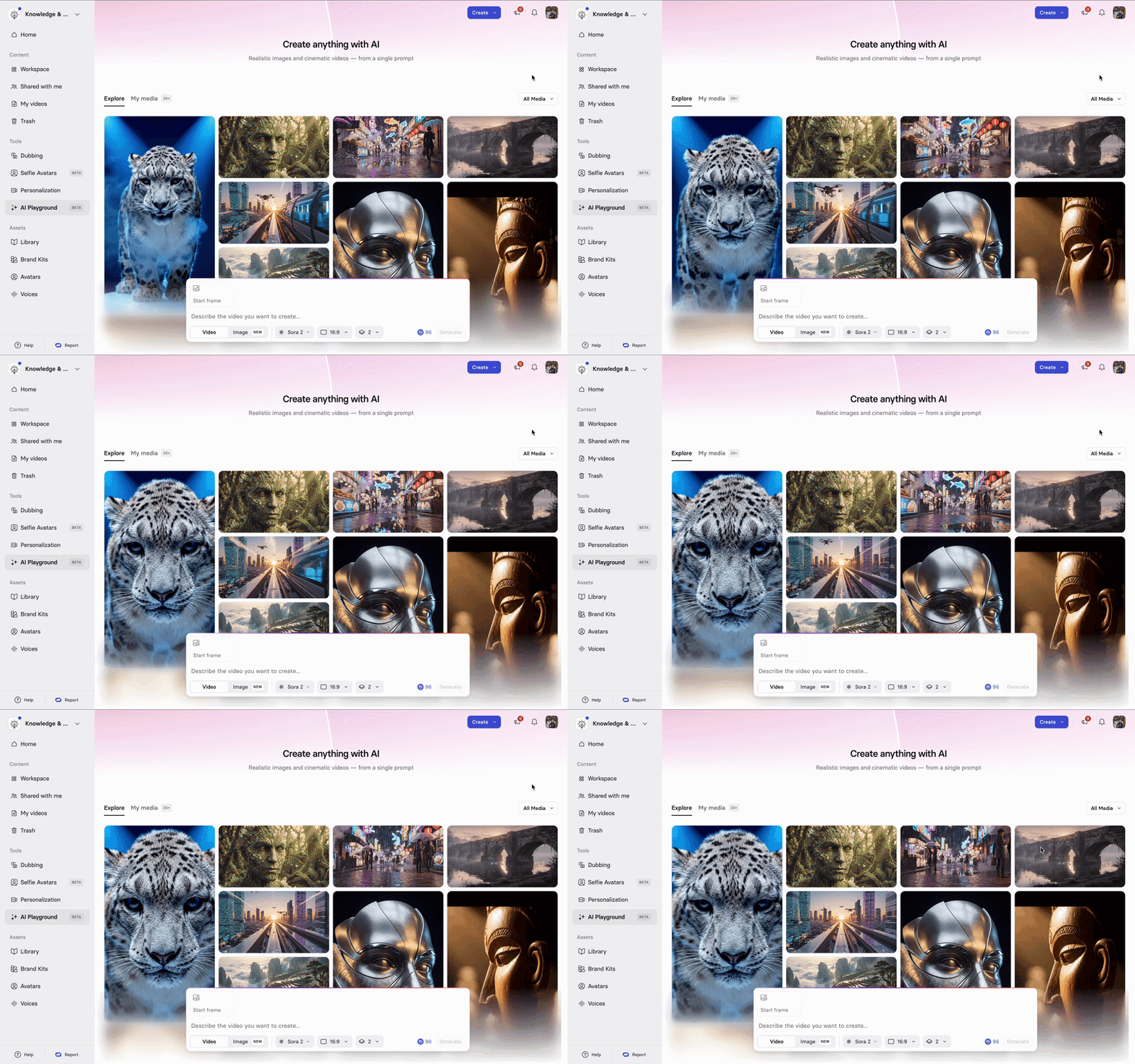
Navigation
The AI Playground is organized into two tabs:
- Explore: Browse pre-generated media for inspiration, use assets in your videos, or iterate on existing prompts.
- My Media: View and manage your generated assets, including content created via Create with AI in the editor.
Note:Some assets in Explore were generated with models that are no longer offered. Selecting
Reuse prompton one of these generates a new asset with a currently supported model instead.
In the top right of either tab, filter what's shown by media type: All media, Videos, or Images.
Supported models
Video generation
| Model | Provider | Resolution | Audio | Credits per video | Start frame support | End frame support |
|---|---|---|---|---|---|---|
| Gemini Omni | 720p | Optional | 48 (with or without audio) | ✅ | ❌ | |
| Veo 3.1 | 1080p | Optional | 96 (no audio), 192 (audio) | ✅ | ✅ | |
| Veo 3.1 Fast | 1080p | Optional | 48 (no audio), 60 (audio) | ✅ | ✅ |
Note:Duration isn't adjustable in the AI Playground—each model generates a fixed 8 second clip.
For selectable durations (4, 6, or 8 seconds, up to 10 seconds for Gemini Omni), use Create with AI in the editor instead.
Note:If you're on an Enterprise plan and don't see the Gemini Omni model, see Admin control below.
Image generation
| Model | Provider | Resolution | Credits per image |
|---|---|---|---|
| Flux.2 | Black Forest Labs | 1080p | 3 (free for Enterprise) |
| Nano Banana Pro | 1080p | 9 | |
| GPT-Image-2 | OpenAI | 1080p | 9 |
Motion graphic generation
Motion graphics can also be generated directly in the editor—see Motion for details.

In the AI Playground, motion graphics are generated from a text prompt with optional template selection and image references. There's no model selector for motion graphics—it uses Synthesia's SyRen model to generate graphics.
- Credits per generation: 0 (free to use)
- Assets per request: 1
- Image references: Up to 4 (
.png,.jpg,.gif—max 10MB each) - Size options: Full, Half
- Template:
Auto(default), or manual selection
To add an image reference, select Image Reference and upload one image. To add another (up to 4 total), select Image Reference again—you can't select multiple images in a single upload.
Admin control
Access to the AI Playground is controlled with AI-generated stock content workspace settings and organization settings. This setting also controls access to AI media creation in the editor's Media modal. Both surfaces share the same permission toggle.
Gemini Omni has its own separate Gemini Omni workspace setting (there is no organization-level setting). If you're on an Enterprise plan and don't see the Gemini Omni model, ask your workspace admin to confirm this setting is enabled.
Prompting
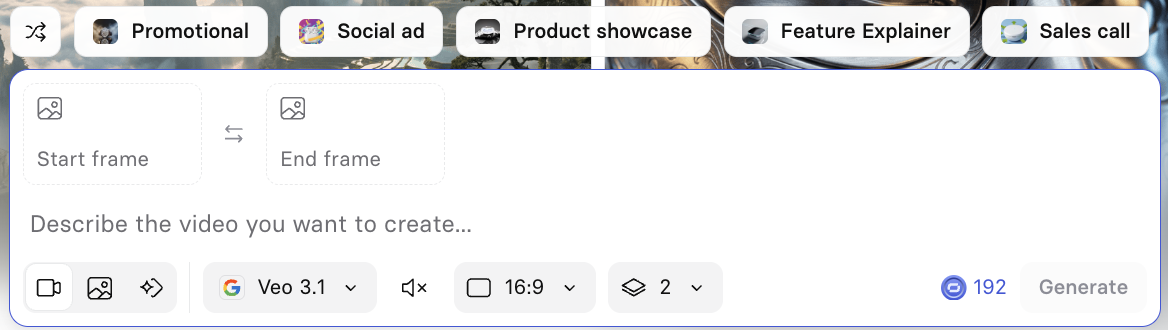
As you write your prompt, Synthesia provides pre-written prompt suggestions above the prompt window (for example, Promotional, Social ad, Product showcase, Explainer video). Select the shuffle button to view alternative options.

You can also reuse existing prompts. Hover over a generated asset, select the three dots (⋯), and select Reuse prompt to iterate on a previous prompt.
Multi-asset generation
The AI Playground supports generating multiple assets from a single prompt in one request. This allows you to explore variations quickly and choose the most suitable asset for your project. Assets generated from the same prompt differ in style, composition, or content.
For both videos and images, select how many assets to generate: 1 to 5 (defaults to 2).
Aspect ratios
Select your preferred output aspect ratio before generating.
Video generation:
- Landscape: Widescreen format (16:9).
- Portrait: Vertical format (9:16).
Image generation: 16:9, 9:16, 1:1, 3:4, 4:3
Start frame and end frame
Start frame and end frame are optional. They are used used as a key frame in the generated video, not as a visual reference—the model uses the exact image you upload as the first or last frame of the output clip.
For video generation using Veo 3.1 and Veo 3.1 Fast, you can upload an image to control the first frame, the last frame, or both. Gemini Omni supports a start frame only.
Supported formats: .png, .jpg.
Media library integration
Media generated in the AI Playground is accessible from:
- The AI Playground tab.
- The Editor → Media modal.
Assets created in either surface are available in both—there's no import or transfer step required.
After an asset generates

Hover over a generated asset to access quick actions:
- Download: Save the asset to your device. Images download as
.pngfiles and videos as.mp4. - Share: Create a public share link or send the asset by email—only videos can be shared.
- Reuse prompt: Re-run or iterate on the original prompt to generate new variations.
- Continue to editor: Open the asset in the editor to keep working.

View asset details
Select an image or video, in either Explore or My Media, to open it in a modal.

From here, you get the same actions available from hovering over an asset (Download, Reuse prompt, Share, Continue to editor), plus:
- The prompt used to generate it.
- The model and aspect ratio used.
- A player to preview the asset in full, with playback controls.
- A strip of thumbnails to browse other assets without closing the modal.
Updated about 2 months ago