

BambooHR
Connect BambooHR to Synthesia to keep your Learner Portal in sync with your HR system — employees from a BambooHR report are added as learners automatically, and refreshed every day.

Learner Portal integrationThis connector populates your Synthesia Learner Portal. The employees you sync from BambooHR become learners in Synthesia.
Use this integration to provision learners in Synthesia directly from BambooHR, instead of uploading them by hand. You create a custom report in BambooHR, authorize Synthesia with a read-only OAuth connection, and select that report in Synthesia. The employees in the report are added to your Learner Portal and refreshed daily, so new joiners, role changes, and departures are reflected automatically. Because the sync is driven by a report, you control exactly who is included — filter by department, location, or any other criteria.
Before you start
You'll need permission to create reports in BambooHR, a BambooHR account that can see that report, and organization admin access in Synthesia.
1. Create the report
In BambooHR, go to Reports → New Report and add the fields below. Give the report a recognisable name (for example, Synthesia Employee Export) — you'll select it by name when you connect in Synthesia.
| Field | Notes |
|---|---|
| Work Email | Required |
| Status | Active / inactive |
| Country | |
| Location | |
| Department | |
| Job Title | |
| EEID | Calculated field |
| Supervisor email | Calculated field |
EEID and Supervisor email live under the Calculated field category in the field picker. The other six are standard Employee/Job fields.
Save the report and note its name.
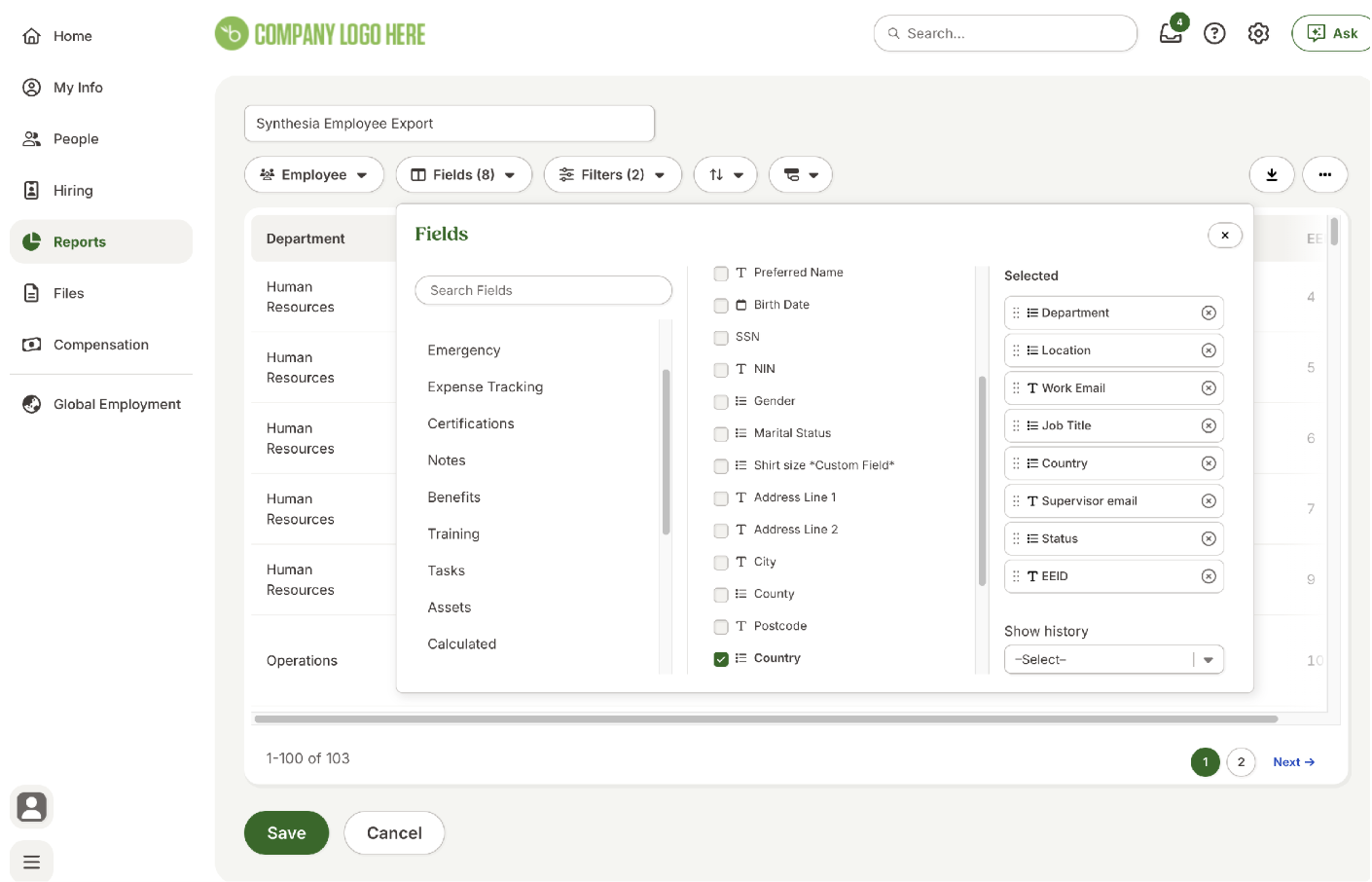
BambooHR report builder — Fields dialog with the 8 selected fields
2. Connect in Synthesia
-
As an organization admin, go to Manage → Integrations in Synthesia.
-
In the HRIS section, click Connect next to BambooHR.
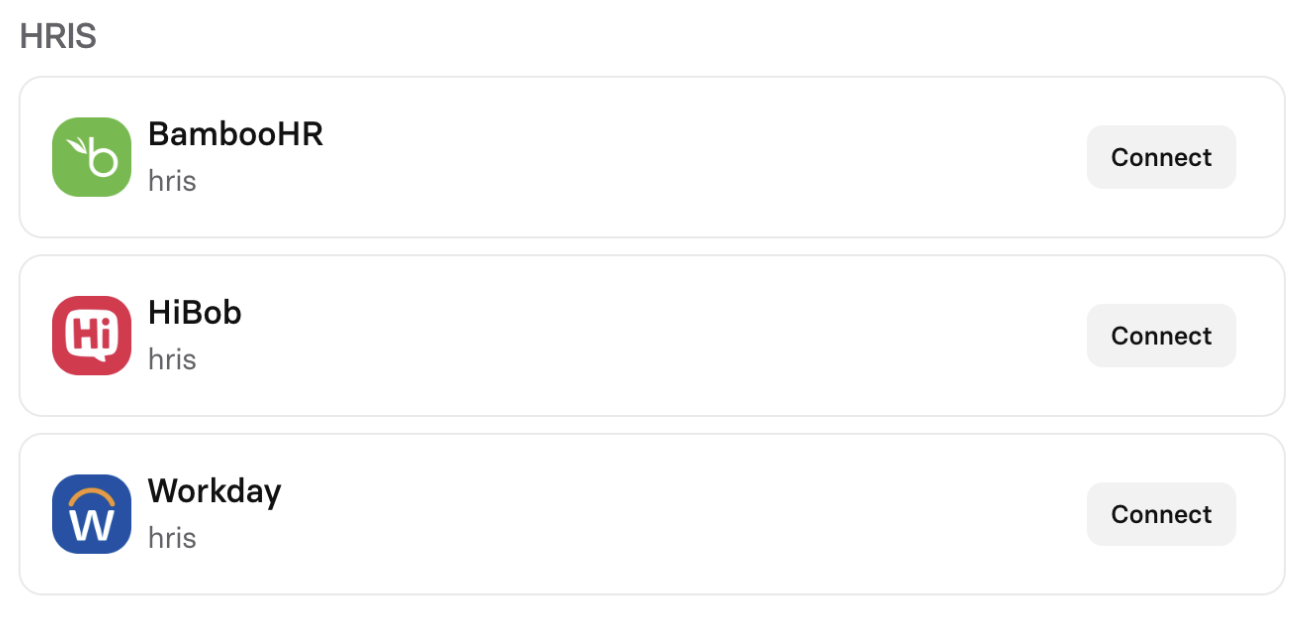
BambooHR in the HRIS integrations list
-
Enter your company domain — the text before
.bamboohr.comin your BambooHR URL (for example,yourcompany). Click Connect.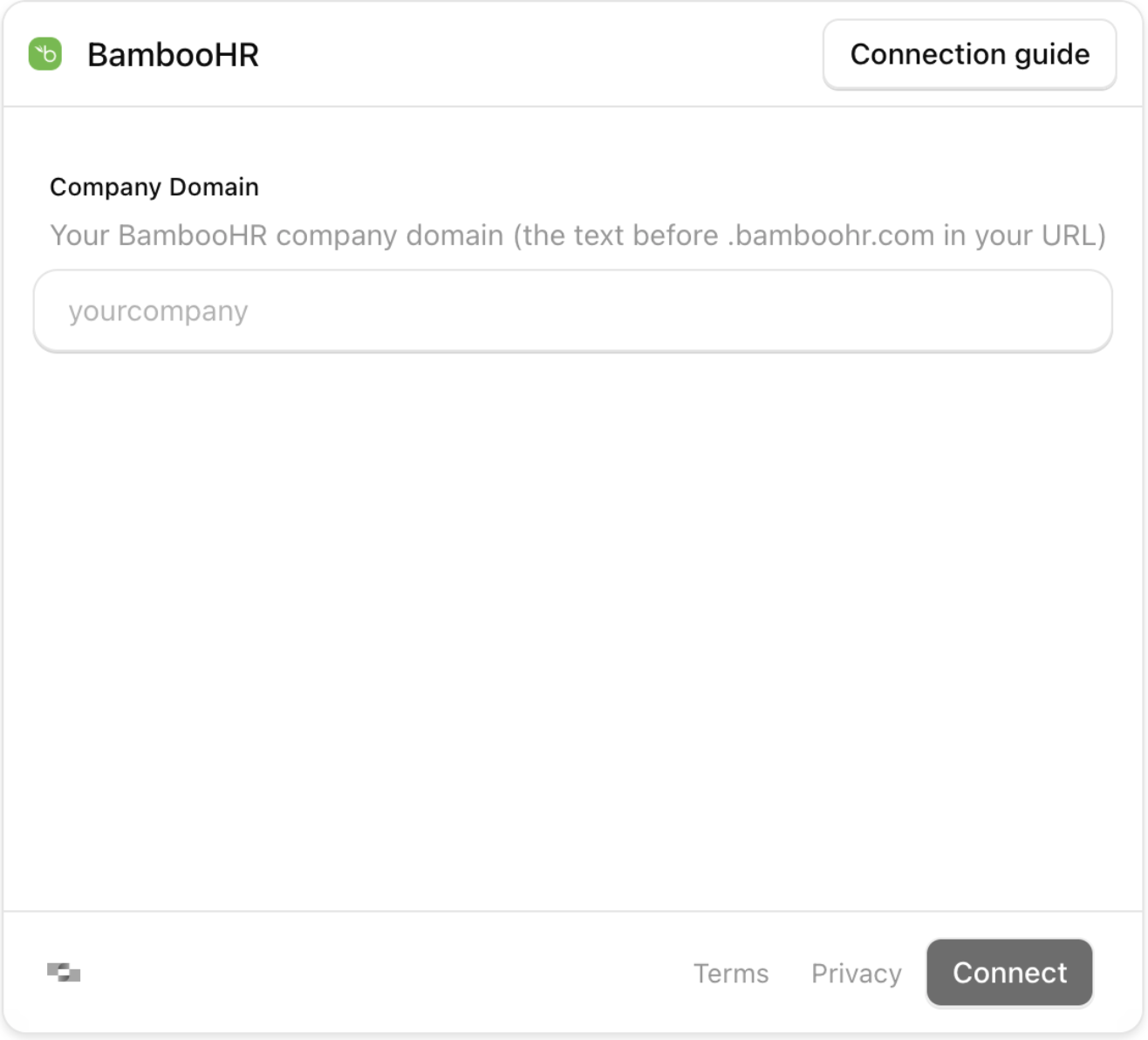
BambooHR company domain form
-
Authorize — a BambooHR popup appears. Make sure you're signed in as a user who can access the report from step 1, review the requested read-only scopes, and click Allow Access.
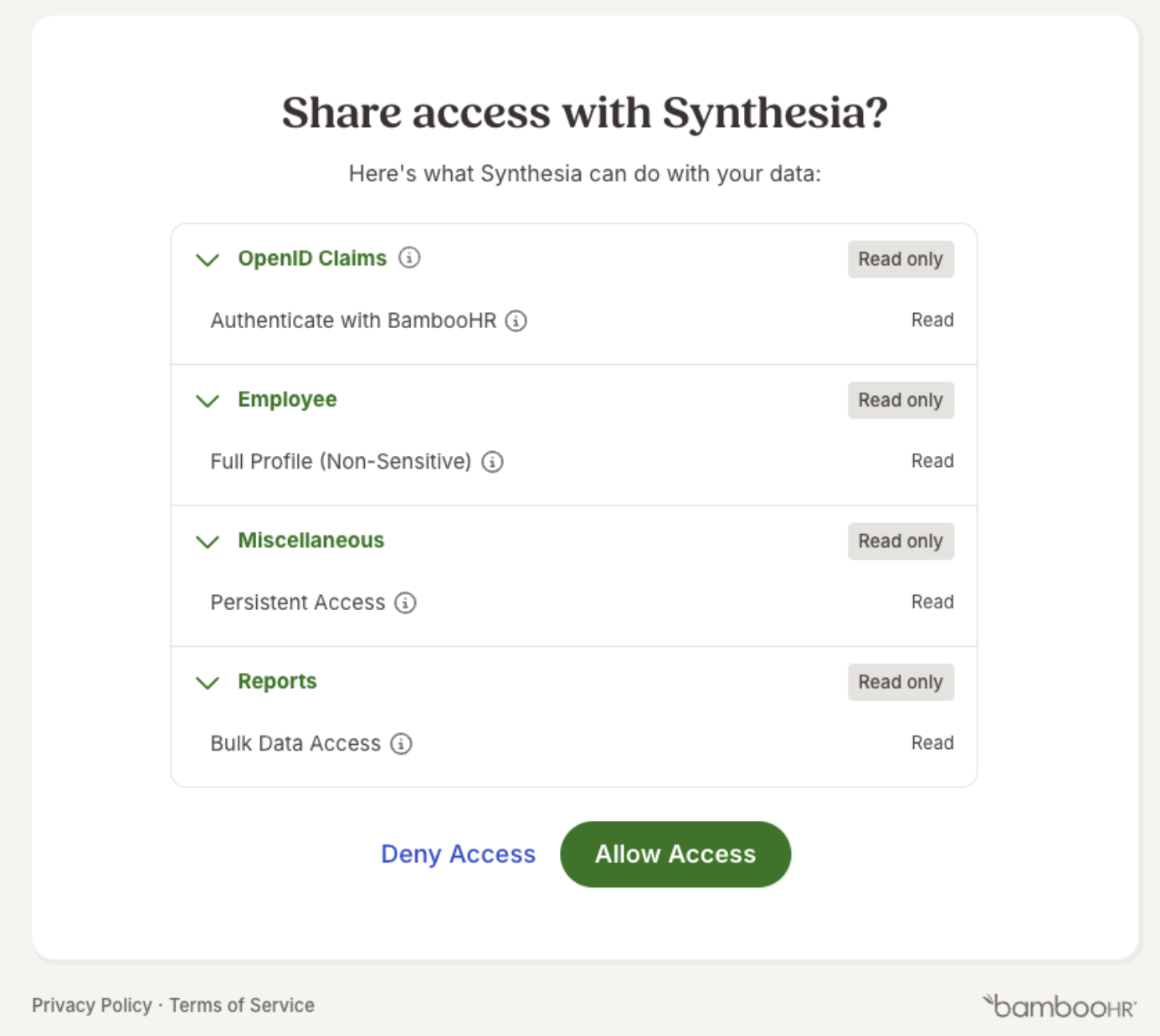
BambooHR consent — Share access with Synthesia
-
Select the report — back in Synthesia, pick the report you created in step 1 from the dropdown and click Sync employees. The first sync starts immediately, then repeats daily.
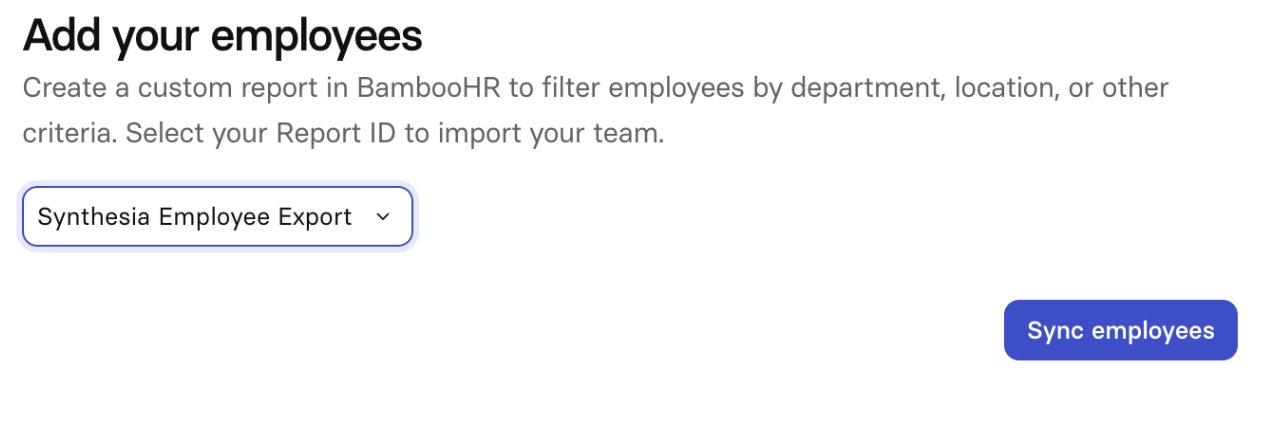
Add your employees — select report and Sync employees
-
Monitor (optional) — the status page shows the current and next scheduled sync. Return any time via Manage to trigger a manual sync, see how many employees were synced, or change the selected report.
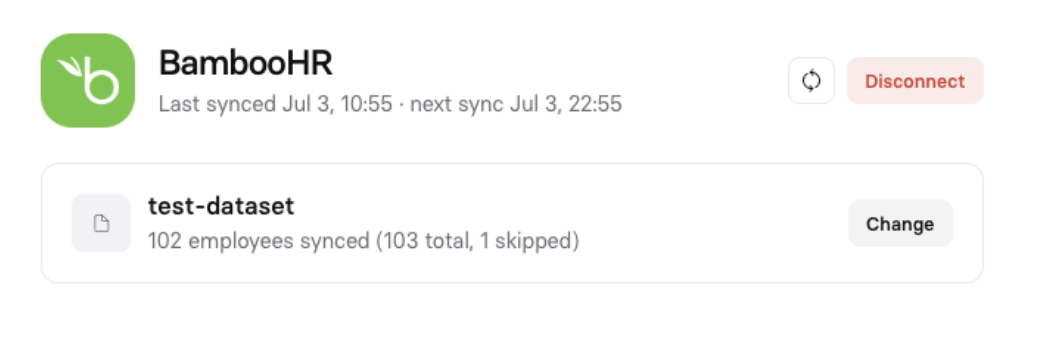
Sync status — employees synced
Updated 4 months ago