

Developers
Create and manage API keys, and find quickstart resources for building with Synthesia's APIs.
The Developers page in Synthesia Studio brings together your API keys, credit usage, and quickstart links in one place. Use it to get an API key and start building against Synthesia's APIs.
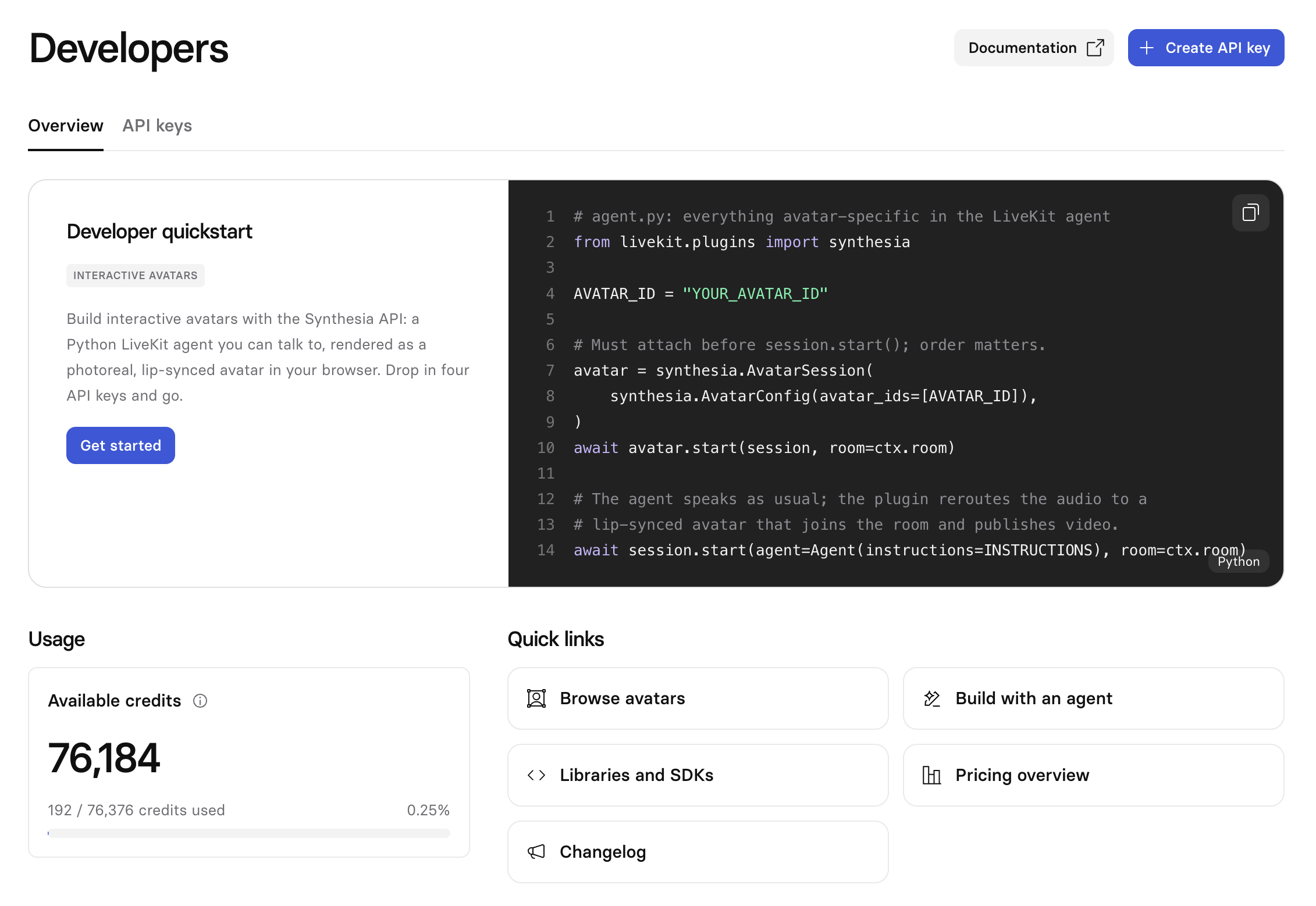
Overview
The Overview tab has:
- Developer quickstart: a code sample and a
Get startedbutton for the API you're building with. - Usage: your available credits and how much you've used.
- Quick links: shortcuts including browsing avatars, building with an agent, libraries and SDKs, pricing, and the changelog.
Create an API key
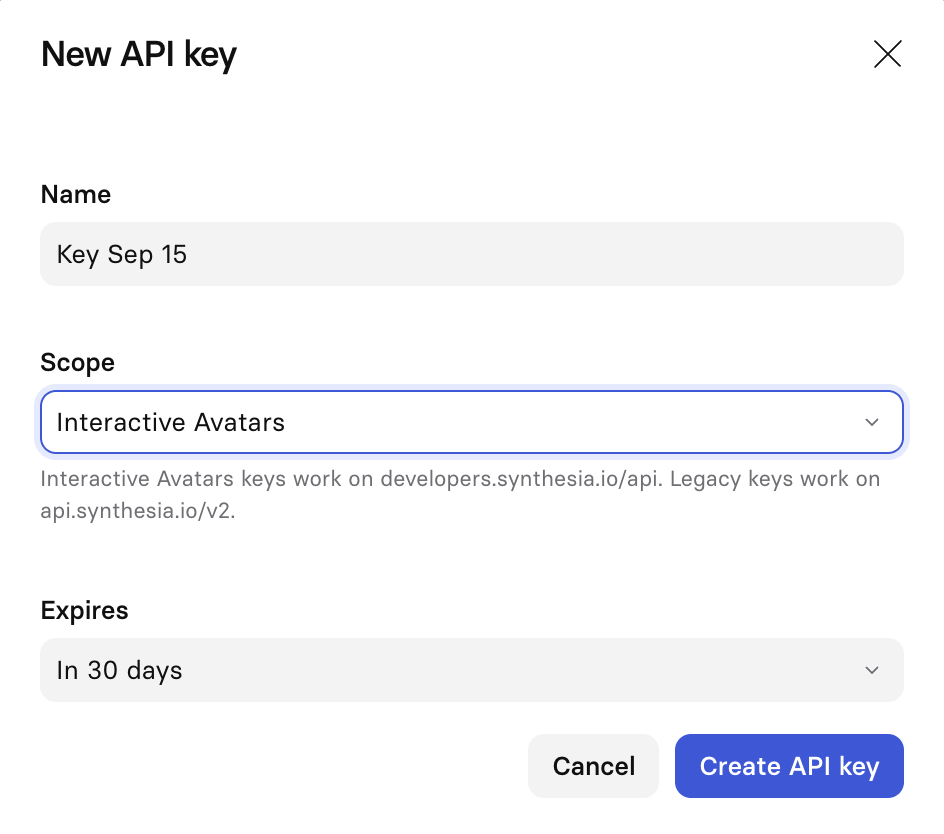
- Select
Developersin the sidebar, then theAPI keystab. - Select
New API key. - Enter a
Namefor the key. - Grant the key its
Scopes(see below). - Choose when the key
Expires: in 7 days, 30 days, 90 days, 1 year, or never. The default is 30 days. - Select
Create API key.
Your API key is only shown in full at creation. Copy it and store it somewhere safe—it can't be viewed again afterward.
API key scopes
A key's scopes decide which endpoints it can call. Grant one or more when you create the key; you can change them later with Edit key. Your plan decides which scopes you can grant.
- Video API (
api.synthesia.io/v2): grantLegacy (v2). A key without it gets a 403 from the Video API. - Synthesia API (
developers.synthesia.io/api): grant the scopes for the endpoints you call. Each endpoint's reference page names the scope it needs, and Scopes lists them all. A(write)scope includes(read)for the same product.
A key without the scope an endpoint needs gets a 403 insufficient_scope error.
Managing your keys
The API keys tab lists every key on your account: name, a masked key, scopes, expiration, status, and creation date. Search by name to find a specific key.
Select the ⋯ menu next to a key for more actions:
-
Edit key: change the key's name, scopes, or expiration, and copy itsKey IDfor support requests. This ID isn't your API key and can't be used to call the API.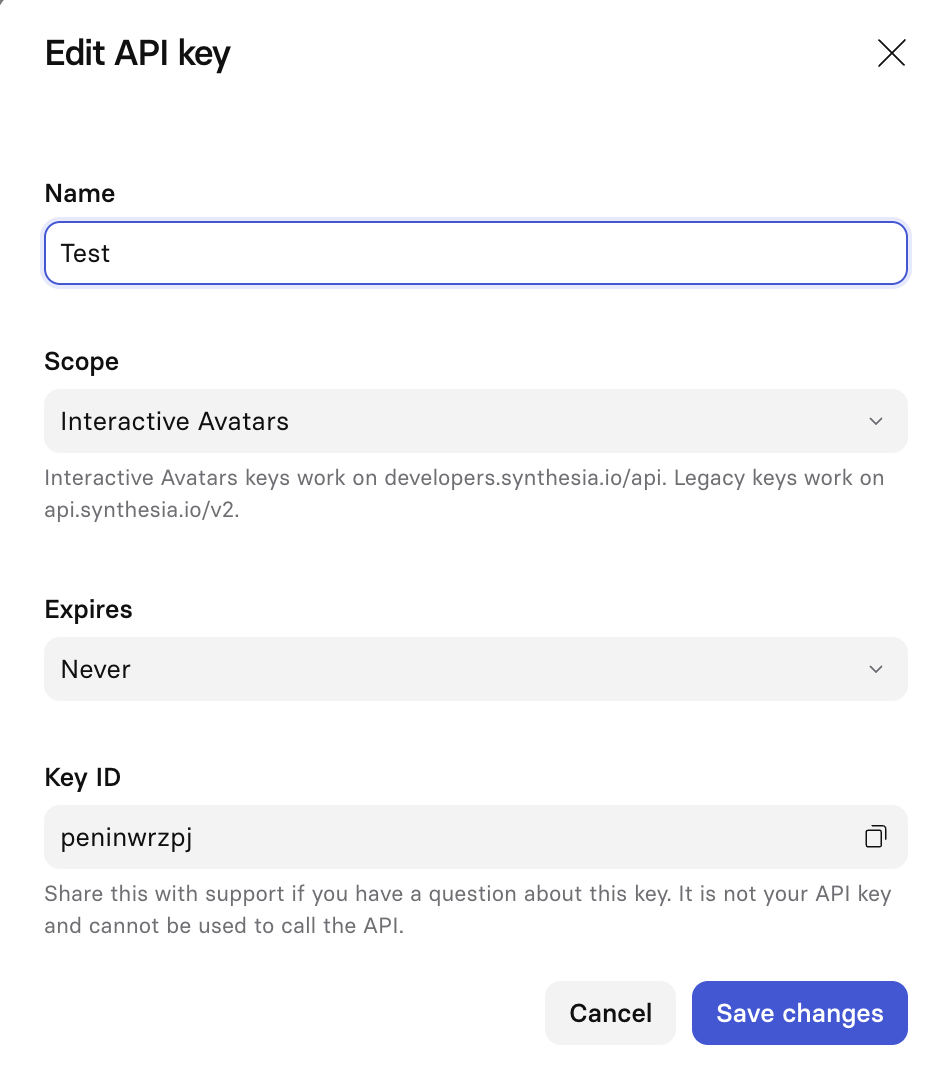
-
Disable / Enable: temporarily deactivate a key, or reactivate a disabled one, without deleting it. A workspace or organization admin can also disable your keys. Enable is unavailable while the key's owner isn't a member of the workspace -
Delete: permanently remove the key.
If you leave a workspace, or an admin removes you from it, Synthesia disables the API keys you own in that workspace. Integrations that use those keys stop working. Ask a member who is staying to create a replacement key. Admins on Enterprise plans can view and manage their members' keys. See How do I manage my members' API keys as an admin?
Key values can't be viewed again after creation—only the masked version shows here, and
Copy key IDcopies the key's ID, not its value. If you lose a key, create a new one.
Updated 2 days ago