

Storyboard
View and edit your entire video script in a continuous layout with Storyboard—designed to help you structure, refine, and improve your narrative without switching tools.
Storyboard is a script-focused view in the Editor that lets you write, edit, and review your entire video script in one continuous layout—without switching between scenes like you would when editing your video in the Canvas.
With Storyboard, you get a macro view of your entire video script to understand pacing and structure, and AI-assisted layout swaps and scene edits without leaving the continuous view of your script.
Changing views
Enter Storyboard

Click the Expand button at the top-right of the script box to switch to the Storyboard view
- Open any video in the Editor.
- In the top-right corner of the script box, select the
Expandicon. - You'll enter Storyboard view, where you can scroll through and edit your script.
Return to Canvas

Click the Collapse button at the top-right of Storyboard to switch to the Canvas view
- In the top-right corner of the Storyboard, select the
Collapseicon. - You'll enter Canvas view, where you can edit your script and visuals scene-by-scene.
You can also return to Canvas view for a specific scene in your video from Storyboard: hover over that scene's preview, then select Edit in the toolbar that appears above it.
Note:
- You can copy the script out of Storyboard, but can't paste a full edited script back in.
- You can't highlight text across multiple scenes (each scene acts like a separate block).
Editing the script and speaker
You can edit the script much like you would from the script box in Canvas view.
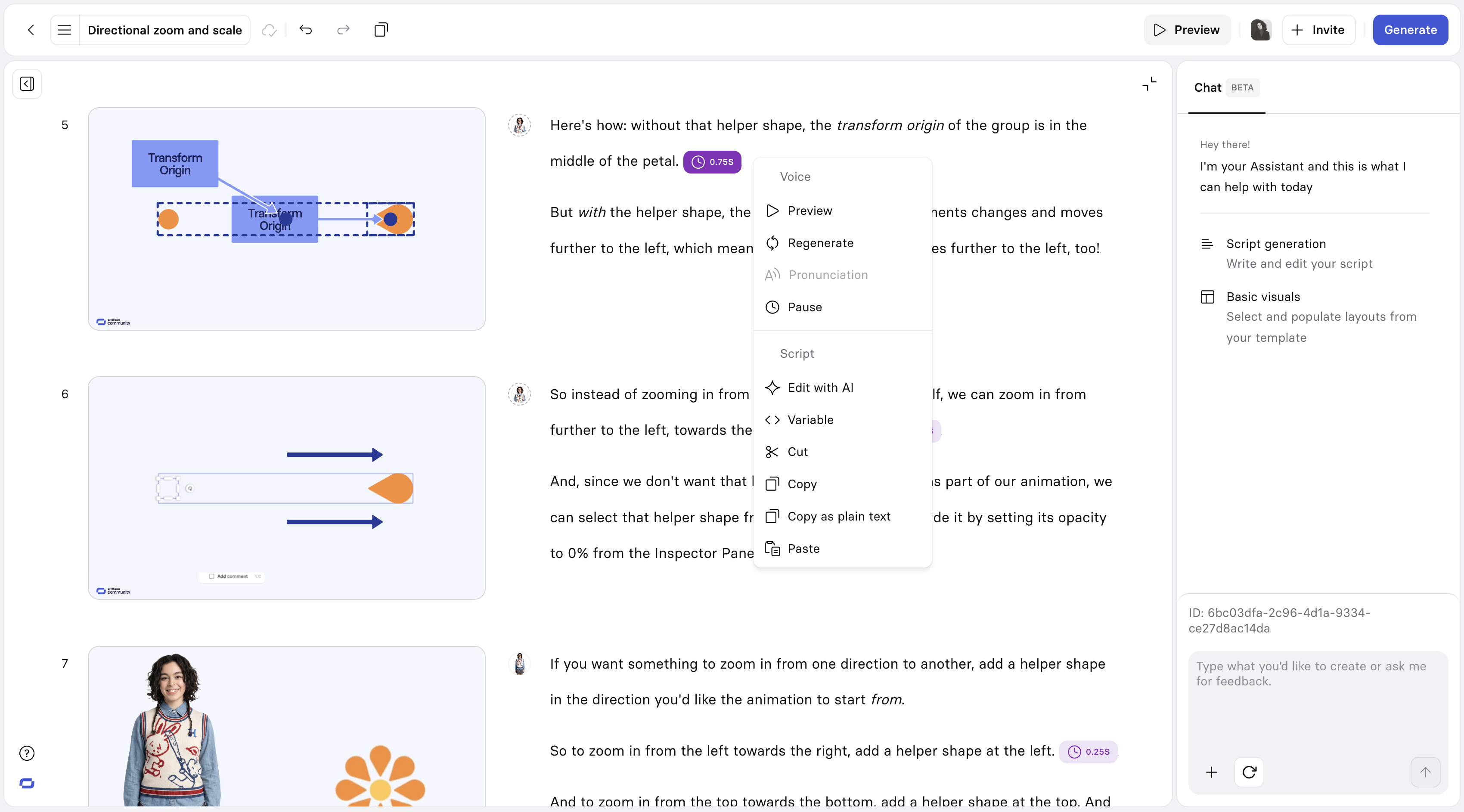
Accessing the context menu
- Add a pause: Adjust the position of your text cursor in the script, then right-click and select
Pausefrom the context menu. - Adjust pronunciation: Highlight a word or phrase, then right-click and select
Pronunciationfrom the context menu.
Change the speaker
Select the small avatar icon on the left side of the scene's script to open the avatar picker, where you can browse and select a new avatar.
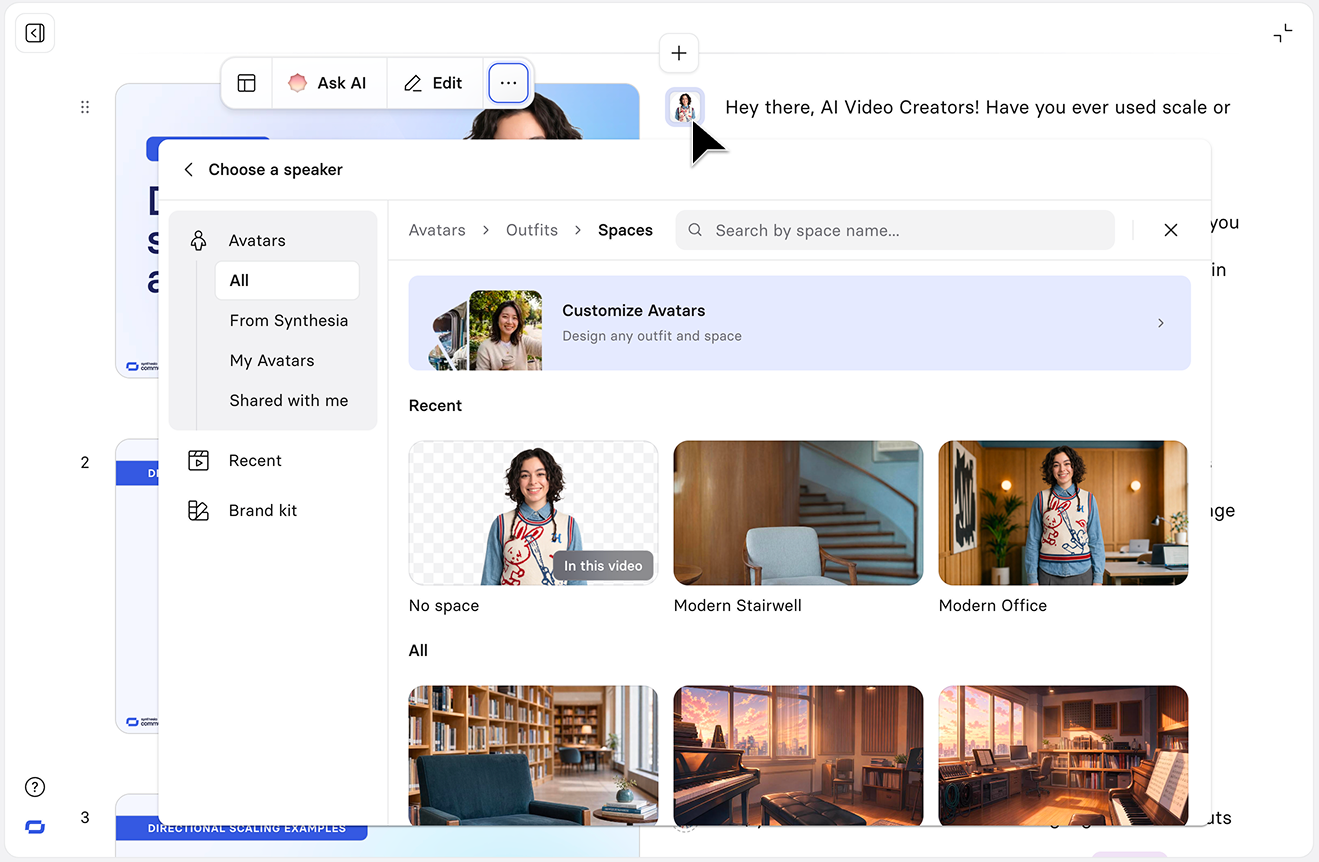
To switch to a speaker already used elsewhere in your video instead, select Choose a speaker at the top of the panel.
Note:Voice changes aren't available from Storyboard—switch to Canvas view to change a speaker's voice.
Scene-level actions
Preview a scene
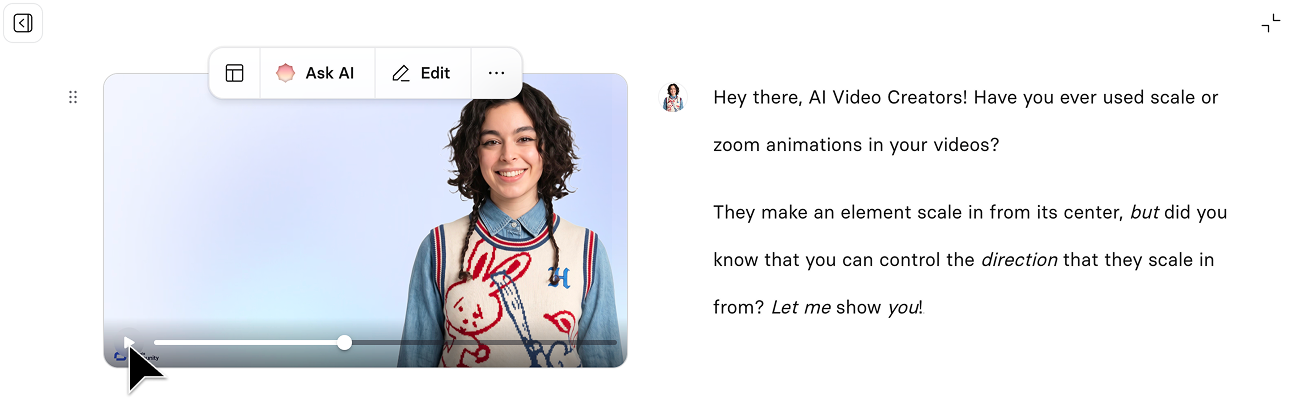
Hover over the preview thumbnail for the scene and click the play button at the bottom-left. You can also scrub the timeline manually.
Duplicate a scene
Hover over the thumbnail for the scene, click the 3-dot menu at the right of the contextual menu, then select Duplicate. The copy is inserted directly after the original.
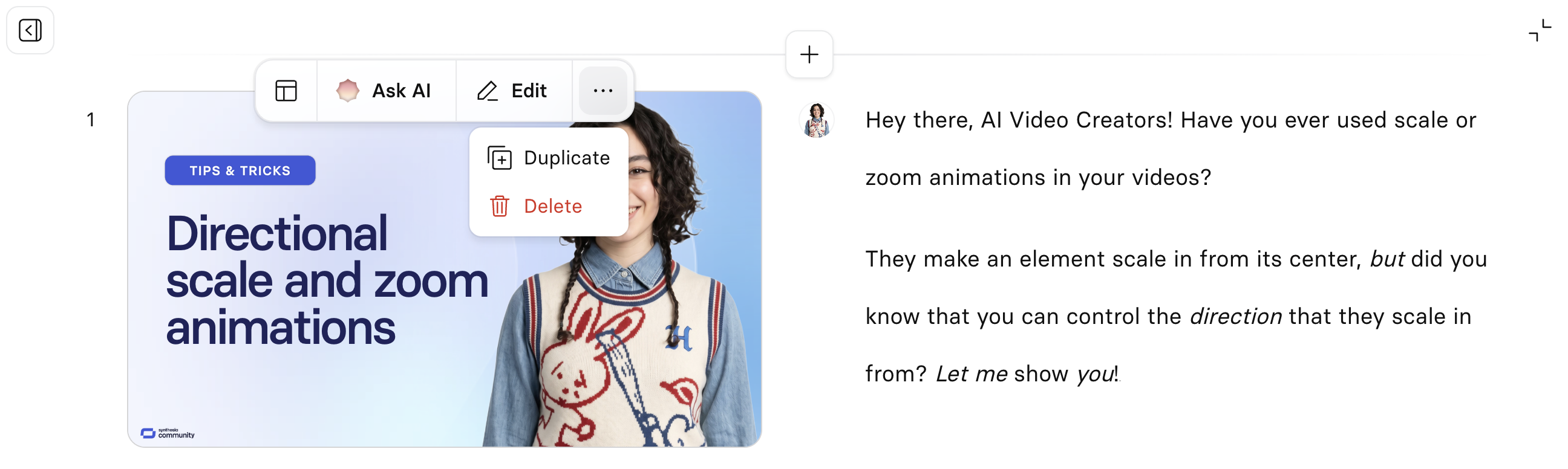
Scene preview thumbnail contextual menu
Delete a scene
Hover over the thumbnail for the scene, click the 3-dot menu at the right of the contextual menu, then select Delete.
Add a scene
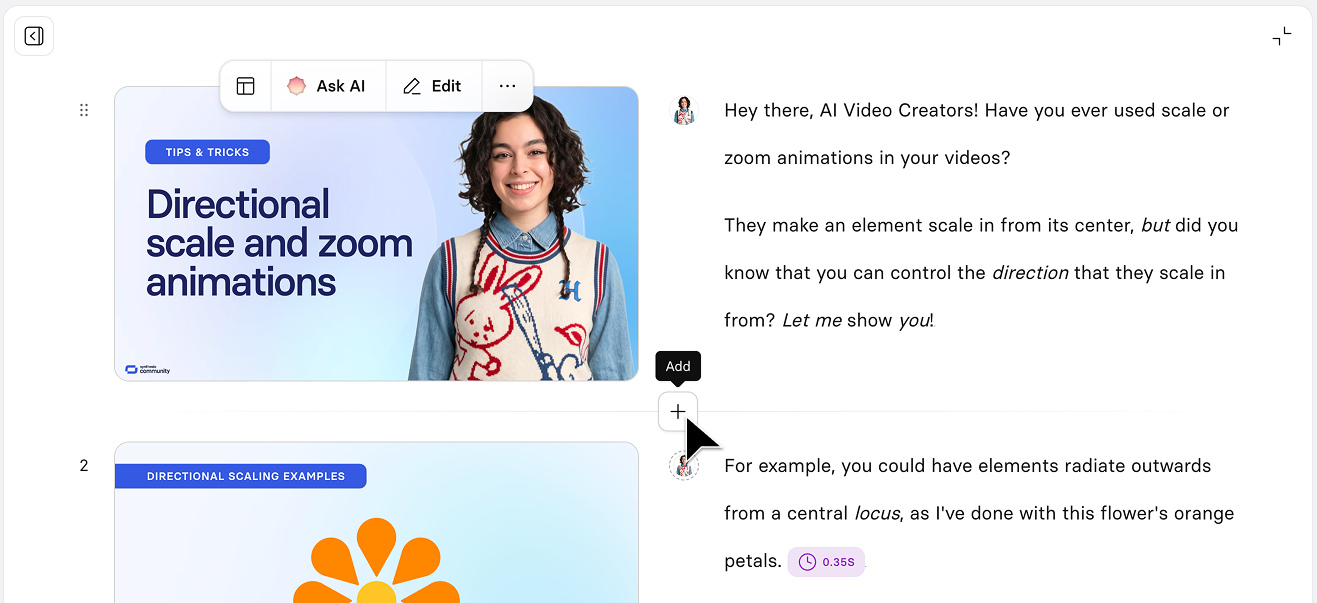
Select the + button above or below any scene to add a new scene before or after it, respectively:
Reorder scenes
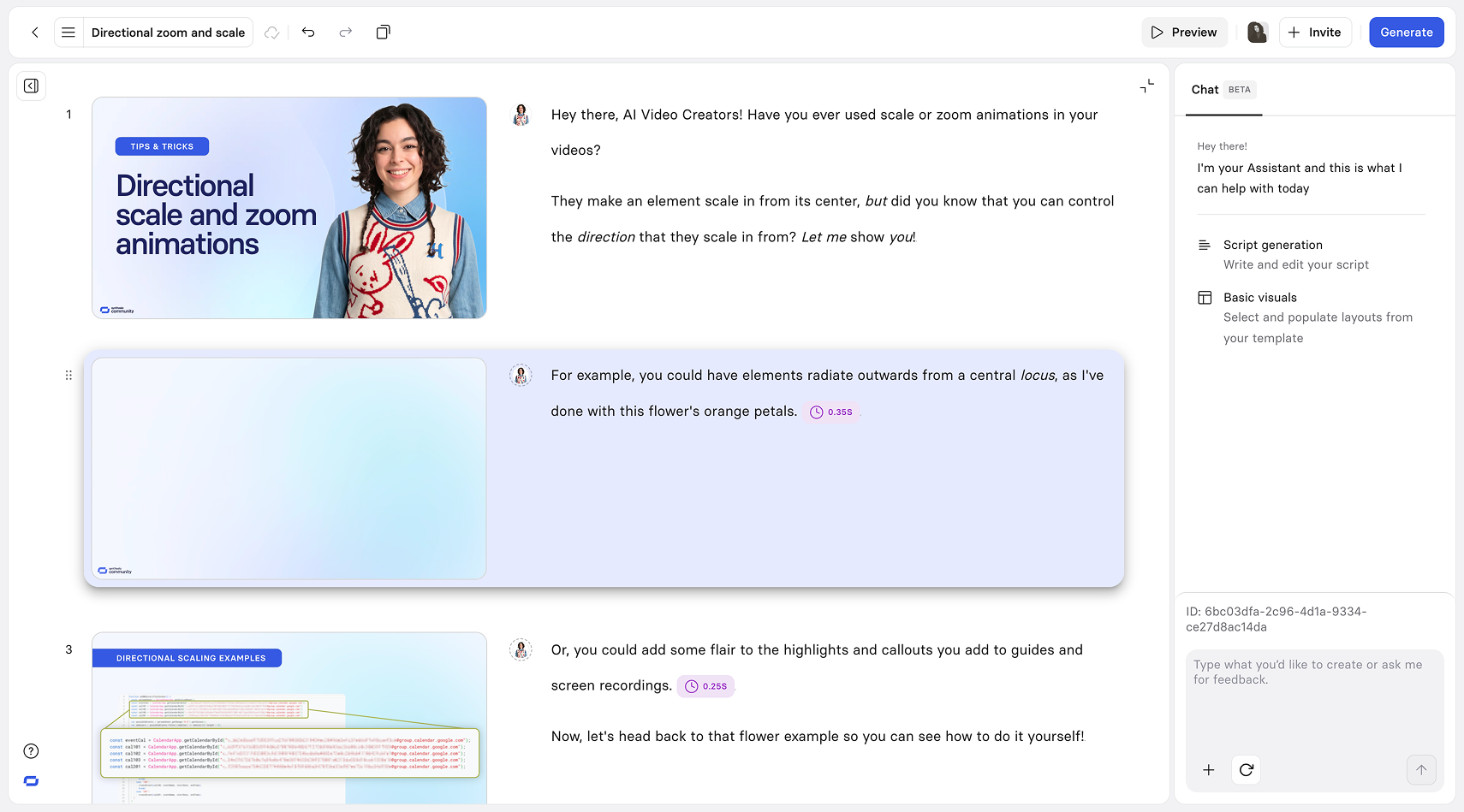
Drag a scene by its preview thumbnail to move it earlier or later in the video:
Change a scene's layout
Swap a scene's visual layout without leaving Storyboard, while keeping its existing script.
- Hover over a scene's thumbnail.
- Select the
Scene layouticon. - Browse layouts, using the theme switcher to preview how each one looks across different themes.
- Select a layout to apply it.
Synthesia refits your scene's existing text and media into the new layout automatically, rather than starting from a blank layout. If the result isn't what you expected, use the Undo button in the toolbar to restore the scene as it was.
Get AI help with a scene
Hover over a scene and select Ask AI in the contextual menu above the scene's preview thumbnail to open a menu of quick options: Improve writing, Shorten, Longer, and Change tone (which expands to Professional, Entertaining, Casual, Informative, or Engaging). Alternatively, type your own request into the text box above the menu, for example "simplify this for a general audience." Synthesia updates that scene's script and visuals to match.
For conversational edits across the whole video instead of a single scene, use the Assistant chat panel on the right of Storyboard. See Assistant for what you can ask it to do.
Hide previews
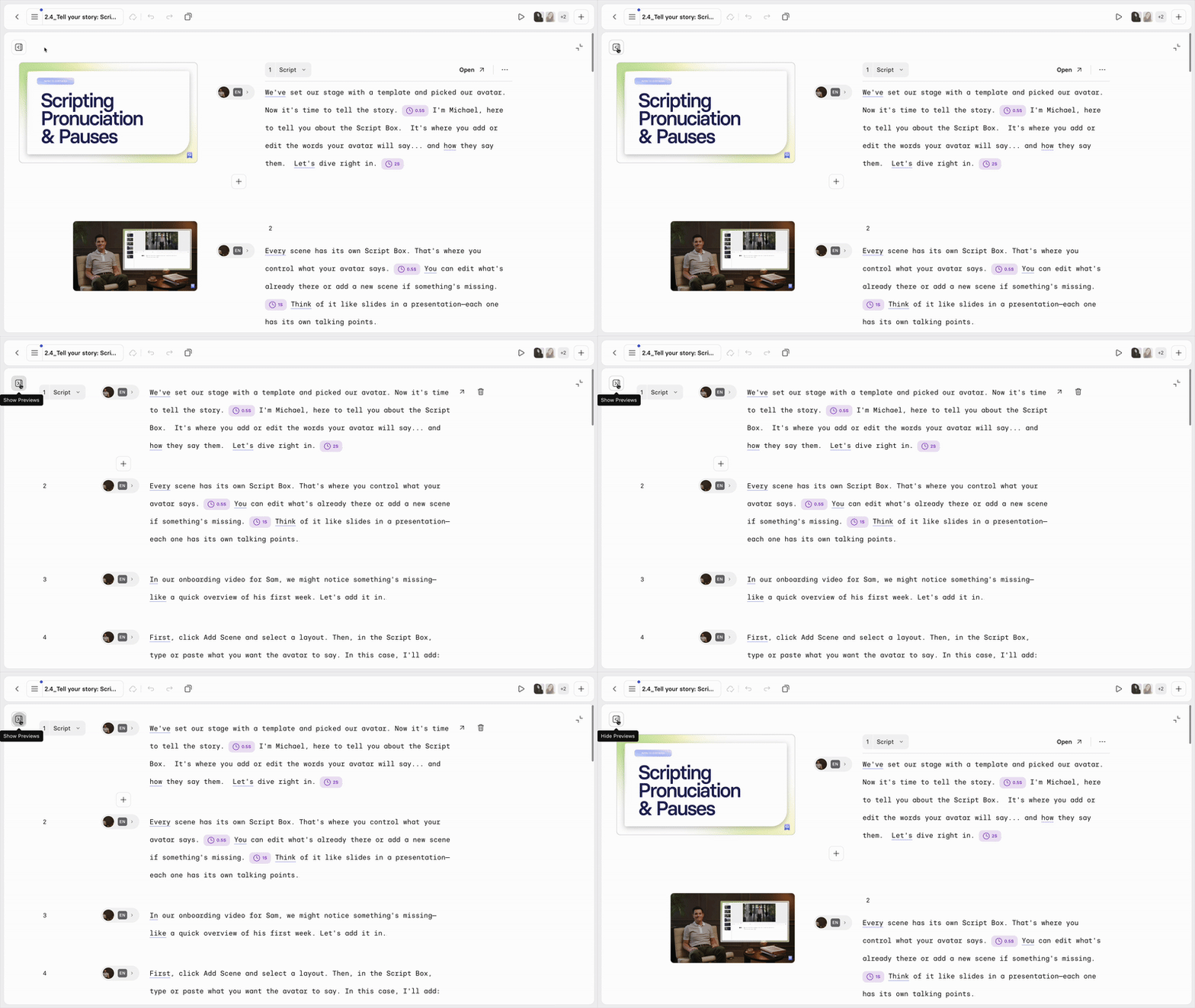
You can toggle the visibility of scene previews by selecting the Hide Previews / Show Previews button in the top-left corner of Storyboard.
With previews hidden, hover over a scene's script to reveal the same Edit button (opens that scene in Canvas) and ... menu (Duplicate and Delete) that would otherwise appear on the scene's preview, plus a play button to preview that scene's audio on its own.
Toolbar actions
Copy the full script
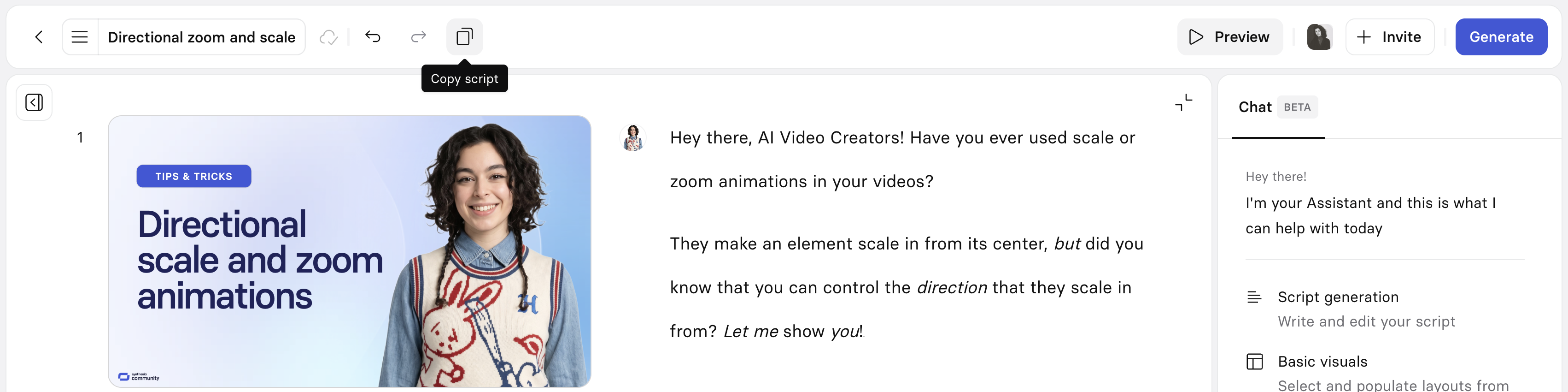
Copy the script to share with SMEs or non-users for reviews and approvals either from the video actions menu (accessible from the hamburger menu on the left side of the toolbar at the top), or from the Copy script button in the toolbar:
Preview the video
Select Preview in the toolbar to preview how your video looks before generating it. Learn more about what to expect from a preview.
Collaborate
Invite your colleagues to review and edit your video by selecting Invite on the right side of the toolbar at the top-right. Learn more about invites and collaboration to determine the access levels you'd like to invite people with.
Generate
Select Generate on the right of the toolbar to open the generate panel and produce your video. Learn more about the generate options.
Updated about 2 months ago