

Home
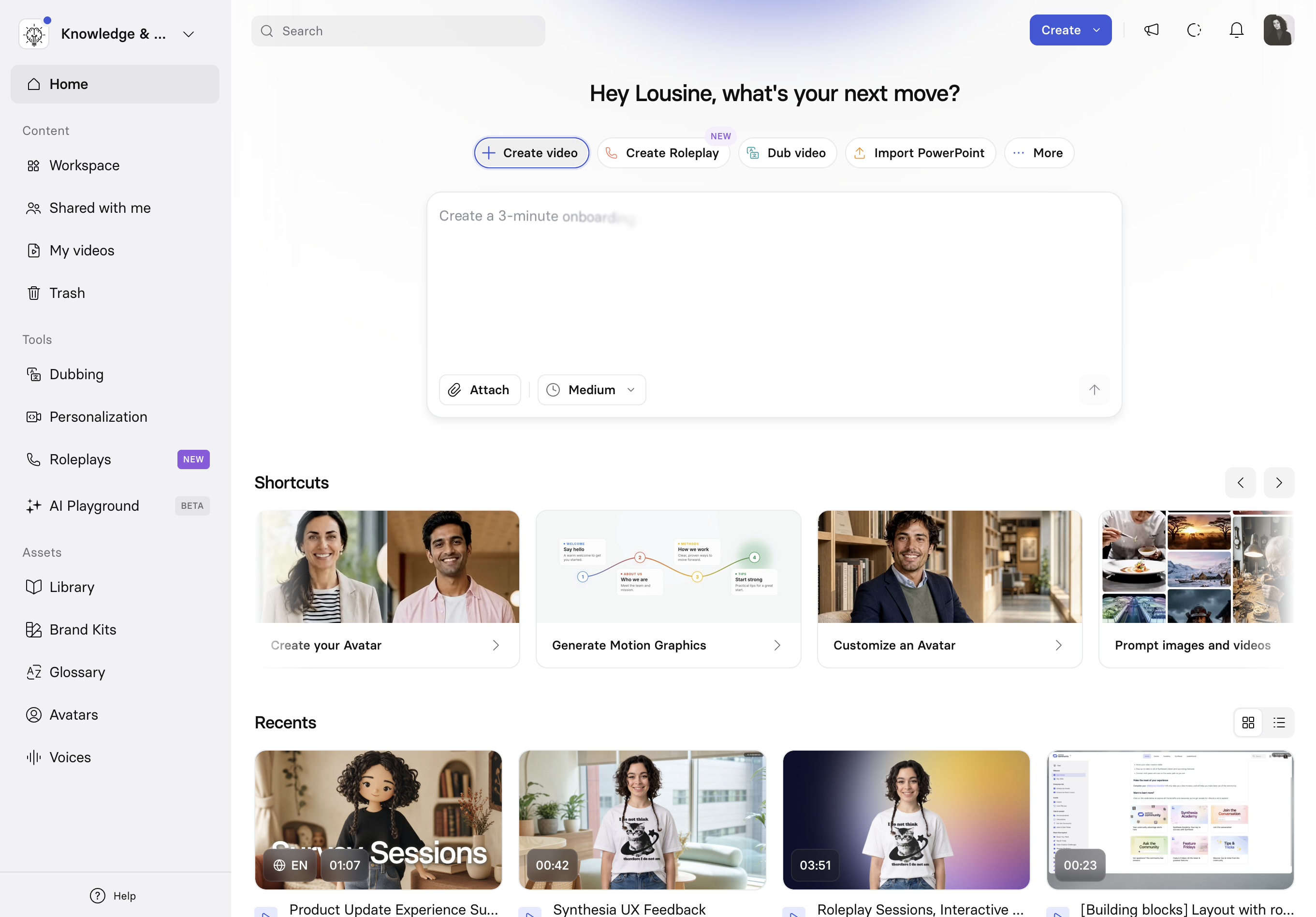
The Synthesia home page is where you start new videos and pick up recent work.
The Synthesia home page is your starting point for creating videos, switching between workspaces, and picking up recent work. It's the first screen you see after signing in.
Workspace picker
Select your workspace name in the top-left corner to open the workspace picker.
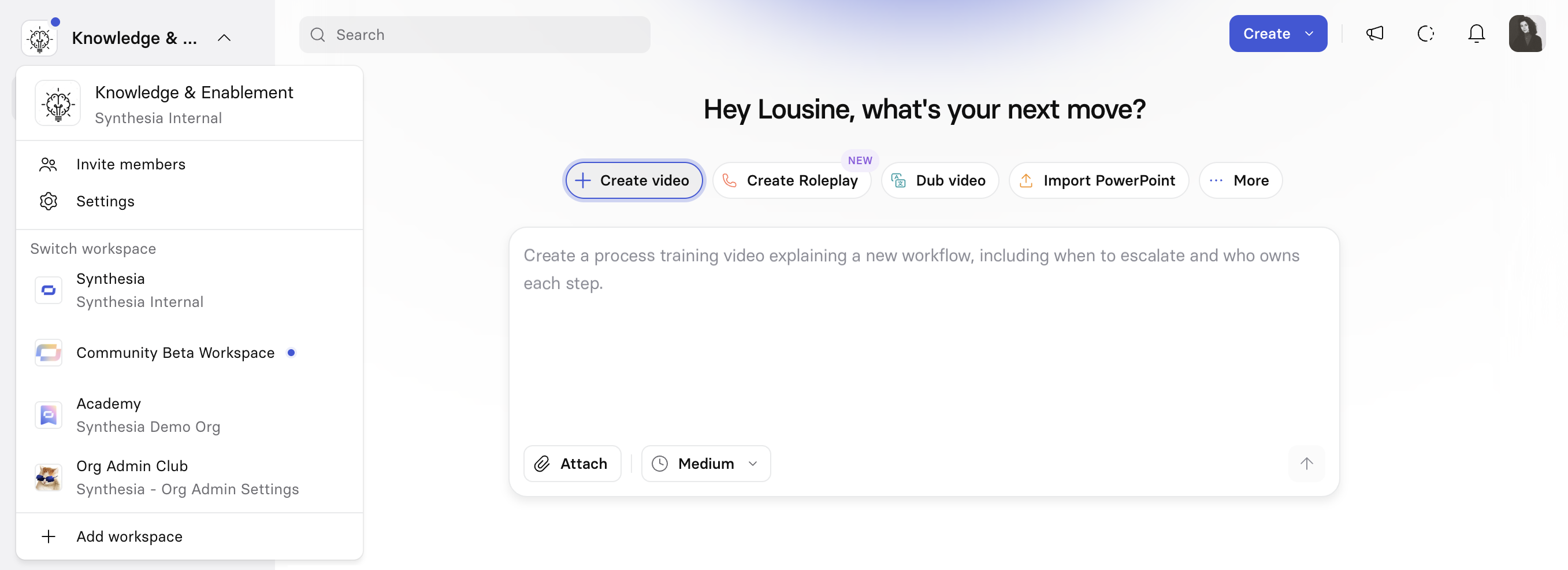
You'll see:
- The current organization and workspace name, with options to Invite members and access workspace Settings.
- Switch workspace: lists every workspace you have access to. If you're a member of more than one organization, workspaces from all of them appear here together, with the organization name shown underneath each workspace name. Selecting a workspace in a different organization switches you into that organization as well.
- Add workspace: create a new workspace.
Top bar
- Use the search bar to find any video, folder, or template in your workspace. See Workspace search.
- On paid plans, the
Createmenu offers the same starting points as the buttons above the prompt box, and is available from any page in Synthesia, not just the home page. - Select the megaphone icon to view product updates.
- Background render and processing tasks appear in a dedicated panel next to your notifications.
Start a video
Near the top of the home page, select how you want to start:
- Create video: start a new video. See Video Creation for the available ways to start.
- Create Roleplay: build an AI-assisted roleplay scenario for practicing conversations. See Roleplay Sessions.
- Dub video: translate an existing video's voiceover into another language. Upload a video file or paste a YouTube link. See AI Dubbing.
- Import PowerPoint: convert a PowerPoint presentation into a narrated video. See PowerPoint.
- More: additional ways to start a video, including importing a script verbatim or browsing templates.
Selecting Dub video or Import PowerPoint opens a panel directly below with the relevant inputs (for example, a file upload area and a field for pasting a YouTube link) so you can get started without leaving the home page.
Free plans
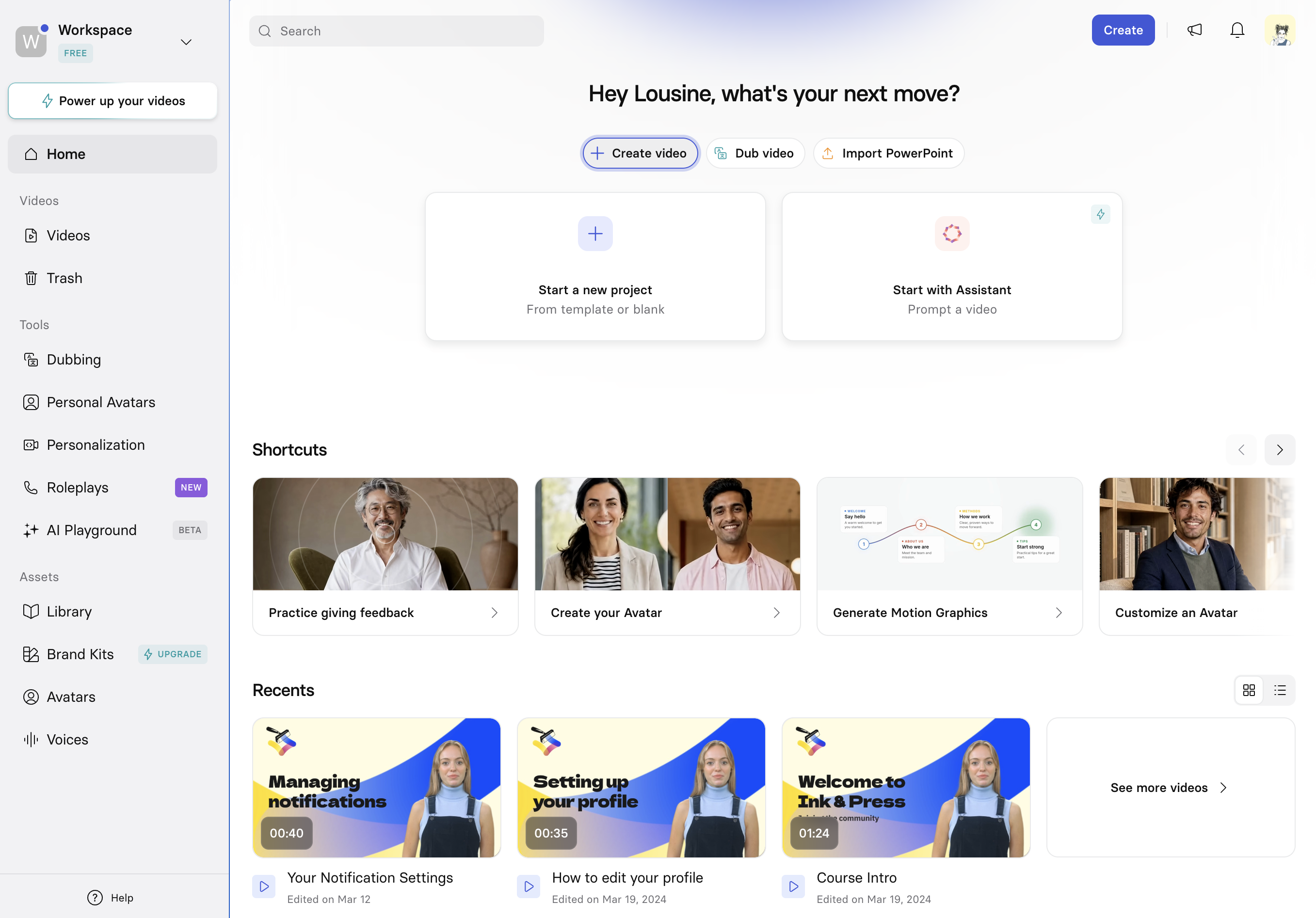
The home page looks different on a Free plan:
-
Create video, Dub video, and Import PowerPoint are available as starting points.
-
The
Createmenu in the top bar opens the template picker, so you can start with a template or a blank slate. -
Selecting Create video shows two cards: Start a new project, to begin from a template or a blank canvas, and Start with Assistant.
-
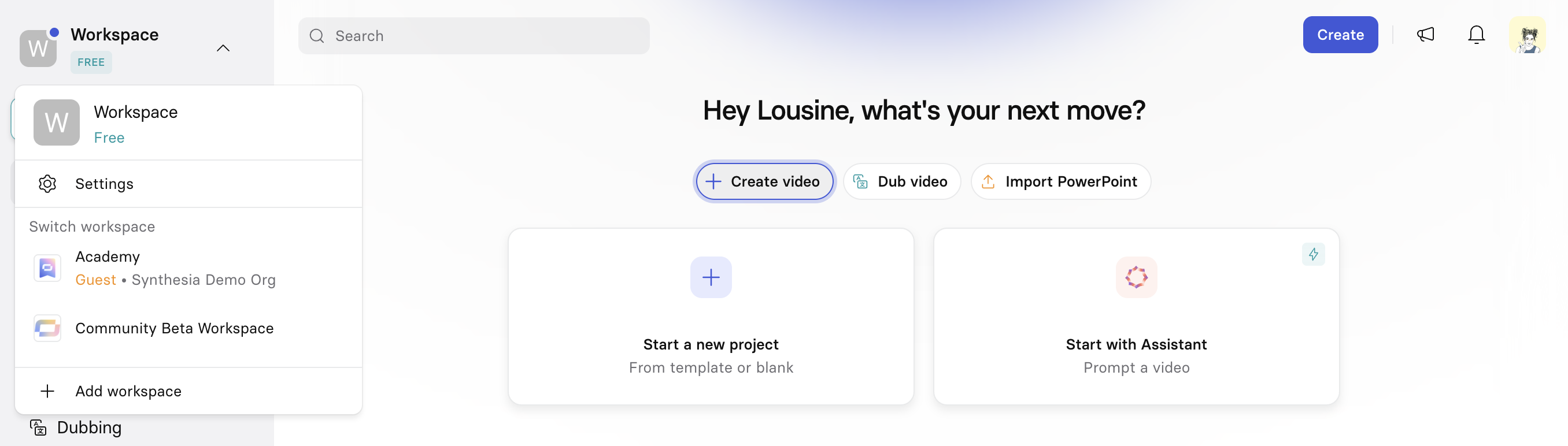
From the workspace picker, Switch workspace lists any workspace you're a member or guest of, including workspaces in other organizations, and Add workspace shows workspaces you've already joined or been invited to.
-
In the left-hand navigation menu, you'll have access to your Videos and Trash.
Shortcuts
Below the video creation options, Shortcuts shows a horizontally scrollable row of suggested actions based on your workspace and recent activity (e.g. customizing an Avatar, generating Motion Graphics, or creating a Brand Kit). Use the arrows on either side of the section header to scroll through available shortcuts.
Recents
Recents shows videos you've recently worked on. Toggle between grid and list view using the icons in the top-right corner of the section.
Each video card shows its thumbnail, duration, and when it was last edited. Viewing videos in list view reveals the video owner.
Hovering over a video in grid view reveals:
- Edit: open the video in the Synthesia editor.
- Translate: start a translation of the video, if it doesn't already have one. See Video Translation.
- More actions: move, duplicate, or delete the video, among other options.
- Videos that belong to a translation group display a language badge (for example,
EN). Selecting the badge opens the folder containing all of that video's translations.
Select See more videos at the bottom of the section to go to My videos.
Updated about 2 months ago