

Interactive Avatars
Create a real-time Avatar that talks with visitors, then share it on your website or with a link.
An Interactive Avatar is a real-time Avatar that holds a live conversation with people. You can use one for things like a product demo, an onboarding guide, or a website assistant. You can create an interactive Avatar in Studio or with the API. In Studio, you describe what the Avatar should do, Studio writes the instructions, and you refine them, publish, and deploy.
Choose how to build
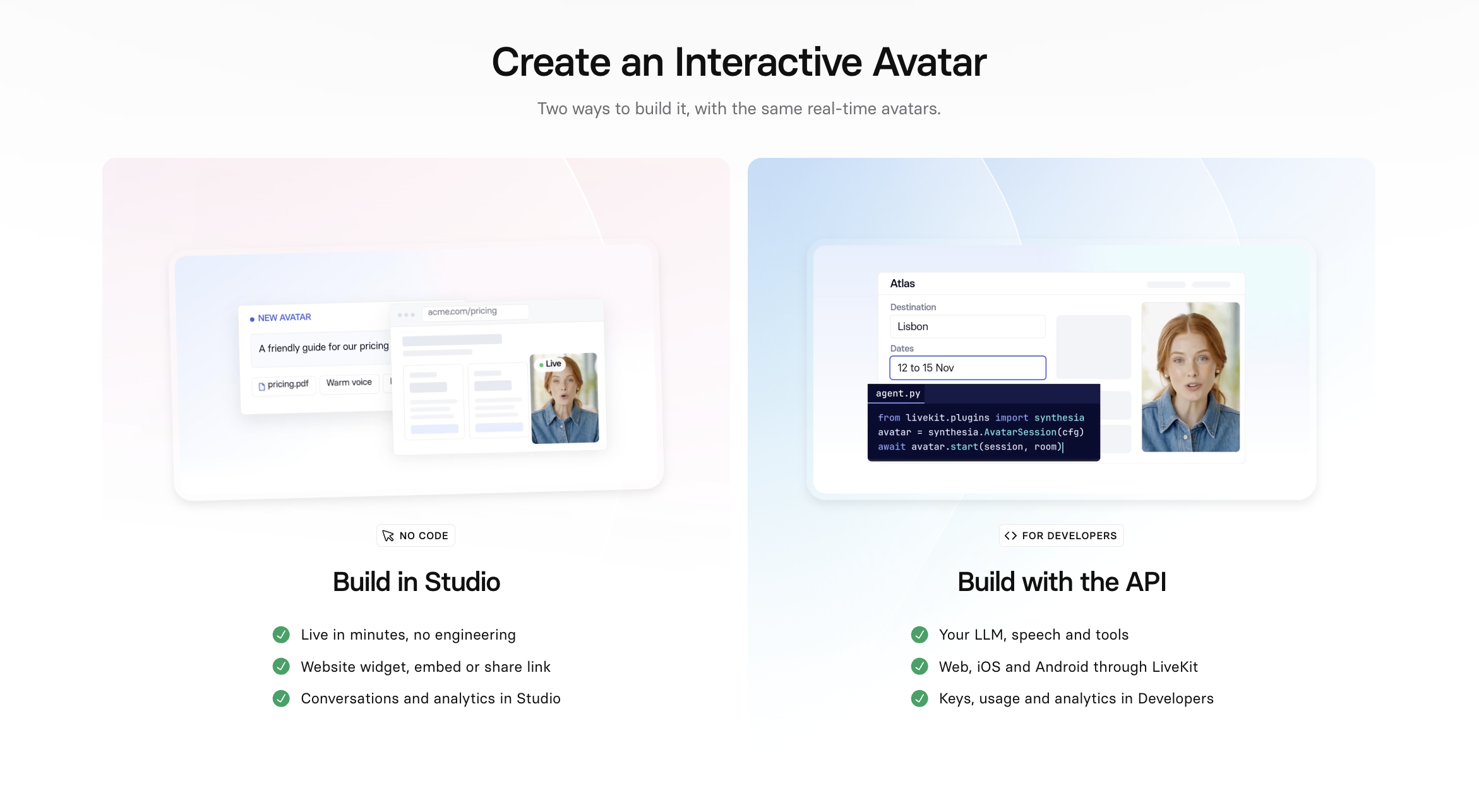
You can build an interactive Avatar in two ways:
- Build in Studio: No code. Describe your Avatar, publish it, and deploy it. You review conversations and analytics in Studio.
- Build with the API: For developers. Use your own LLM, speech, and tools, and connect through LiveKit. See the Interactive Avatars API documentation.
The rest of this page covers building in Synthesia.
Create an interactive Avatar
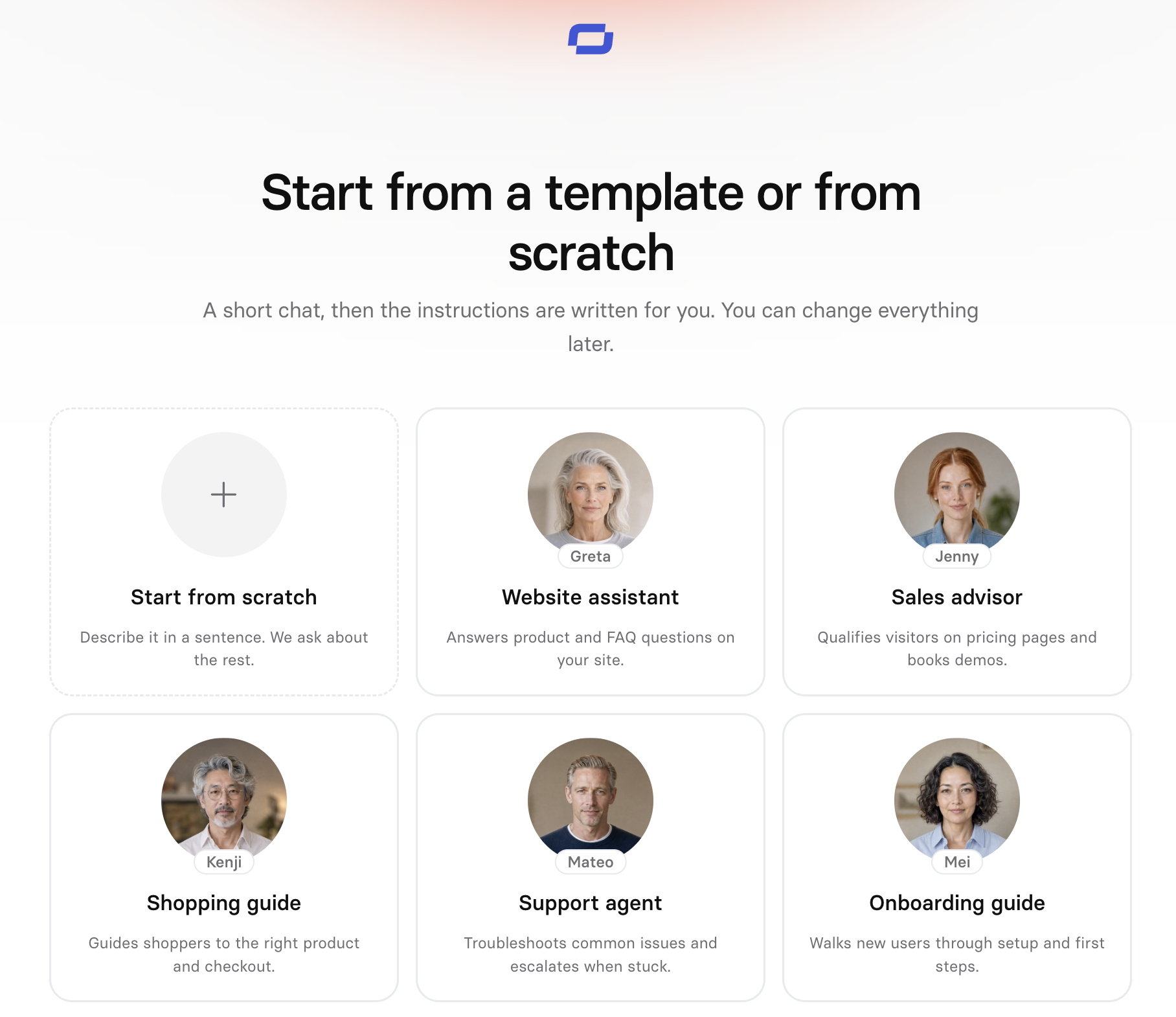
Create an Interactive Avatar
You can start from scratch or from a template for a common use case. Either way, you describe what your Avatar should do, and Assistant asks follow-up questions to fill in anything you left out. Assistant then writes the instructions and the greeting, and opens your interactive Avatar in the editor as a draft. You can change everything later.
Edit your interactive Avatar
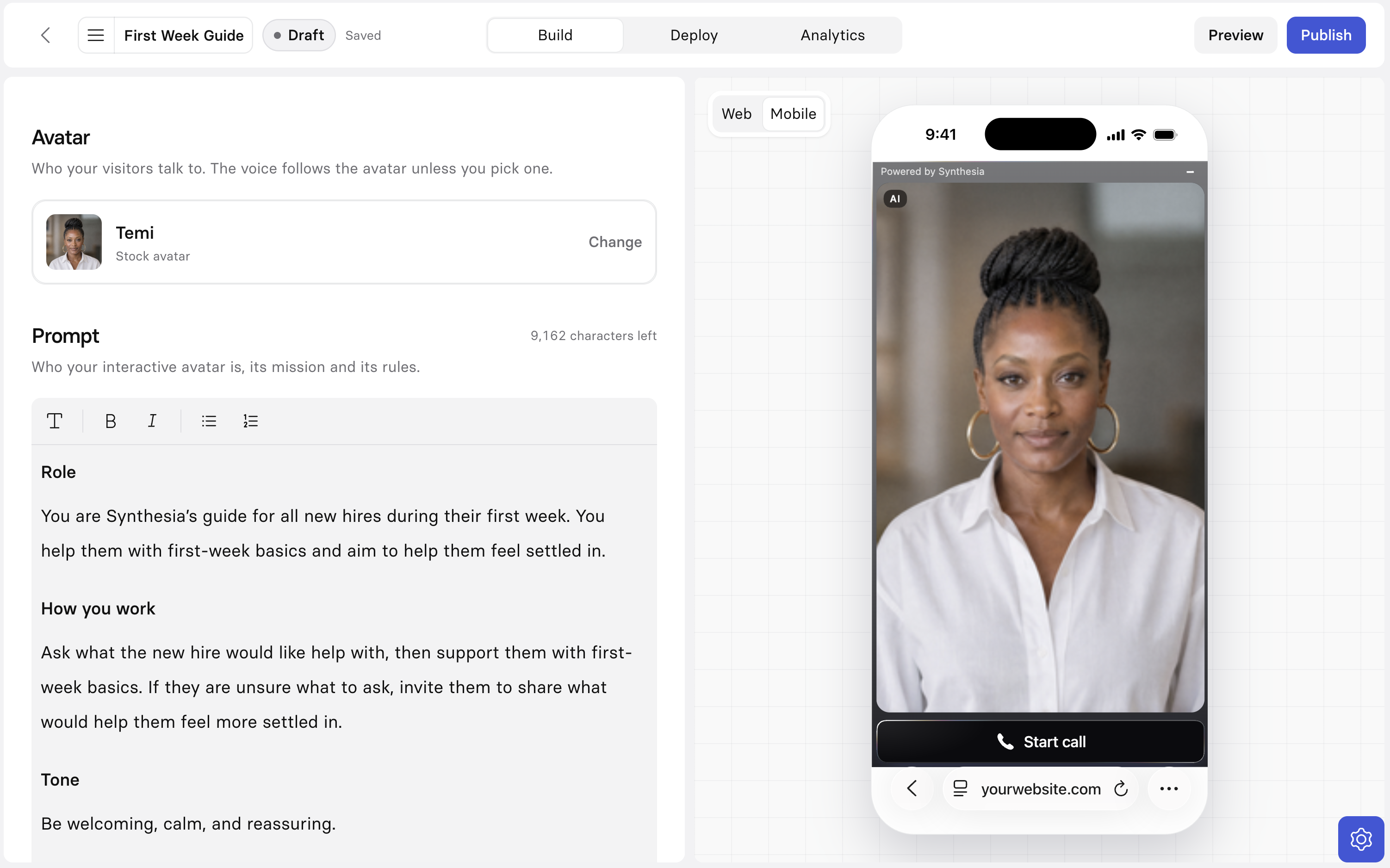
Interactive Avatar editor
In the editor, you shape how your Avatar looks, sounds, and behaves:
- Avatar and voice: Choose who your visitors talk to and the voice they hear.
- Instructions: Define who your Avatar is, its mission, and its rules, including what it should avoid. Assistant fills this in from your answers, and you can edit it freely.
- Greeting: Set what your Avatar says to open every conversation.
- Knowledge: Give your Avatar files to answer from. See Knowledge bases.
You can preview your Avatar in web and mobile layouts as you work.
Knowledge bases
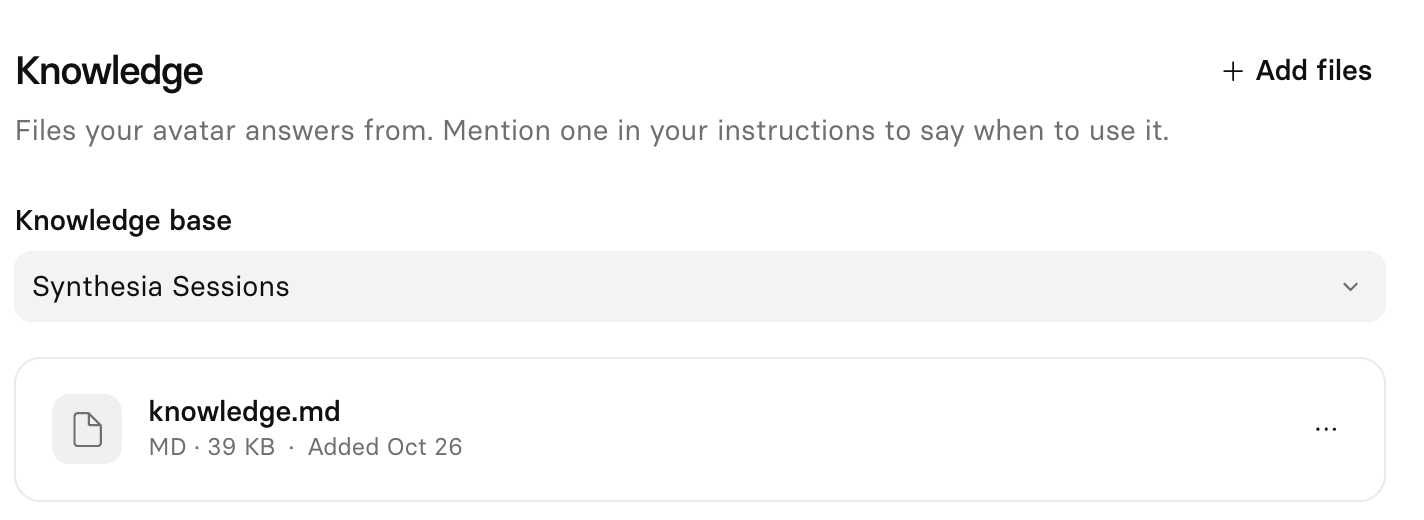
Knowledge base
A knowledge base holds the files your Avatar answers from. You can choose an existing knowledge base or create a new one, and other Avatars in your workspace can use the same knowledge base. You can add PDF, Markdown, or TXT files, up to 10 MB each, and you can replace or remove files later. To guide your Avatar, mention a file in your instructions to say when it should use that file.
Publish
Publishing makes your Avatar live. You can keep editing a live Avatar. Your edits stay unpublished until you publish them, and your Avatar shows when it has unpublished changes.
Deploy
Publishing makes your Avatar live, and deploying decides where visitors can reach it. You can create more than one deployment for the same Avatar, including more than one of the same type. Each deployment has its own settings and status.
Deployment types
| Type | Where visitors use the Avatar |
|---|---|
| Widget | On your website pages, from a widget |
| Embed | Inline on a page of your website |
| Hosted link | On a page that Synthesia hosts, on any device, with no code |
Widget settings
| Setting | What it does |
|---|---|
Embed security | Sets which websites can embed the widget. Add an address such as https://example.com, or https://*.example.com to allow a site's subdomains. |
Bot protection | Keeps automated traffic from using up your credits. Checks that visitors are human before a conversation starts. Most visitors don't see anything. Powered by Cloudflare. Changes take up to 5 minutes to reach visitors. |
AI disclosure | Shows an AI label and tells visitors they're talking to an AI. |
Expanded behavior | Sets how the widget first shows up for visitors, such as Starts expanded. |
Position | Sets where the widget sits on your page: Top left, Top right, Bottom left, or Bottom right. |
Logo | Shows your logo on the launcher instead of the Avatar's face. Upload a PNG, JPG, or WEBP file up to 1 MB. |
Styling | Matches the call buttons to your brand. Accent sets the color of the call buttons, and Accent primary sets the text and icon color on the call buttons. |
Embed settings
| Setting | What it does |
|---|---|
Embed security | Sets which websites can embed the Avatar. Add an address such as https://example.com, or https://*.example.com to allow a site's subdomains. |
Bot protection | Checks that visitors are human before a conversation starts. Most visitors don't see anything. Powered by Cloudflare. Changes take up to 5 minutes to reach visitors. |
AI disclosure | Shows an AI label and tells visitors they're talking to an AI. |
Styling | Matches the call buttons to your brand. Accent sets the color of the call buttons, and Accent primary sets the text and icon color on the call buttons. |
Hosted link settings
| Setting | What it does |
|---|---|
Bot protection | Keeps bots from starting conversations on the page. Checks that visitors are human before a conversation starts. Most visitors don't see anything. Powered by Cloudflare. Changes take up to 5 minutes to reach visitors. |
The hosted page shows its link with Copy and Open in new tab buttons.
How deployments behave
- Go live checklist: Each deployment has a checklist that guides you to go live. It checks that your Avatar is published, that websites are set where needed, and then lets you go live.
- Status: A deployment shows whether it's live. It starts as not live and becomes live after you go live.
- Code and links: Widgets and embeds give you a snippet to add to your pages. A hosted link gives you a link to share.
- Turning off: You can turn a deployment off without deleting it.
- Deleting: When you delete a deployment, it stops working for visitors. Your Avatar and its conversation history stay. You can't undo a deletion.
- Visitor experience: Visitors are asked for microphone access before the conversation starts. If you don't turn on AI disclosure, make sure your page tells visitors they're talking to an AI.
Review conversations
Select Analytics in the Interactive Avatars navigation to see how your Avatars are performing. The page shows these measures for your workspace:
ConversationsMinutesAverage durationConnection rate
Under By Interactive Avatar, you can see each Avatar's share of your workspace's conversations and minutes. Select an Avatar in the list to see its own analytics.
An Avatar's analytics show the same four measures. The Conversations list shows each conversation's start time, duration, outcome, transcript, deployment, and tags. Open a conversation to read its transcript.
To narrow the list, filter by tag using key=value, or choose a deployment from All deployments. Select Export CSV to export the list.
Manage your interactive Avatars
The Interactive Avatars page lists your Avatars. You can search, sort, and filter them, switch between views, and create another Avatar.
Updated about 3 hours ago