

Pronunciation Controls
Define how words are pronounced once — and trust them to sound right every time.
Pronunciation Controls give you a reliable way to fix how your avatar says specific words — brand names, technical terms, acronyms, or anything the AI gets wrong. Speak or type the correct pronunciation once, save it, and Synthesia applies it consistently across every video that word appears in. No more re-recording scenes or adding workarounds to your script.
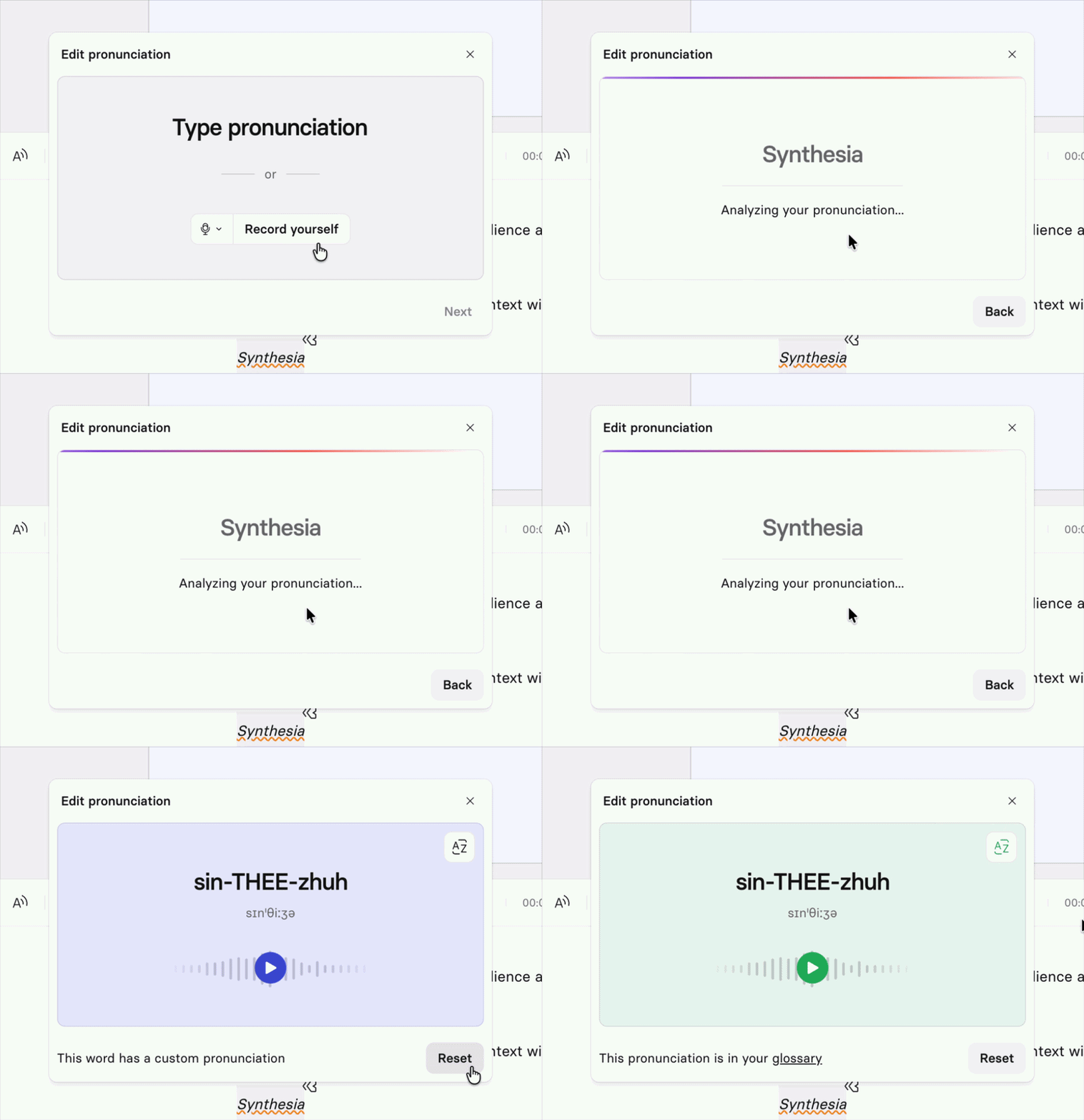
Pronunciation Control window.
Set a custom pronunciation
You can add a custom pronunciation directly from the editor whenever a word isn't sounding right.
- In the script, highlight the word you want to fix.
- Select
Pronunciationfrom the menu. - Choose how you want to edit the pronunciation:
- Type Pronunciation — enter a phonetic spelling that sounds right when read naturally (e.g. "sin-THEE-zhuh" for Synthesia).
- Record yourself— click
Record yourselfand say the word aloud. Synthesia captures your pronunciation and uses it as the reference.
- Select
Nextto preview the pronunciation. - Select
Useto save and apply the pronunciation orBackto re-do the pronunciation. - Optional:
- Apply the pronunciation to all instances of that word or phrase throughout your video by clicking Apply to all in the toast notification that pops up at the bottom of the editor after confirming your pronunciation preference.
- Add the pronunciation to your workspace's Pronunciation Glossary.
Apply to allonly affects instances already in your script at the time of clicking. Any instances of that word added to the script afterward will need to be updated manually.to fix how your avatar says specific words — brand names, technical terms, acronyms, or anything the AI gets wrong. Speak or type the correct pronunciation once, save it, and Synthes
Glossary pronunciations apply automatically the next time any workspace user types that word — across all voices in a language by default. From the Glossary page, you can narrow the scope to a specific voice or accent (e.g. British English) if needed.
the correct pronunciation once, save it, and Synthesia applies it consistently across every video that word appears in. No more re-recording scenes or adding workarounds to your script.
<Image align="center" caption="Pronunciation Control wi
Glossary
The Glossary is a workspace-level library of saved pronunciations and translations. Any term added to the Glossary will have its pronunciation automatically applied the next time any user in the workspace types that word. Key behaviors:
By default, a glossary pronunciation applies across all voices in a language — not just a single voice. This is a change from the previous glossary, which only applied to one voice at a time. From the Glossary page, the scope of a pronunciation can be narrowed to a specific voice or a specific locale (e.g. British English only) rather than the whole language.
Considerations
The following considerations apply:
- Pronunciation Controls work with all voices, but reliability varies. Voices created by Synthesia deliver the most consistent results — third-party voices may be less reliable.
- In English, the most reliable voices are:
Natasha - Warm,Carol - Candid,Hope - Calm,Bruce - Mellow,Steve - Mature,Clint - Sincere, and any voice clone created after summer 2025. - In other languages, some older voices support reliable pronunciation controls. Support for expressive voices in Spanish, French, and German is coming soon.
- Note: If you're using a voice with limited pronunciation reliability, you'll see a notice in the pronunciation menu with the option to switch to a more reliable voice.
- In English, the most reliable voices are:
- If a word is still being mispronounced after saving a pronunciation, try regenerating the audio for that scene.
- Setting a pronunciation — especially when using the Record input method — may take a few moments to process.
Updated 13 days ago