
Translation Glossary (beta)
Use the Translation Glossary to define how key terms should be translated across your Synthesia workspace.
Beta featureThis feature is in beta. Functionality and UI may change before general availability.
Translation Glossary an Enterprise plan feature.
Use the Translation Glossary to define how key terms should be translated across your Synthesia workspace. Translation rules are applied automatically when you create new translated versions of your videos, so company, product, and industry terms stay consistent without extra manual review.
What you can do with Translation Glossary
Use the Translation Glossary to:
-
Override translations for specific terms: Ensure that key terms are always translated in a specific way.
Example: Always translate “Synthesia platform” to “Plateforme Synthesia” when translating to French.
-
Mark terms as “do not translate”: Keep acronyms, brand names, and other protected terms unchanged across languages.
Example: Keep “FOCA” unchanged in all translated versions.
-
Set translations for multiple target languages in one place: Define translation rules for one source term across many target languages and locales in a single entry.
Example: Add “Synthesia platform” as a source term and specify overrides for French, German, and Spanish (and their specific locales) in the same glossary entry.
-
Configure translations for specific locales (regional variants): Tailor terms for regional differences within the same language.
Example: Use one Spanish term for Spain (es‑ES) and a different term for Mexico (es‑MX).
-
Handle simple grammatical variations automatically: Glossary rules also cover basic inflected forms of a word, so you do not need to list every variation.
Example: A rule for “platform” also applies to “platforms” and “platform’s” in most cases.
-
Prioritize multi‑word terms and ignore casing: Multi‑word terms are matched before individual words, and rules are case‑insensitive.
Example: “Synthesia Academy” is treated as one term and matches “synthesia academy” or “SYNTHESIA ACADEMY."
-
Import existing glossaries via CSV: Bring your existing term lists into Synthesia.
Example: Upload a CSV of all your product names and approved translations.
-
Merge imports with your current glossary: Imported terms are added to your existing glossary; if there’s a conflict on the same term and language, the new rule replaces the existing one.
-
Re‑translate videos to apply new rules: After you update glossary entries, you can re‑translate existing videos so they pick up the latest rules.
How does this differ from the Pronunciation dictionary?
- Translation Glossary: Controls how written terms are translated across languages and locales.
- Pronunciation dictionary: Controls how terms are pronounced in audio for specific voices.
In the future, these two systems will work together more closely, but they focus on different parts of the localization workflow.
Access the Translation Glossary
You can manage your glossary from the main navigation in Synthesia.
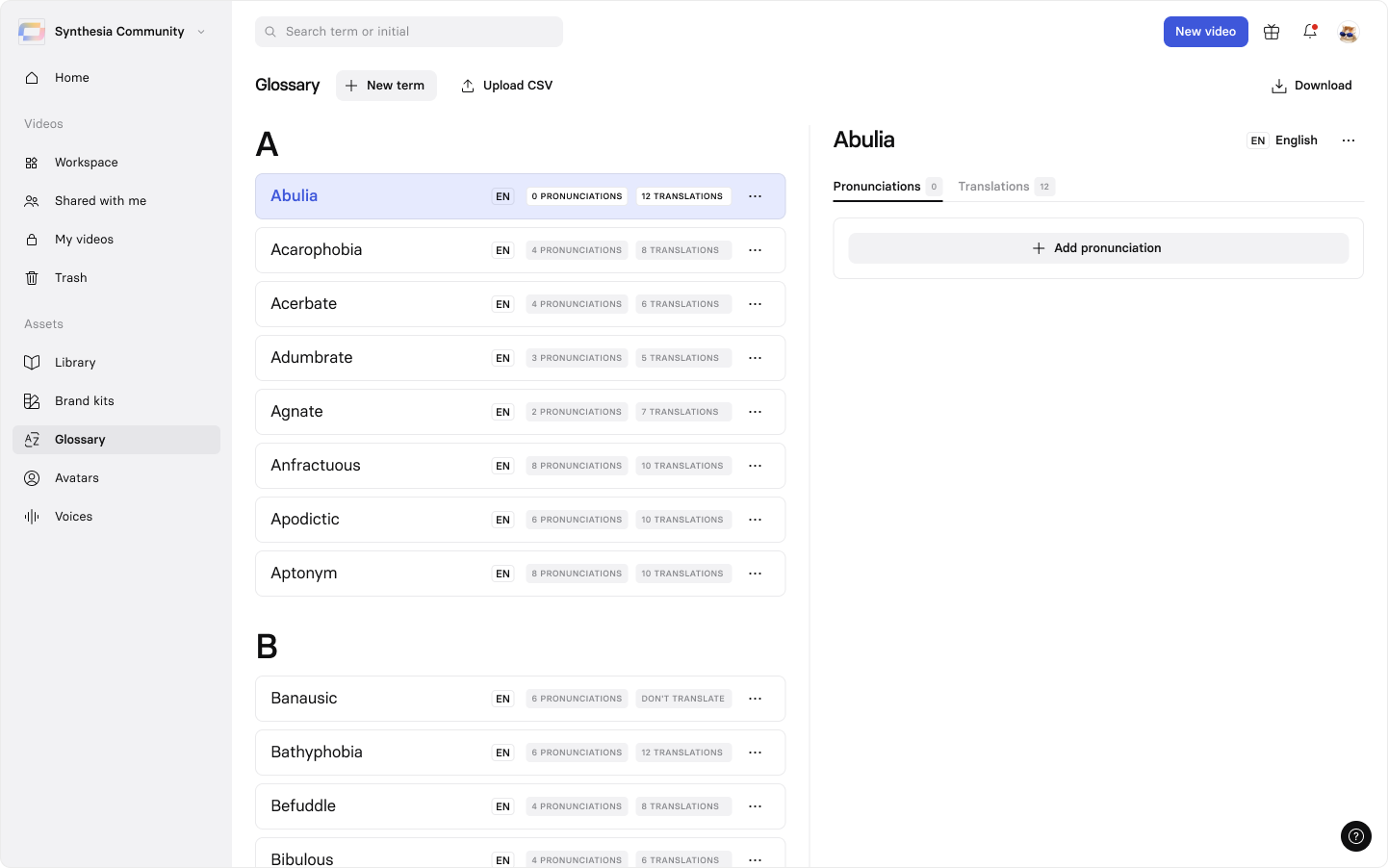
Adding a new term in the Translation Glossary
- Go to the navigation menu on the left in Synthesia.
- Click
Glossary.
This opens the dedicated Glossary page, where you can review, create, edit, and import terms.
Control who can edit the glossary
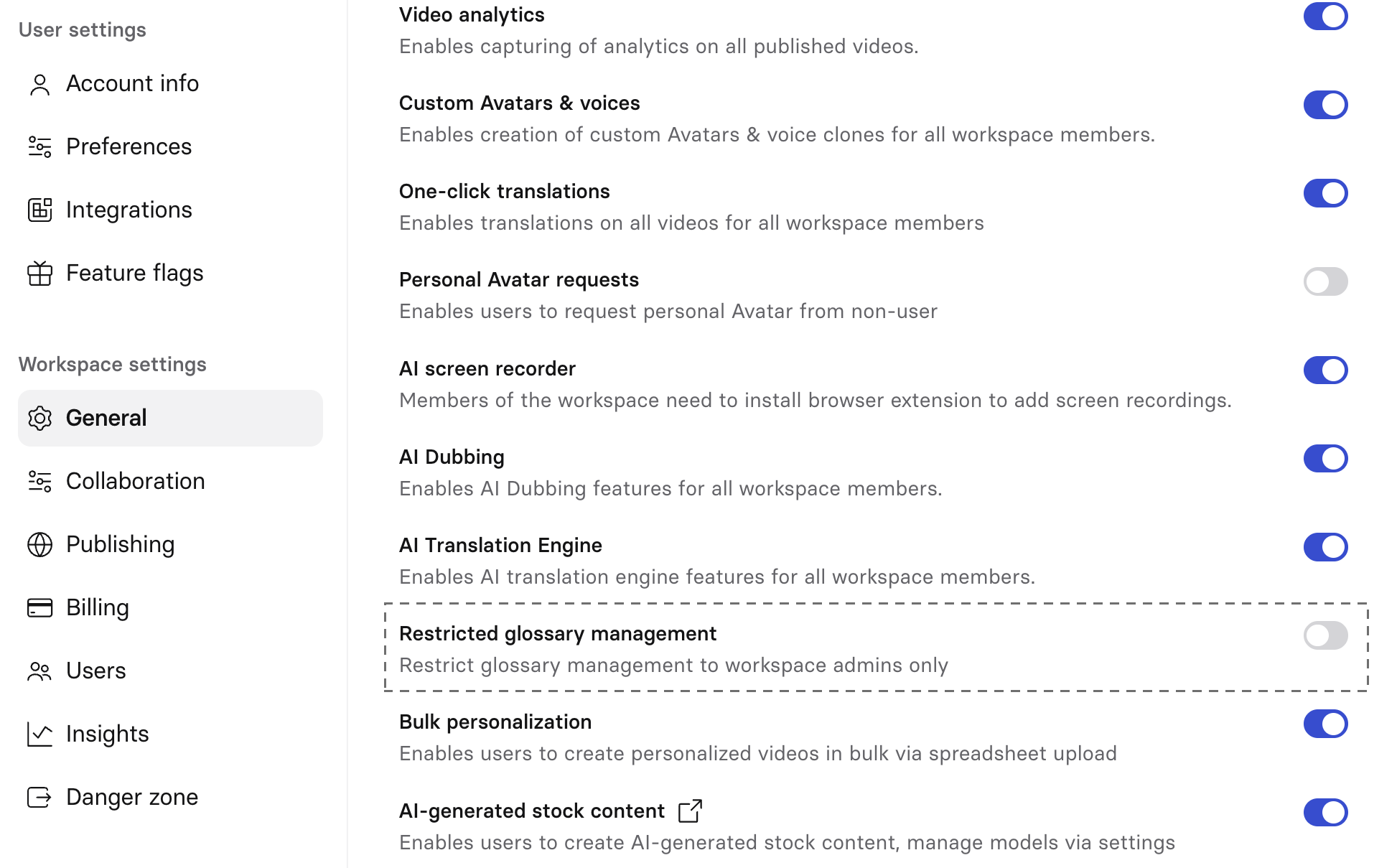
Restrict glossary management in Workspace settings
Glossary editing permissions are managed at the workspace level:
- Go to Workspace settings in Synthesia.
- Scroll down to the toggle for Restricted glossary management.
- Toggle on to restrict glossary management—only workspace administrators will be able to add new glossary terms and edit or remove existing glossary entries.
This allows you to centralize control with a smaller admin group or open it up to a broader team depending on your governance needs.
How to set up glossary terms
You can add terms manually or import them via CSV.
Add a glossary term manually
- Open Glossary from the left‑hand panel.
- Click the
+ New termbutton at the top of the Glossary. - Specify the source language (for the original term) and the term itself (for example, “Synthesia platform”).
- For each target language or locale, define the preferred translation, or mark the term as Do not translate.
- Save the entry.
From now on, new translations that include this term will use your specified rules.
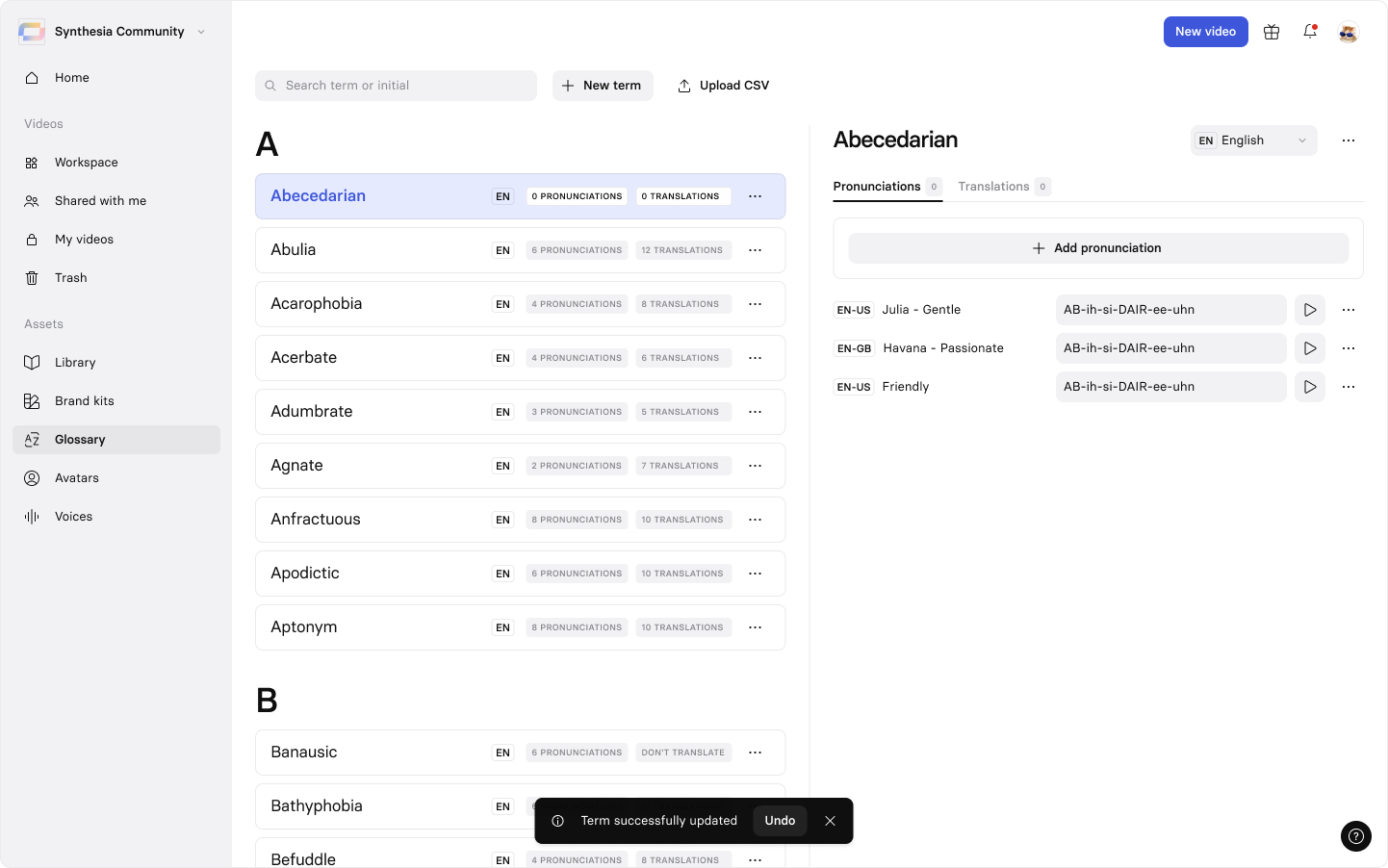
Import glossary terms via CSV
If you already have a glossary that you maintain outside of Synthesia:
-
Prepare a CSV file with your term data.
A typical structure might include:
- Source language
- Source term
- Target language / locale
- Target term
- “Do not translate” flag (if applicable)
-
Go to the Glossary page in Synthesia.
-
Select the
Import CSVoption. -
Upload your CSV and follow the prompts to map your columns to glossary fields.
-
Review the summary and confirm the import.
How imports work:
- New terms are added to your existing glossary.
- If a term already exists for the same source term and target language/locale, the imported rule replaces the existing rule.
- Unrelated existing entries are not affected.
Using Translation Glossary in your workflows
When glossary rules are applied
Glossary rules are applied when you create a new translation of your video.
- When you translate a video into another language or locale, Synthesia:
- Detects glossary terms in your script.
- Applies your overrides for those terms automatically, based on the target language/locale.
- Existing translated or dubbed versions do not change automatically when you edit the glossary.
Updating existing translated videos
To apply updated rules to previously translated videos, you can:
- Open the video in the editor.
- Re‑run the translation into the target language or locale.
- Review and publish the updated version.
Example workflows
-
Standardizing product naming across regions: Add your product names, feature names, and internal concepts as glossary terms. Choose approved translations per language or mark them as “Do not translate” when they must stay in English.
-
Ensuring brand consistency for acronyms and abbreviations: Create entries for acronyms like “FOCA” or “SSO” and set them to “Do not translate” so they remain consistent across all languages.
-
Supporting regional market localization: Add locale‑specific terms (for example es‑ES vs es‑MX) for the same concept to better align with local expectations.
Known limitations
The current beta focuses on the core workflow of managing a workspace‑level glossary.
The following limitations apply:
- One glossary per workspace: Each workspace has a single shared glossary.
- Glossary management location: During beta, glossary terms are managed from the dedicated Glossary page only.
- Scope of rule application: Glossary rules apply only to newly created translations. Existing translated or dubbed video versions are not updated automatically when you change glossary entries—you'll have to retranslate those videos into your desired target languages to update terms.
- AI‑driven context: The system uses AI to understand context and apply terms appropriately. In some edge cases, it may not perfectly disambiguate terms that have multiple meanings, especially without additional context in the script.
- Imports and conflicts: CSV imports replace existing rules only when there is a direct conflict (same source term + target language/locale).
Updated 1 day ago