---
updatedAt: 2026-10-08T16:30:57.000Z
agentTools:
projectIndex: https://docs.synthesia.io/llms.txt
---
# Dubbing
Reach global audiences with AI-powered translation and dub your videos into 130+ languages.
### AI Dubbing is available on Enterprise plans as a paid add-on.
For Starter, Pro, and Basic plans, dubbing is deducted from the plan's usage limits.
Lip sync isn't available on Basic plans.
AI Dubbing translates a video's spoken content into another language, replacing the original voiceover while preserving the speaker's own voice, tone, and delivery. Add lip sync so the speaker's mouth movements match the new language. Dub into 130+ languages to reach audiences a video wasn't originally made for, without needing subtitles.
Dubbing works on any video file or YouTube link, including videos made outside Synthesia—it doesn't need to be a video you created in Synthesia. Translating a video you created in Synthesia instead? See [Video Translation](https://docs.synthesia.io/docs/video-translation).
If your workspace has a [Glossary](https://docs.synthesia.io/docs/translation-glossary) configured, translation terms are applied automatically when dubbing. This keeps company names, product terms, and other defined terms consistent across your dubbed videos. Pronunciation rules have no effect on dubbing. The first 900 glossary terms are also ingested during transcription to improve speech recognition accuracy.
### Note:
Organization and Workspace Admins can enable or disable AI Dubbing on organization and workspace levels.
# How to dub a video
Select `Dubbing` in the left-hand navigation menu, or select `Create` in the top right, then `AI Dubbing`. Both open [the Dubbing page](#the-dubbing-page), which allows you to dub up to 10 videos in bulk.
For single-file or single-link dubbing, select the `Dub video` button above the prompt box on the homepage.
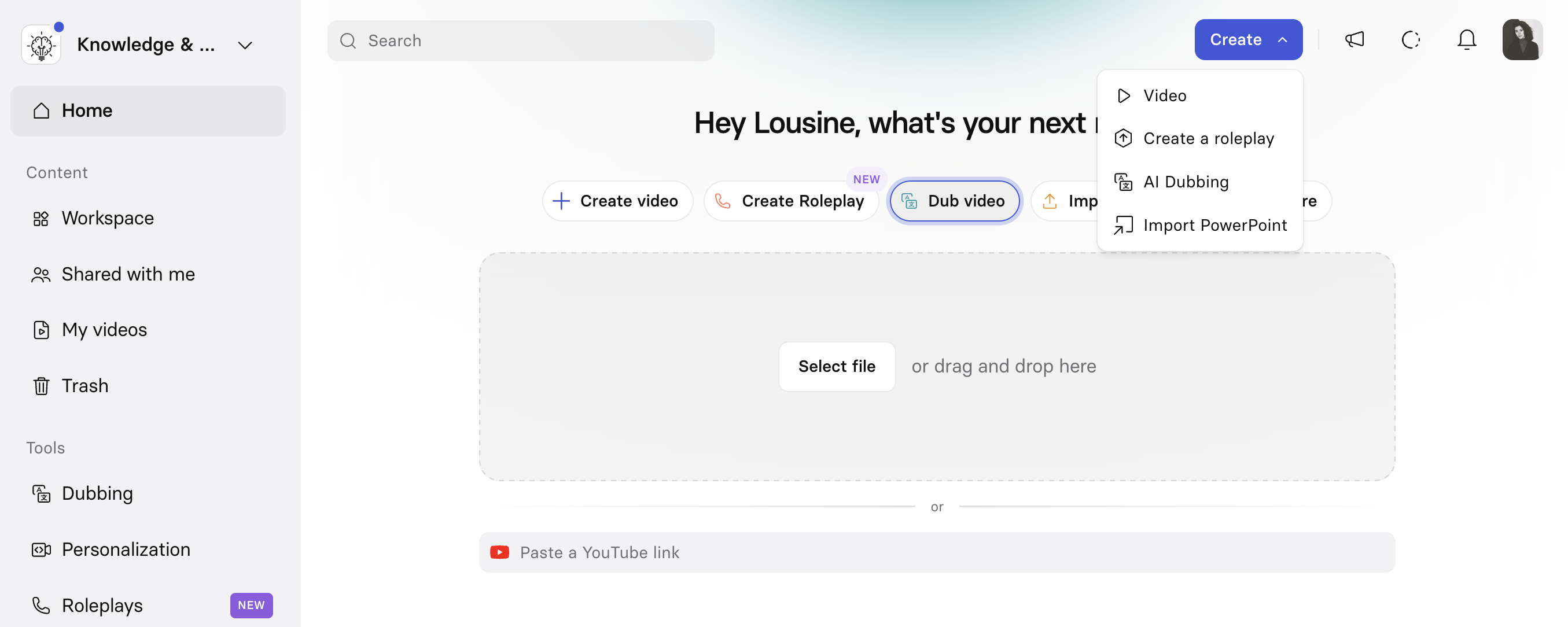
You can upload a video file or use a YouTube link to dub your existing video content:
| Option | Details |
| ------------ | ------------------------------------------------------------------------------------------------------------------------------------------------------------------------------- |
| Upload | **Supported formats**: `.mp4`, `.webm`, `.mov`**Size**: Up to 5GB or 2.5 hours**Resolution**: Up to 4K (3840×2160)**Frame rates**: 23.98–60 fps**Audio sample rates**: 8–96 kHz |
| YouTube link | No duration limit. YouTube imports don't run asynchronously and don't show upload progress. |
### To dub a video
1. From your desired entry-point, select your source video(s):
2. **Upload**: Select the upload area to choose a file, or drag your video in. Uploads run asynchronously—you can start a new dub before an upload finishes. You can [dub 10 videos in bulk](#bulk-dubbing) from the Dubbing page.
3. **YouTube link**: Paste a YouTube video link.
4. Under `Translate to`, select one or more target languages. See [Supported dubbing target languages](#supported-dubbing-target-languages) for the full list.
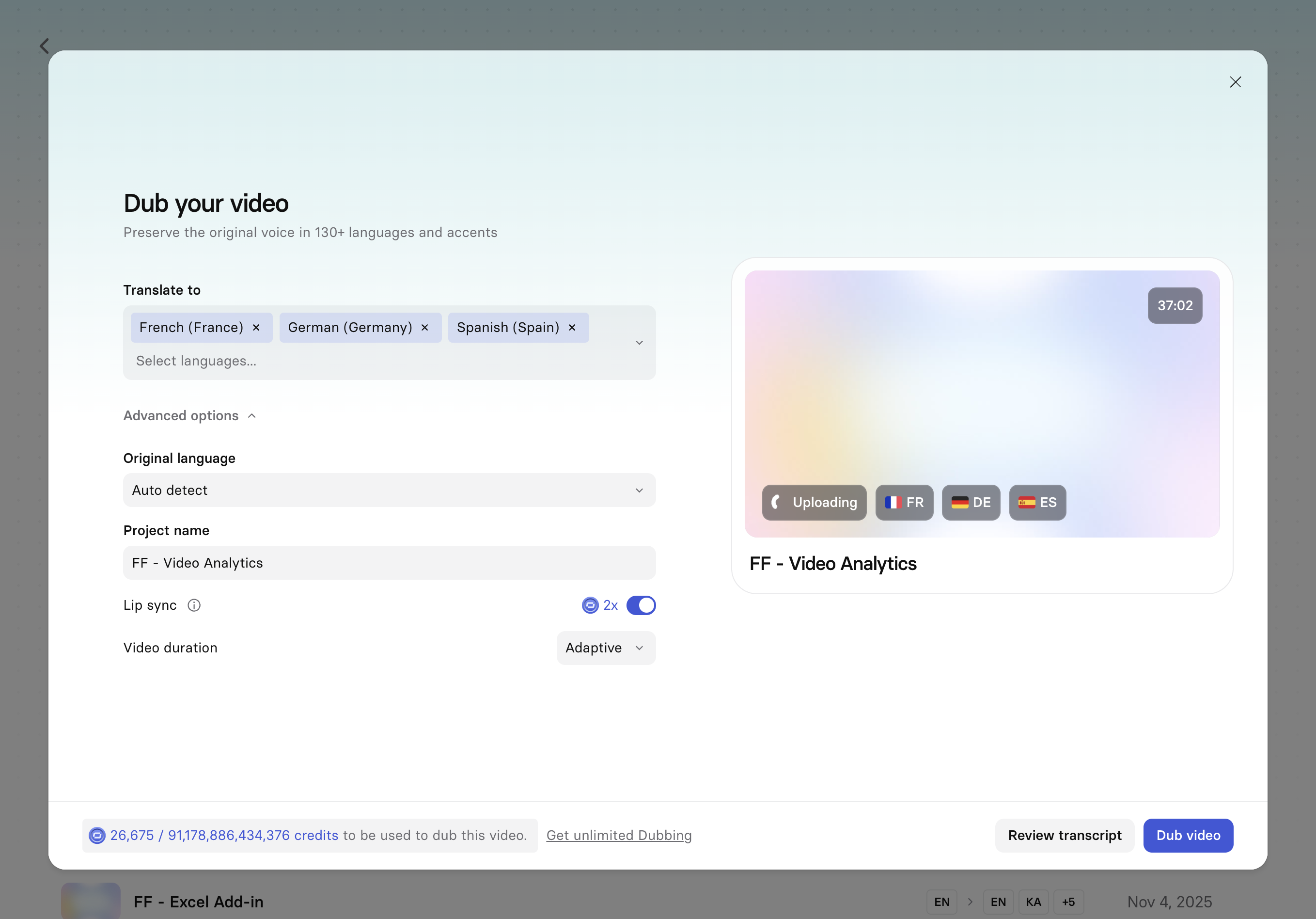
5. Optionally, expand `Advanced options` to set:
* **Original language**: auto-detected by default. Change it if detection is wrong. See [Supported original languages](#supported-original-languages) for the full list.
* **Project name**: a name for this dubbing project, prefilled from the source file's name.
* **Lip sync**: Sync the speaker's lip movements to the translated voiceover. This option consumes twice as many credits.
* **Video duration**:
* **Adaptive** (default): The dubbed video's speed adjusts to fit the translation, so it sounds more natural in each language. Best for instructional content, where playback-speed changes are less noticeable and natural voiceover pacing matters for comprehension.
* **Original**: The dubbed video plays at the same speed as the original, with speed adjustments applied only to the voiceover. Best suited for fast-paced, persuasive content where playback-speed changes would reduce perceived quality.
6. Choose how to proceed:
* Select `Review transcript` to transcribe the video first, so you can preview and correct the transcript before dubbing. This step is free and doesn't consume credits.
* Select `Dub video` to start dubbing directly, using the automatic transcript.
### Transcript editing is an Enterprise feature.
`Review transcript` requires transcript-editing access, which is available on Enterprise plans. Self-serve plans skip directly to `Dub video`.
Before you dub, the modal shows a credit estimate for the video, which varies based on the video's duration and whether lip sync is enabled.
You can start another dub immediately without waiting for the current one to finish.
### Note:
See [Dub multiple videos at once](#bulk-dubbing) below—you can upload up to 10 videos in a single batch.
## Track dubbing progress
Once you initiate dubbing, the translation progress panel will open up in the bottom-left. You can minimize or close this panel without impacting your dubbing project. The progress panel gives you a persistent, per-video view of your dubbing jobs—what's in progress, what's finished, and what's failed—with links directly to finished videos.
Once your files have finished dubbing, you'll get an in-app notification.

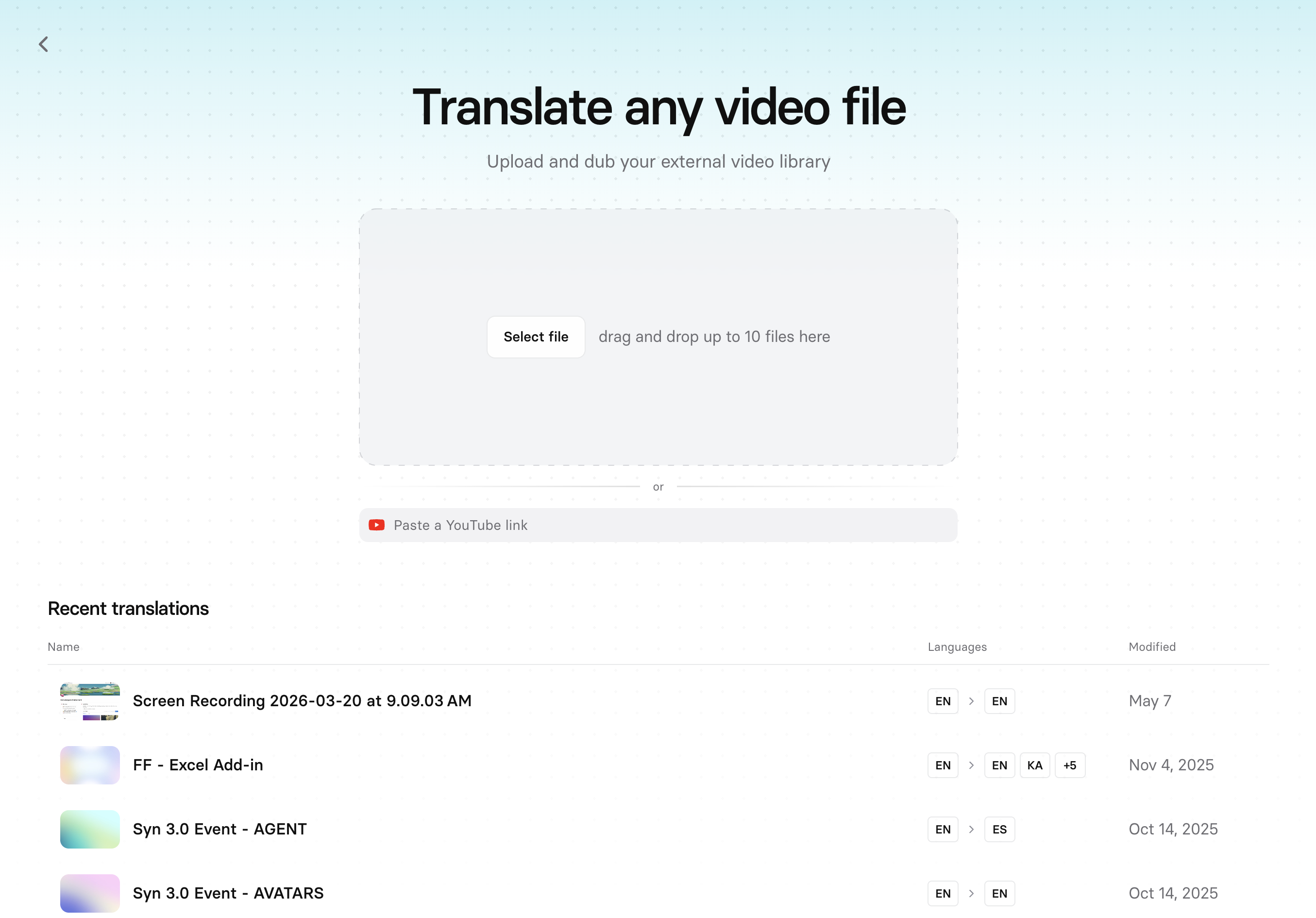
## The Dubbing page
`Dubbing` in the Tools section of the left-hand navigation menu to open the Dubbing page, which lists your recently dubbed videos. If you haven't dubbed a video yet, the Dubbing page shows a set of pre-dubbed example videos to help you get started.
## Filter My Videos for dubbed content
In My Videos, you can filter the view to show only dubbed videos.
# Edit a dubbed video
### Editing the transcript or dubbed translation is an Enterprise plan capability.
### Note:
Proofreading and retranslating dubbed videos doesn't consume additional credits.
## Proofread and correct the transcript
After a dubbed video finishes generating, you can edit the translated script to fix errors, adjust segments, or improve accuracy.
1. Watch the dubbed video to verify accuracy.
2. Open the video in the editor.
3. Select a line in the script box to edit it.
4. Make your changes, then select the checkmark to confirm.
5. To preview a line, highlight the paragraph and select the preview button at the top-left of the script box.
6. Select `Generate` to apply changes and republish the video.
Editing the transcript gives you control over dubbing accuracy:
* **Correct errors**: Fix misheard company names or technical terminology.
* **Fix speaker attribution**: Select a speaker's name on a segment to reassign it to a different speaker, create a new speaker, or rename speakers. See [Reassign, create, or rename speakers](#reassign-create-or-rename-speakers) below.
* **Adapt tone or phrasing**: Adjust phrasing for local markets or communication styles.
* **Split or merge segments**: Adjust sentence divisions so the translation sounds natural.
* **Sync**: Subtitles stay in sync with your transcript edits automatically.
* **Retranslate**: Re-sync the dubbed video with one click after updating the transcript. Retranslation affects the whole video—any manual edits to the previous translated version are lost.
## Reassign, create, or rename speakers
If Synthesia misidentifies who's speaking in a particular segment, you can reassign the detected speaker:
1. Open a dubbed video's transcript for editing.
2. Select a speaker's name on the segment you want to fix.
1. Choose an existing speaker to move that segment to them, or create a new speaker if this speaker was never identified as distinct in the video. Creating a speaker builds a new voice clone from the audio in that segment.
2. You can also rename any speaker to replace generic labels like "Speaker 1" and "Speaker 2" with real names.
## Change the voice(s) used in dubbed videos
If the initial audio quality is poor or if you require a specific regional accent, you can replace the cloned voice in a dubbed video with a stock voice or a [voice clone](https://docs.synthesia.io/docs/custom-voices).
1. Dub your video.
2. Open a translated version for editing.
3. Select a voice for each speaker you want to replace. When replacing the voice, the gender of the original speaker isn't taken into account—you can select any voice available on your account.
4. Select `Generate` to regenerate the dubbed video with the new voice.
### Note:
- You can't replace the speaker's voice in the original video; you can only replace it in the dubbed versions. If you want a version of the video in its original language with a different voice, dub the video into its original language, then switch the voice in that dubbed version.
- The first version of each dubbed video is always created with a cloned version of the original speaker's voice. Switch to a different voice in the editor afterward and regenerate the video if needed.
# Re-dub or add languages later
From the original video's Video Overview page, select `Translate` to reopen the Dubbing modal for that video. Use this to add more target languages to a video you've already dubbed, or to correct an error in the original transcript and re-dub from the corrected source—without starting a new dub from scratch.
# Bulk dubbing
Upload up to 10 videos in a single batch directly from the Dubbing page.
1. Select `Dubbing` in the main sidebar.
2. Drop up to 10 video files onto the Dubbing page, or select them using the file picker.
3. Configure your settings once: target languages, full dub or subtitles only, lip sync, and video timing. Settings apply to every video in the batch.
4. Review each video's thumbnail, upload progress, and status. Rename individual videos or remove them before you submit.
5. Source language is detected automatically per video. You only set a language manually if detection fails for that file.
6. Review the credit estimate for the whole batch, then select `Submit`.
Uploads and dubbing run in the background, so you can keep working while the batch processes.
**Limitations:**
* Maximum 10 videos per batch. For larger volumes, use the [Dubbing API](https://docs.synthesia.io/reference/dubbing).
* Uploads only: YouTube links and existing Studio videos still use the single-video flow.
* The Review Transcript step isn't available in the bulk flow.
* Settings are shared across all videos in the batch. The only per-video controls are the name and source language (when auto-detection fails).
* If a video's own language is also one of the batch's target languages, that language is skipped for that video and not dubbed.
## Dub using the API or Excel
If you have a large catalog of videos to dub, you can dub videos in bulk with our [Dubbing API](https://docs.synthesia.io/reference/dubbing).
You can also use the [Synthesia Add-in for Excel](https://docs.synthesia.io/docs/excel-add-in) to dub videos directly from an Excel spreadsheet.
# Supported languages for dubbing
## Supported original languages
The following languages are supported as original language:
Afrikaans, Amharic, Albanian, Arabic, Armenian, Assamese, Azerbaijani, Bashkir, Basque, Belarusian, Bangla, Bosnian, Breton, Bulgarian, Burmese, Catalan, Chinese, Croatian, Czech, Danish, Dutch, English, Estonian, Faroese, Finnish, French, Galician, Georgian, German, Greek, Gujarati, Haitian Creole, Hausa, Hawaiian, Hebrew, Hindi, Hungarian, Icelandic, Indonesian, Italian, Japanese, Javanese, Kannada, Kazakh, Khmer, Korean, Lao, Latin, Latvian, Lingala, Lithuanian, Luxembourgish, Macedonian, Malagasy, Malay, Malayalam, Maltese, Māori, Marathi, Mongolian, Nepali, Norwegian, Norwegian Nynorsk, Occitan, Punjabi, Pashto, Persian, Polish, Portuguese, Romanian, Russian, Sanskrit, Serbian, Shona, Sindhi, Sinhala, Slovak, Slovenian, Somali, Spanish, Sundanese, Swahili, Swedish, Filipino, Tajik, Tamil, Tatar, Telugu, Thai, Tibetan, Turkish, Turkmen, Ukrainian, Urdu, Uzbek, Vietnamese, Welsh, Yiddish, Yoruba
## Supported dubbing target languages
Self-serve plans (Basic, Starter, Pro) support the following target languages:
Afrikaans, Arabic, Armenian, Assamese, Azerbaijani, Bangla, Belarusian, Bosnian, Bulgarian, Catalan, Cebuano, Chichewa, Chinese, Croatian, Czech, Danish, Dutch, English, Estonian, Filipino, Finnish, French, Galician, Georgian, German, Greek, Gujarati, Hausa, Hebrew, Hindi, Hungarian, Icelandic, Indonesian, Irish, Italian, Japanese, Javanese, Kannada, Kazakh, Korean, Kyrgyz, Latvian, Lingala, Lithuanian, Luxembourgish, Macedonian, Malay, Malayalam, Marathi, Nepali, Norwegian, Pashto, Persian, Polish, Portuguese, Punjabi, Romanian, Russian, Serbian, Sindhi, Slovak, Slovenian, Somali, Spanish, Swahili, Swedish, Tamil, Telugu, Thai, Turkish, Ukrainian, Urdu, Vietnamese, Welsh
Enterprise plans additionally break these out into regional locales, for a total of 135 languages and locales:
Afrikaans, Arabic (Algeria), Arabic (Bahrain), Arabic (Egypt), Arabic (Iraq), Arabic (Jordan), Arabic (Kuwait), Arabic (Libya), Arabic (Morocco), Arabic (Qatar), Arabic (Saudi Arabia), Arabic (Syria), Arabic (Tunisia), Arabic (United Arab Emirates), Arabic (Yemen), Armenian, Assamese, Azerbaijani, Bangla, Belarusian, Bosnian, Bulgarian, Catalan, Cebuano, Chichewa, Chinese (Hong Kong), Chinese (Simplified), Chinese (Traditional), Croatian, Czech, Danish, Dutch (Belgium), Dutch (Netherlands), English (Australia), English (Canada), English (Hong Kong), English (India), English (Ireland), English (Kenya), English (Mexico), English (New Zealand), English (Nigeria), English (Philippines), English (Singapore), English (South Africa), English (Tanzania), English (United Kingdom), English (United States), Estonian, Filipino, Finnish, French (Belgium), French (Canada), French (France), French (Switzerland), Galician, Georgian, German (Austria), German (Germany), German (Switzerland), Greek, Gujarati, Hausa, Hebrew, Hindi, Hungarian, Icelandic, Indonesian, Irish, Italian, Japanese, Javanese, Kannada, Kazakh, Korean, Kyrgyz, Latvian, Lingala, Lithuanian, Luxembourgish, Macedonian, Malay, Malayalam, Marathi, Nepali, Norwegian Bokmål, Norwegian Nynorsk, Pashto, Persian, Polish, Portuguese (Brazil), Portuguese (Portugal), Punjabi, Romanian, Russian, Serbian, Sindhi, Slovak, Slovenian, Somali, Spanish (Argentina), Spanish (Bolivia), Spanish (Chile), Spanish (Colombia), Spanish (Costa Rica), Spanish (Cuba), Spanish (Dominican Republic), Spanish (Ecuador), Spanish (El Salvador), Spanish (Equatorial Guinea), Spanish (Guatemala), Spanish (Honduras), Spanish (Latin America), Spanish (Mexico), Spanish (Nicaragua), Spanish (Panama), Spanish (Paraguay), Spanish (Peru), Spanish (Puerto Rico), Spanish (Spain), Spanish (United States), Spanish (Uruguay), Spanish (Venezuela), Swahili, Swedish, Tamil (India), Tamil (Singapore), Tamil (Sri Lanka), Telugu, Thai, Turkish, Ukrainian, Urdu, Vietnamese, Welsh
# Sibling pages
* [Syren](https://docs.synthesia.io/docs/syren.md)
* [Bulk personalization](https://docs.synthesia.io/docs/bulk-personalization.md)
* [AI Playground](https://docs.synthesia.io/docs/ai-playground.md)
# What’s Next
* [How do I dub a video? - Synthesia Knowledge Base](https://help.synthesia.io/en/articles/10054222-how-do-i-dub-a-video-internal)
* [AI Dubbing: Content Best Practices - Synthesia Knowledge Base](https://help.synthesia.io/en/articles/11831910-ai-dubbing-content-best-practices)
* [Can I edit translations for dubbed videos? - Synthesia Knowledge Base](https://help.synthesia.io/en/articles/11681401-can-i-edit-translations-for-dubbed-videos)