---
updatedAt: 2026-09-22T16:26:54.000Z
---
Fetch the complete documentation index at: https://docs.synthesia.io/llms.txt. Use this file to discover all available pages before exploring further. Append .md to any documentation page URL to get its markdown version.
# Avatars
Browse and manage custom Avatars, shared Avatars, and Synthesia stock Avatars.
This is where every avatar available to you lives: Synthesia's stock library, the ones you've created yourself, and any shared with you by teammates. From here, you can start a new video, preview or customize an avatar, and manage sharing and other settings.
This is also where you can [create your own custom avatars](#custom-avatars).
Avatars are arranged in tabs ([`From Synthesia`](#from-synthesia), [`My Avatars`](#my-avatars), [`Shared with me`](#shared-with-me)). On each tab, avatars are grouped into named sections—`Express-3`, `Express-2`, and `Classic`—reflecting the underlying avatar model. This is the same grouping used in the avatar picker inside the editor; see [Identifying avatar types in the picker](https://docs.synthesia.io/docs/avatar#identifying-avatar-types-in-the-picker) for what each group supports.
## Avatar actions
Hovering over an avatar's thumbnail—on any of the three tabs below—surfaces a set of quick actions. Which ones you see depends on the avatar's type.
`Create video`: available on every avatar. Starts a new video with that avatar already added.
`Preview`: shows how the avatar sounds and looks in motion, without leaving the page. Whether it's available depends on the avatar's type:
* **Stock Personal Avatars** and **stock Studio Avatars**: always previewable.
* **Stock customizable avatars**: previewable in most cases, though a small number aren't.
* **Personal avatars from photo** (your own, or ones shared with you) can't be previewed.
Where a preview is available, select the thumbnail, then select the play button in the preview modal.
`Customize`: available on customizable avatars only (stock and custom). Opens the same customization modal you'd reach from the avatar picker in the editor—see [Customize an avatar: from the avatar picker](https://docs.synthesia.io/docs/avatar#from-the-avatar-picker) for what it can do.
`•••`** menu**: covers sharing, renaming, deleting, and copying an avatar's ID. Copying the ID is handy if you want to reference that avatar from the [Synthesia API](https://docs.synthesia.io/reference) or in [Bulk personalization](https://docs.synthesia.io/docs/bulk-personalization). See [Managing your avatars](#managing-your-avatars) below for the full set of options.
# From Synthesia
Our full library of professional, ready-to-use stock Synthesia Avatars.
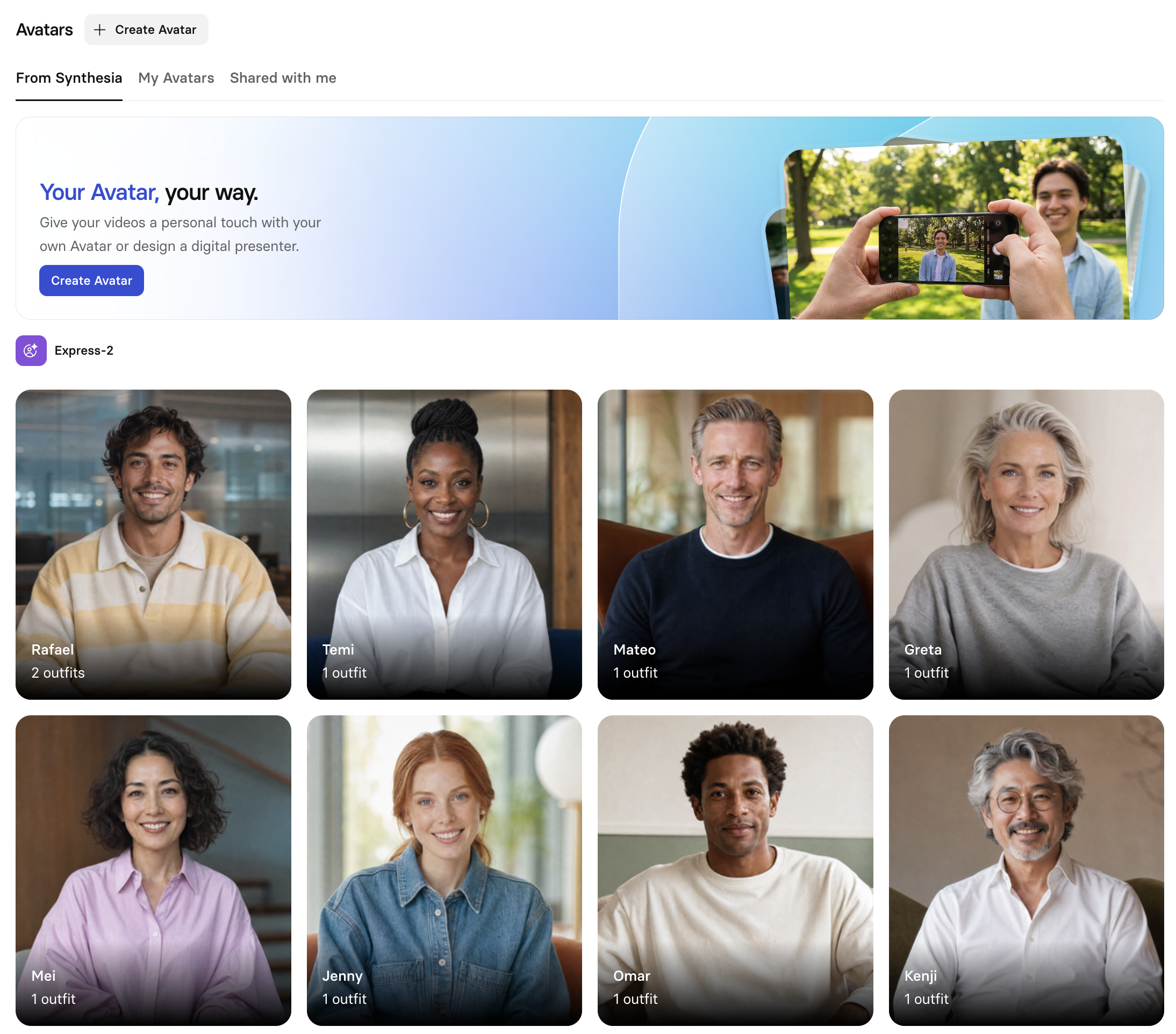
Synthesia's stock avatars are created from video footage of real actors who have given their consent.
Whether an avatar is customizable is implied by the caption under its name, rather than by a badge or logo:
* **Customizable avatars** (`Express-3`, `Express-2`) show how many outfits they have, for example `2 outfits`.
* **Non-customizable avatars** (`Express-1`, `Classic`) show a short description of their single look instead, for example `Orange T-shirt`.
This page doesn't indicate multi-cam support—that's shown in the avatar picker inside the editor instead.
# My Avatars
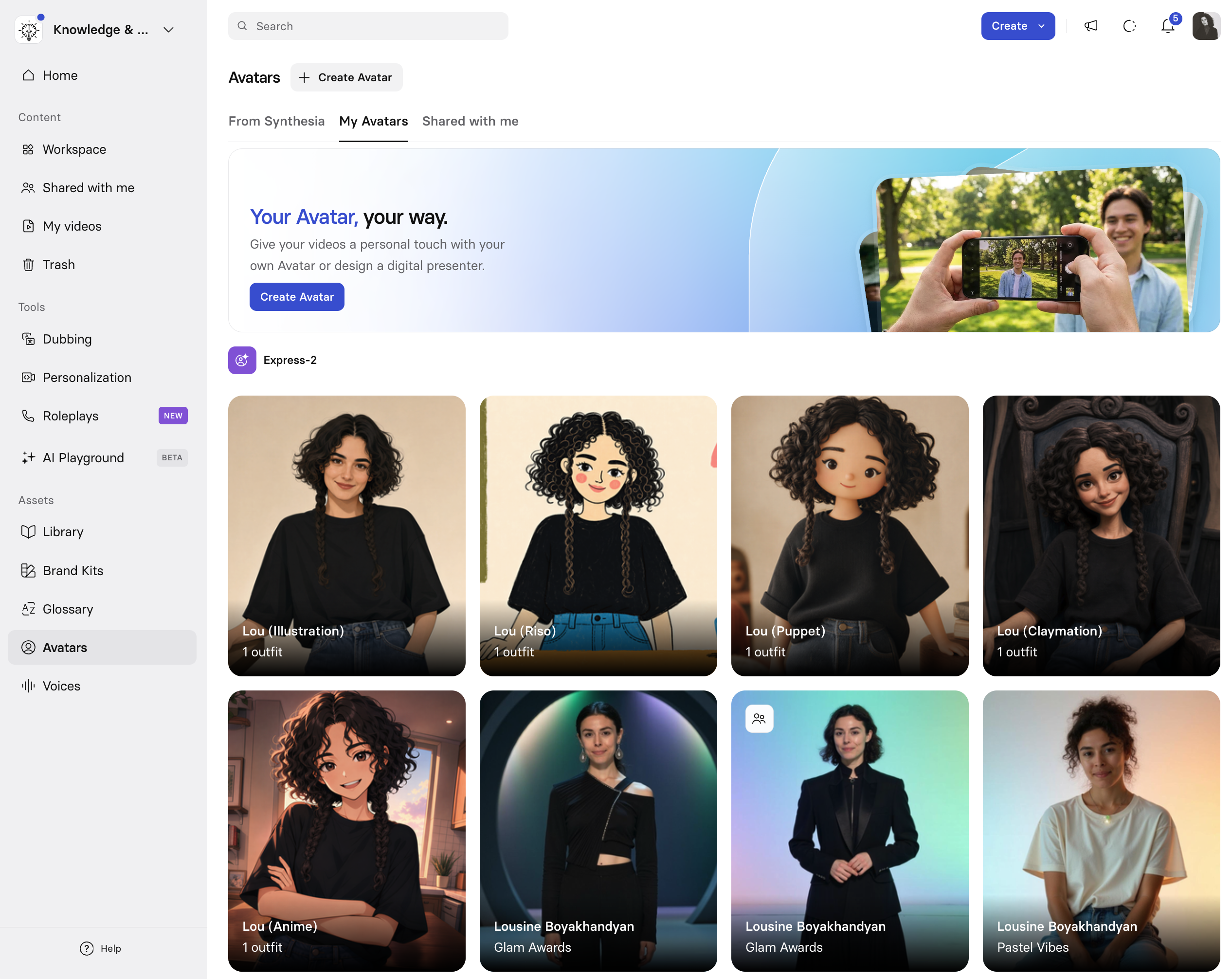
These are your custom avatars. Create, browse, and manage the avatars that represent you. This includes your custom Studio avatars, Personal avatars from photo, and legacy Personal avatars from video.
# Shared with me
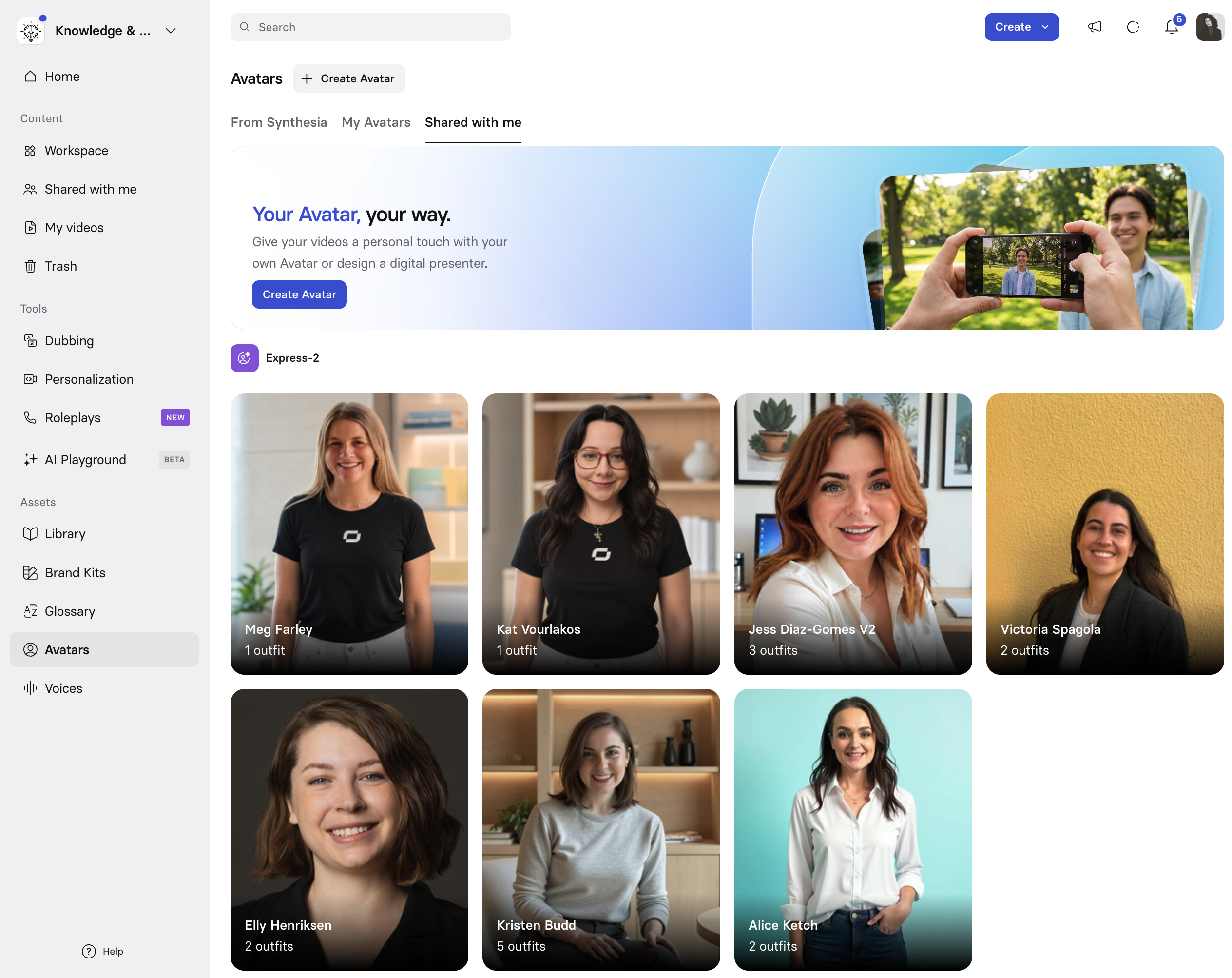
Avatars your team has shared with you. Ready to use in your videos.
# Custom avatars
There are three types of custom avatars: [Personal avatar from photo](#personal-avatar-from-photo) (customizable), [Personal avatar from video](#personal-avatar-from-video-legacy) (legacy), and [Studio avatars](#studio-avatars).
Click on `+ Create Avatar` in the upper left corner of the page in order to create a Custom Avatar.
## Personal avatar from photo
Personal avatars from photo are customizable, so they support outfits, spaces, poses, and image and B-roll generation.
* See [Avatar](https://docs.synthesia.io/docs/avatar#customizable-avatars) for how to add, customize, and use them in a scene.
* See [Create an Avatar](https://docs.synthesia.io/docs/personal-avatars#personal-avatars-from-photo) to learn how to create them.
## Personal avatar from video (legacy)
Personal Avatars allow you to create Avatars using your own likeness, background and voice.
See [Personal Avatars](https://docs.synthesia.io/docs/personal-avatars#personal-avatars-from-video-recorded-or-uploaded) to learn more about how to create one, along with all of our tips, tricks, and best practices.
## Studio avatars
### Studio avatars are a paid add-on.
Studio Avatars, like our Stock Avatars, leverage our Express-1 model to drive their performance. This results in performances that are astonishingly naturalistic and human-like.
See [Studio Avatars](https://docs.synthesia.io/docs/studio-avatars) to learn more about how to create one, along with best practices for capturing your footage.
## Managing your avatars
### Custom Avatar sharing
### Avatar and Voice sharing are only available on Synthesia's Enterprise plan.
After you create an avatar, it will only be available to you, and only accessible from the account that you were logged into when you created it. You can share it with any team member in your workspace, or with the entire workspace.
### **Note:**
Avatars and voices are shared individually. Sharing an avatar does not automatically share the corresponding voice. [The process for sharing a voice](https://docs.synthesia.io/docs/custom-voices#voice-sharing) is identical to the process for sharing an avatar.
For customizable avatars—Synthesia's customizable avatars and Personal avatars from photo—you can share either the base persona (Person) or [just an outfit](#sharing-a-customizable-avatars-outfit-or-space). Sharing the Person allows the teammates/Workspace that you shared it with to create new outfits for it.
[Sharing an Outfit doesn't share the base persona](#sharing-a-customizable-avatars-outfit-or-space). The recipient gets **implicit, read-only** access to the Person only through that specific Outfit—they can use it in videos and generate new Spaces for it, but they can't edit or regenerate the Outfit itself, create new Outfits from that Person, or access any of the Person's other Outfits unless those are shared separately too.
Go to the Avatars page in your Synthesia account and find the avatar you want to share.
**To share it with a specific user, or several users**:
1. Open up the 3-dot menu and select `Share`.
2. Type the names of the users you'd like to share it with in the `Select users` field, or click on the dropdown button for that field to find them in a list of workspace users.
3. Click the `Share` button next to the `Select users` field to share your avatar.
**To share it with the entire workspace**:
1. Open up the 3-dot menu and select `Share`.
2. In the bottom-left of the Share menu, click on the `Invite only` dropdown.
3. Select the `Shared with _Your Workspace Name_` option.
### You can return to the Share menu anytime to:
- Manage users your avatar is shared with (add or remove access)
- Switch between sharing your avatar with the entire workspace or with specific users
### **Note:**
- If the option to share your avatar with the entire workspace is grayed out, your workspace admin has likely disabled this functionality. Contact them for further instructions.
- You can only share your avatar within the workspace it exists in. If you need to share an avatar with another workspace, contact Support and provide them with:
- The avatar ID (via `Copy ID` in the options menu)
- The workspace you'd like to create a copy of the avatar in
#### Sharing a customizable avatar's outfit or space
For customizable avatars—Synthesia's customizable avatars and Personal avatars from photo—you can share either the base persona (Person) or just an outfit. Sharing the Person allows the teammates/Workspace that you shared it with to create new outfits for it, but sharing the Outfit limits teammates to only using that outfit—they can't create any new ones for your avatar.
1. Select the specific Outfit (or Space) you want to share—not the underlying avatar itself.
2. Open its 3-dot menu and select `Share`, then share with a team member or the entire workspace, the same way you would for any other avatar.
#### How to remove access to your avatar
**For a specific user**:
1. Open up the 3-dot menu and select `Share`.
2. Find the user in the list of users and click on the `Shared` dropdown.
3. Select the `Remove` option.
**For the entire workspace**:
1. Open up the 3-dot menu and select `Share`.
2. In the bottom-left of the Share menu, click on the `Shared with _Your Workspace Name_` dropdown.
3. Select the `Invite only` option.
### Important:
Removing access doesn't retroactively remove the avatar from already-generated videos by other users. They'll have to replace the avatar in each video the avatar has been used in, regenerate them, and republish them.
### Adding a customizable avatar to your Brand Kit
You can assign a customizable avatar's Outfit to your workspace's Brand Kit, so it's easy to reuse consistently across videos. See [Brand kits](https://docs.synthesia.io/docs/brand-kits) to learn more about setting up and managing your workspace's Brand Kit.
### **Note:**
Spaces can't currently be added to a Brand Kit—only the avatar-and-outfit combination can.
### Permissions and notifications
* Avatar owners can grant and revoke access at any time.
* If someone shares an avatar with you, you'll get:
* An email notification.
* An in-product notification.
### How to rename an avatar
Use the 3-dot menu on a Personal Avatar and select `Rename` to give it a new name. You can only rename Personal Avatars.
### How to delete an avatar
### Deleting an avatar will permanently delete it and all data associated with it. This action cannot be undone.
Deleting an avatar will not remove it from any videos that have already been generated with it, but if you need to update and regenerate any of those videos, you'll have to replace the deleted avatar.
You can delete Custom Avatars created with the Avatar Builder and your own Personal Avatars yourself.
Use the 3-dot menu on a Custom Avatar and select the `Delete` option to delete it. You will be prompted to confirm this action before the avatar is deleted.
You cannot delete Studio Avatars yourself.
**To delete your Studio Avatar**:
1. Copy the avatar ID by selecting the `Copy ID` option from the 3-dot menu.
2. Email Synthesia support and provide the avatar ID for the avatar you want to delete.
#### Shared avatars
You cannot delete avatars that have been shared with you. Instead, you'll have to remove yourself from the list of users the avatar has been shared with.
**To remove your access to a shared avatar**:
1. Go to the Avatars page in your Synthesia account.
2. Find the avatar you want to remove your access from.
3. Open up the 3-dot menu and select `Share`.
4. Find your name in the list of users and click on the `Shared` dropdown.
5. Select the `Remove` option.
# Sub pages
* [Create an Avatar](https://docs.synthesia.io/docs/personal-avatars.md)
* [Avatar Builder](https://docs.synthesia.io/docs/avatar-builder.md)
* [Studio Avatars](https://docs.synthesia.io/docs/studio-avatars.md)
# Sibling pages
* [Library](https://docs.synthesia.io/docs/library.md)
* [Brand kits](https://docs.synthesia.io/docs/brand-kits.md)
* [Glossary](https://docs.synthesia.io/docs/translation-glossary.md)
* [Voices](https://docs.synthesia.io/docs/custom-voices.md)
# What’s Next
* [How do I create my Personal Avatar? - Synthesia Knowledge Base](https://help.synthesia.io/en/articles/9453224-how-do-i-create-my-personal-avatar)
* [How to use the Synthesia Avatar Builder? - Synthesia Knowledge Base](https://help.synthesia.io/en/articles/8662981-how-to-use-the-synthesia-avatar-builder)
* [How do I create a Studio Avatar? - Synthesia Knowledge Base](https://help.synthesia.io/en/articles/8438686-how-do-i-create-a-studio-avatar)
* [How do I use the Synthesia Avatar Builder? - Synthesia Knowledge Base](https://help.synthesia.io/en/articles/8662981-how-do-i-use-the-synthesia-avatar-builder)
* [Who has access to my Custom Avatar? - Synthesia Knowledge Base](https://help.synthesia.io/en/articles/9490143-who-has-access-to-my-custom-avatar)
* [How do I share avatars and voices with my team? - Synthesia Knowledge Base](https://help.synthesia.io/en/articles/11481432-how-do-i-share-avatars-and-voices-with-my-team)